
Appearance
Output Routing
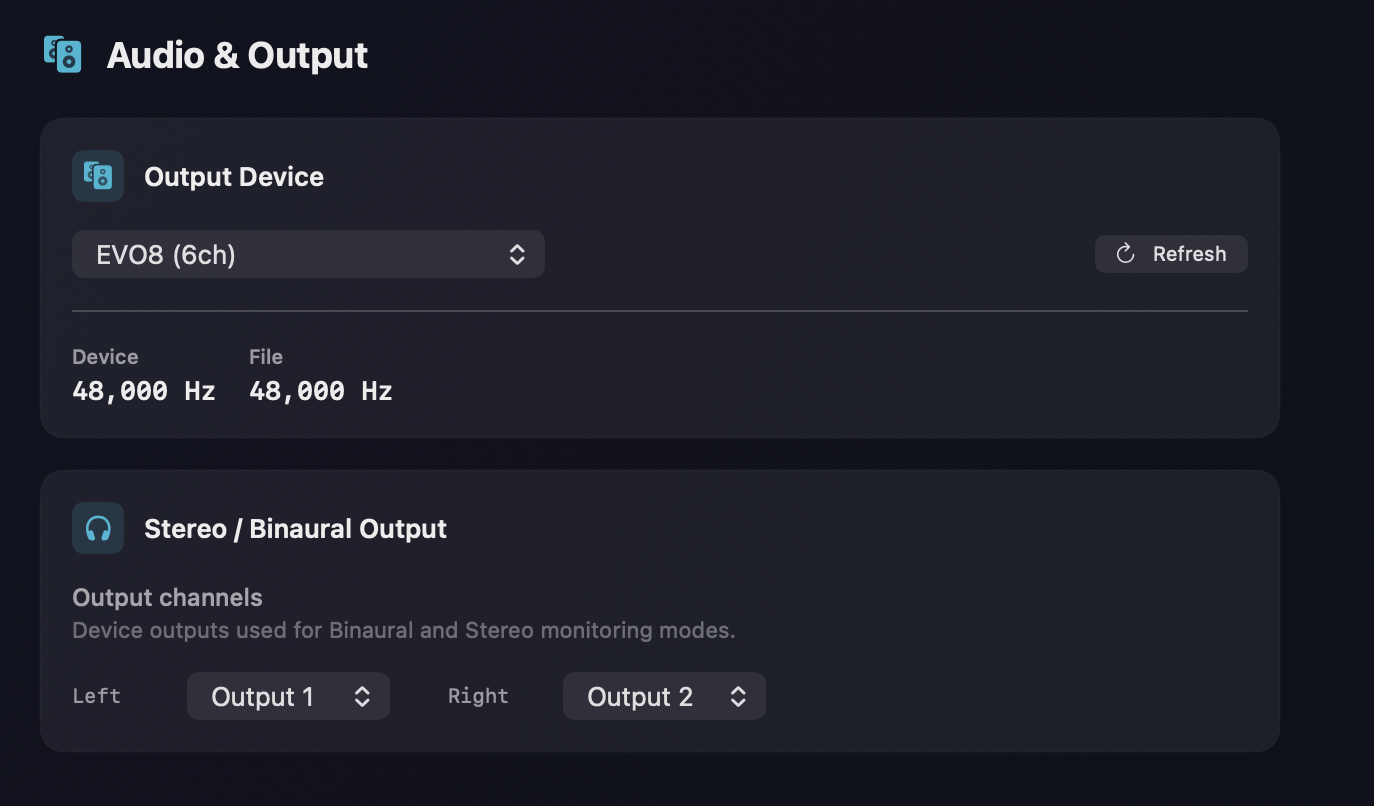
Orbit Lite lets you choose your output device and route channels to it. Device selection lives in Preferences ▸ Audio & Output; speaker layouts and the routing matrix live in Preferences ▸ Speaker Layout & Routing.
Output device
Pick your interface or output in the Output Device menu, and use Refresh to pick up a newly-connected device. The pane also shows the Device and File sample rates side by side, so you can spot a mismatch at a glance (see Sample rate below).
The routing matrix
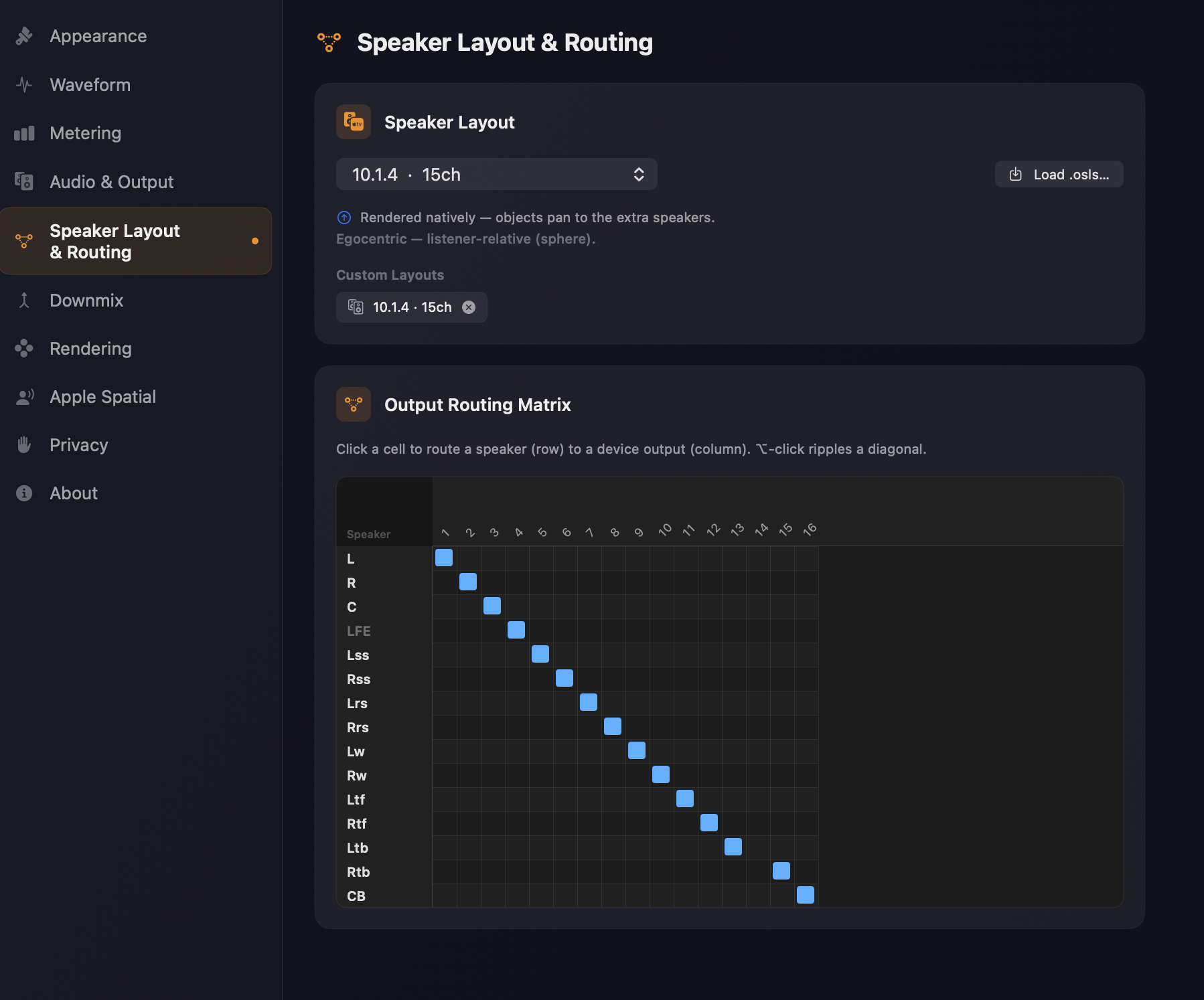
Orbit Lite now includes the same routing matrix as the full Orbit app. Patch each speaker to a device output by tapping cells in the matrix — route channels individually, or ⌥-click to ripple-route a diagonal. See Output Routing for the full matrix controls.
Stereo output
When using binaural, Apple Spatial Audio, or stereo monitoring, map the left and right channels to your device outputs.
7.1.4 output
When using 7.1.4 monitoring, map all 12 channels to your speaker array:
- L / R — Front left and right
- C — Centre
- LFE — Low-frequency effects
- Ls / Rs — Side surrounds
- Lrs / Rrs — Rear surrounds
- Ltf / Rtf — Top front left and right
- Ltr / Rtr — Top rear left and right
Orbit Lite will show a conflict indicator if two channels are assigned to the same device output.
Speaker layouts
Orbit Lite ships with a set of ready-made layouts:
| Layout | Channels | Layout | Channels | |
|---|---|---|---|---|
| Mono | 1 | 7.1 | 8 | |
| Stereo (2.0) | 2 | 5.1.4 | 10 | |
| Quad (4.0) | 4 | 7.1.2 | 10 | |
| Quad (classic corner square) | 4 | 7.1.4 | 12 | |
| 5.1 | 6 | 7.1.6 | 14 | |
| 3.1.2 | 6 | 9.1.4 | 14 | |
| 5.1.2 | 8 | 9.1.6 (wide) | 16 |
Custom layouts
Beyond the built-in set, Orbit Lite supports custom speaker layouts through OSLS (the Orbit Speaker Layout System) — describe your rig in an .osls file and Orbit Lite will output to it. Custom layouts in Orbit Lite are capped at 24 channels; the full Orbit app supports up to 64.
Sample rate
The routing sheet shows the live device sample rate alongside the file's sample rate, so you can spot a mismatch at a glance. When the two differ, a banner also appears at the top of the main window with a one-click Match device to file button — see Sample-rate matching.
Refreshing devices
If you connect a new audio device (like an interface or AirPods), use Refresh Devices to pick it up.