
Appearance
Output Routing & Devices
Output routing and device selection is handled in Preferences (⌘,). There are two main areas: Audio & Monitoring for device selection, and Speaker Layout & Routing for your multichannel output format and the routing matrix.
Device selection — Audio & Monitoring
Device selection lives in the Audio & Monitoring tab. Here you pick your output device, and the stereo output pair used for Stereo, Binaural and Apple Spatial output.
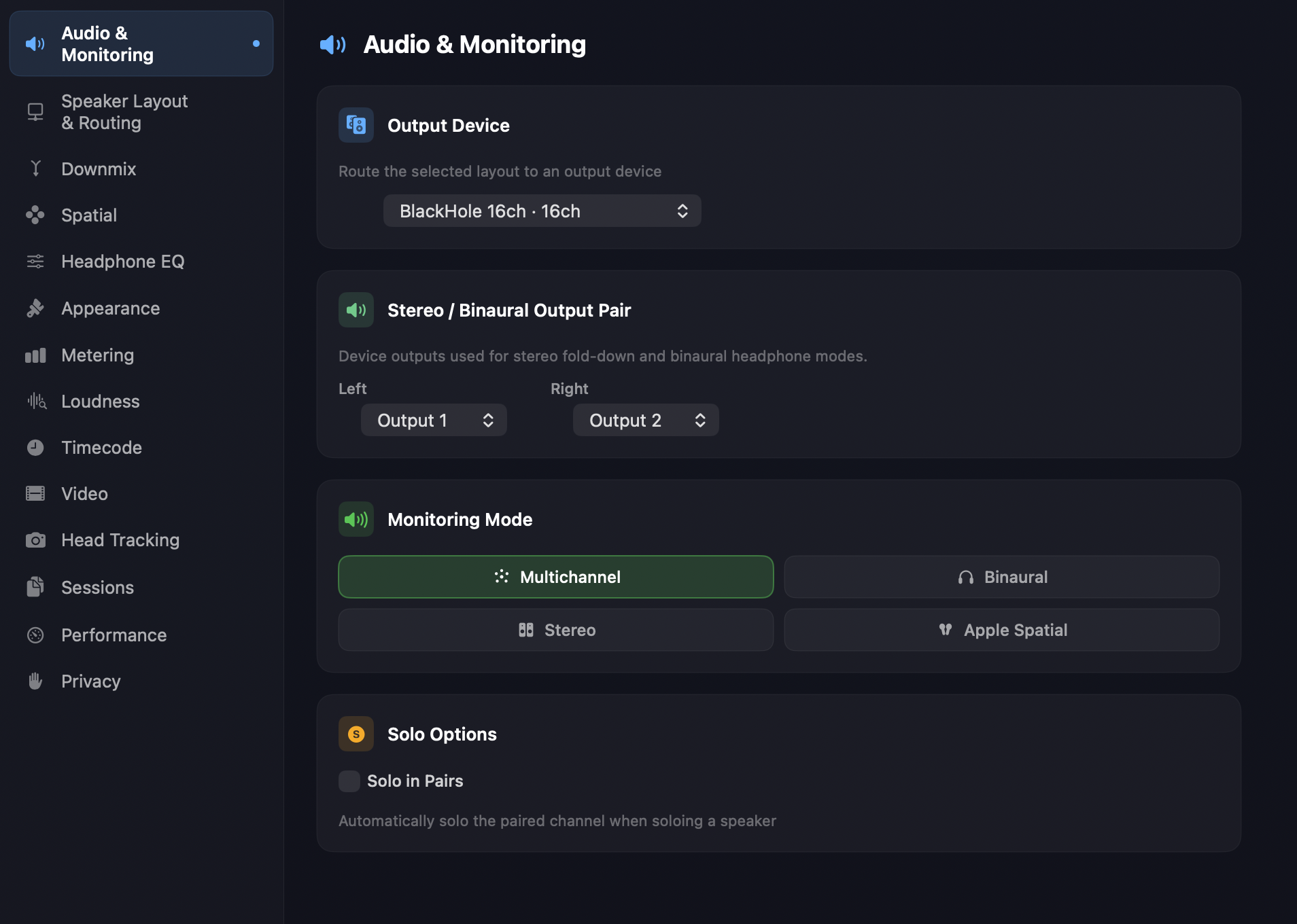
The stereo pair can be duplicated channels from your system, or set to dedicated outputs — for example 23/24 if you have a dedicated headphone or 2-channel feed. Apple Spatial Audio is typically set to outputs 1 / 2 using a pair of compatible headphones such as AirPods Max.
Speaker layout & routing
Your multichannel output format is chosen in the Speaker Layout & Routing tab. This uses OSLS (the Orbit Speaker Layout System) to define the location and channel ordering of your speaker system.
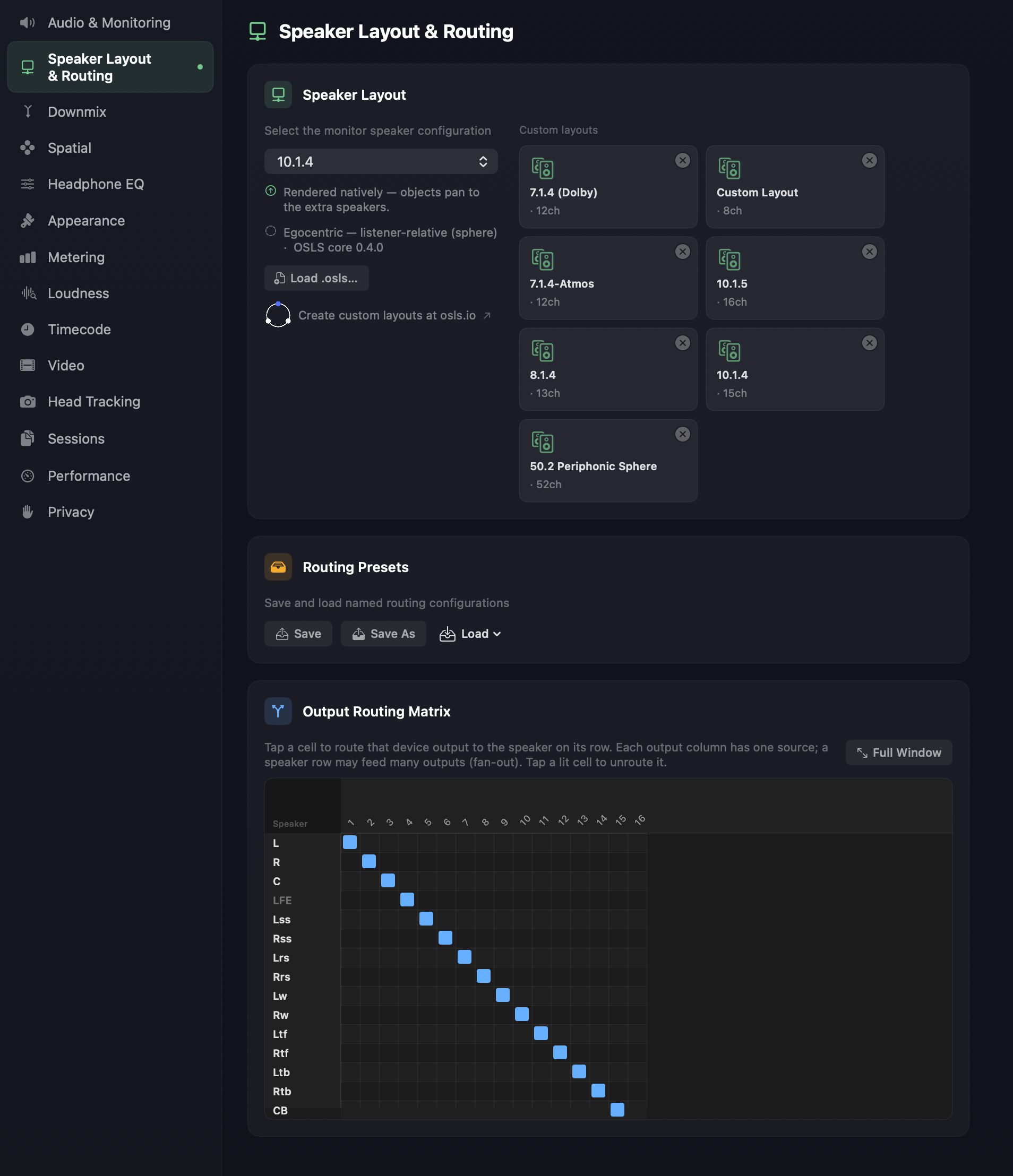
The power of OSLS is that Orbit doesn't care what system you're on — as long as you can describe it in the OSLS format, Orbit will output to it. This is what modern immersive formats like ADM and IAMF make possible, and OSLS is designed to make defining a rig easy, so we don't have to ship a fixed, curated set of speaker systems. Common formats are still provided ready-made — these are the Blessed Layouts. See OSLS for how to build or import a layout.
The routing matrix
Once you've selected an output format (or loaded an .osls file), select it and use the routing matrix to patch your outputs to your device.
- Route individually — tap a cell to route that device output to the speaker on its row. Each output column has one source, but a speaker row may feed many outputs (fan-out); tap a lit cell to unroute it.
- Ripple route — hold Option to route sequentially across a 16-channel block in one action.
- 16-channel blocks — interfaces with more than 16 channels are shown in 16-channel blocks.
- Full-window routing — for large output devices making use of the full 64-channel output, expand the matrix into its own window for full-screen routing of complex setups.
Related
- OSLS — Orbit Speaker Layout System — define and import custom speaker layouts.
- Monitor view — per-speaker solo, mute and custom groups (Orbit Pro).
- Virtual Studio configuration — set virtual speaker positions for binaural rendering.