
Appearance
Getting Started
Welcome to Orbit Lite. This page will have you playing back an ADM or IAMF file in under a minute.
On iPhone or iPad?
This page walks through the Mac app. The iPhone and iPad app works the same way with a touch layout. See Orbit Lite on iPhone & iPad.
Prefer to watch? Here's a full walkthrough of getting started with Orbit Lite 1.2:
Step by step
Getting started in Orbit Lite is super easy — here's the same walkthrough in writing.
1. Open a file from the welcome screen
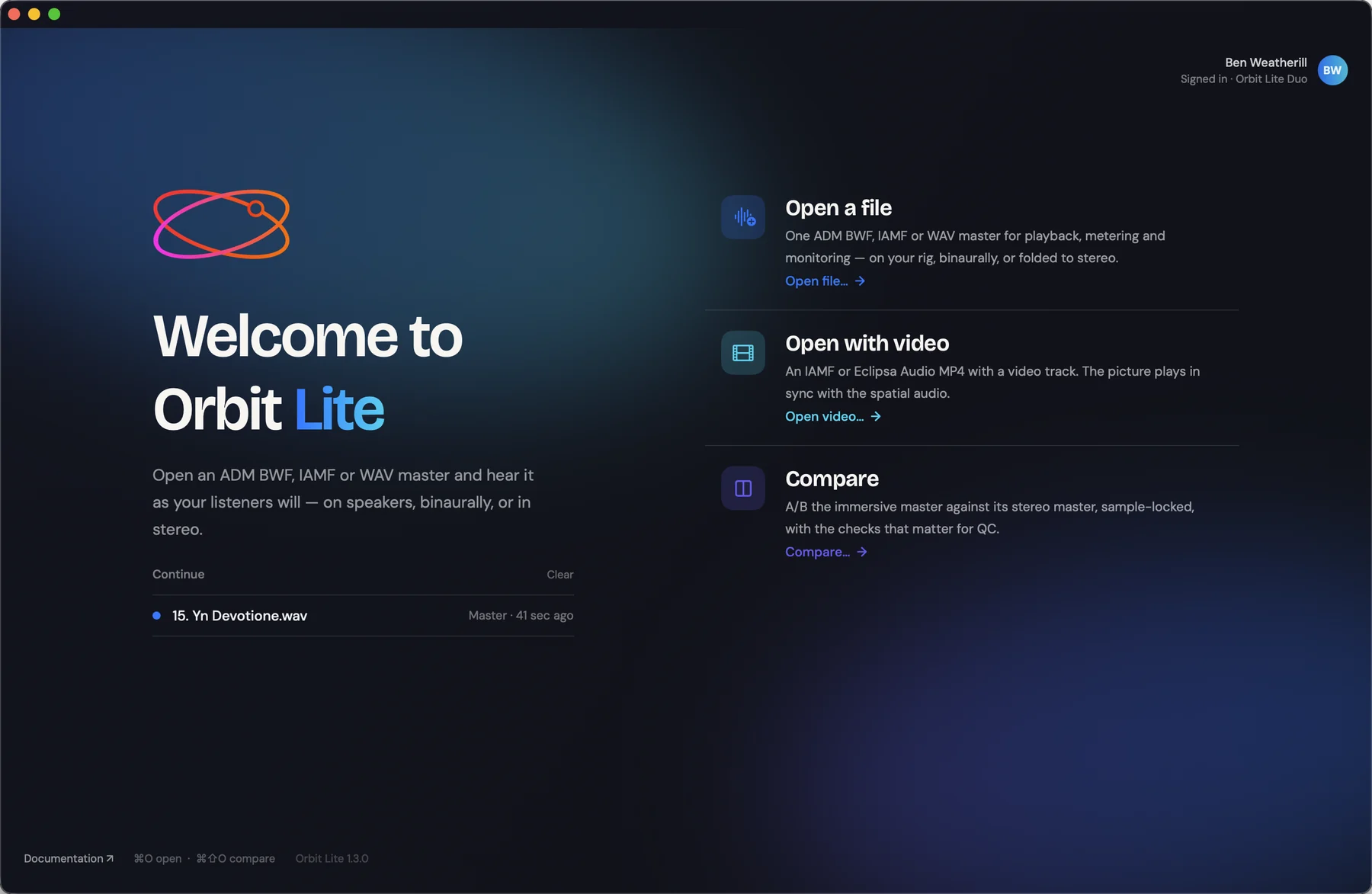
When you open Orbit Lite you're presented with the welcome screen. Choose what you want to do:
- Open a file — an ADM BWF or IAMF master for playback, metering and monitoring. Everything from ADM masters and EBU ADMs through to IAMF files is supported.
- Open with video — an IAMF or Eclipsa Audio MP4 with a video track; the picture plays in sync with the spatial audio. (It opens files the same way as Open a file.)
- Compare — A/B the immersive master against its stereo master. See Compare (A/B).
Your recent masters sit under Continue, newest first, with Clear to empty the list. You can also drag a file anywhere onto the window. When you're signed in, the top right shows who you are and your licence.
2. The main screen
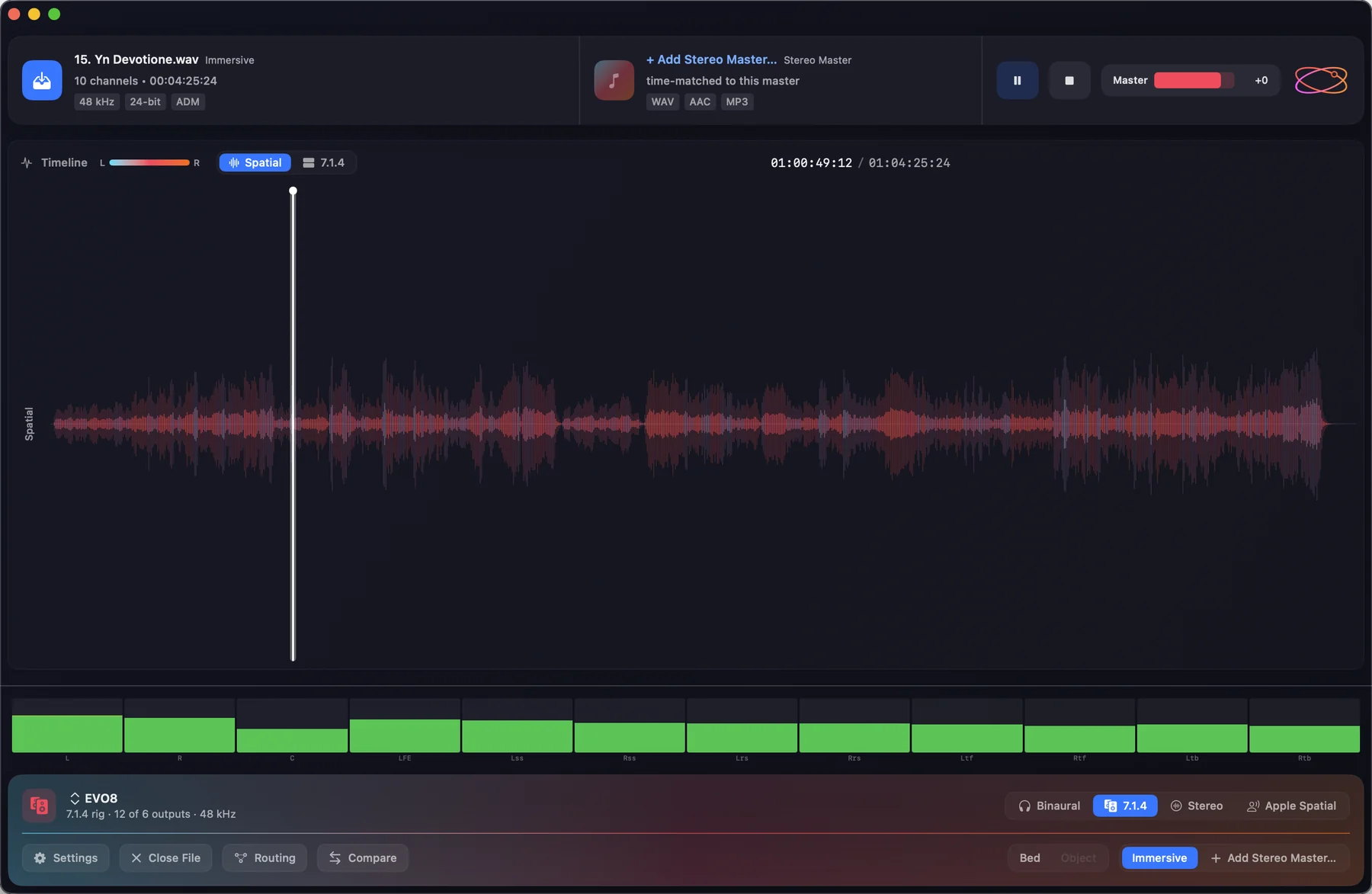
Once the file loads you're in the main Orbit Lite window. If the file carries video (an IAMF / Eclipsa MP4), the picture shows in the centre with the waveform beneath it. If it has no video, you get a full-width waveform instead.
3. Scrub and monitor
Grab the playhead to scrub through the file — it's smooth and fluid. Along the footer you'll find your monitoring controls, device selection, and per-element solos for channels / bed, objects and higher-order Ambisonics (HOA).
4. Choose a monitoring mode and play
Pick a monitoring mode and press play. You can switch modes at any time:
- 7.1.4 or a custom layout — speaker playback. Custom layouts (for example 10.1.4) are built with OSLS — up to 24 channels.
- Apple Spatial Audio — connect AirPods or another supported device to check how it sounds through Apple's spatial render.
- Binaural / Stereo — quick headphone and fold-down checks.
Try a custom layout
Want to try a custom speaker layout? Download a sample 10.1.4 .osls and load it under Speaker Layout & Routing, or build your own at osls.io.
5. Adjust settings in Preferences
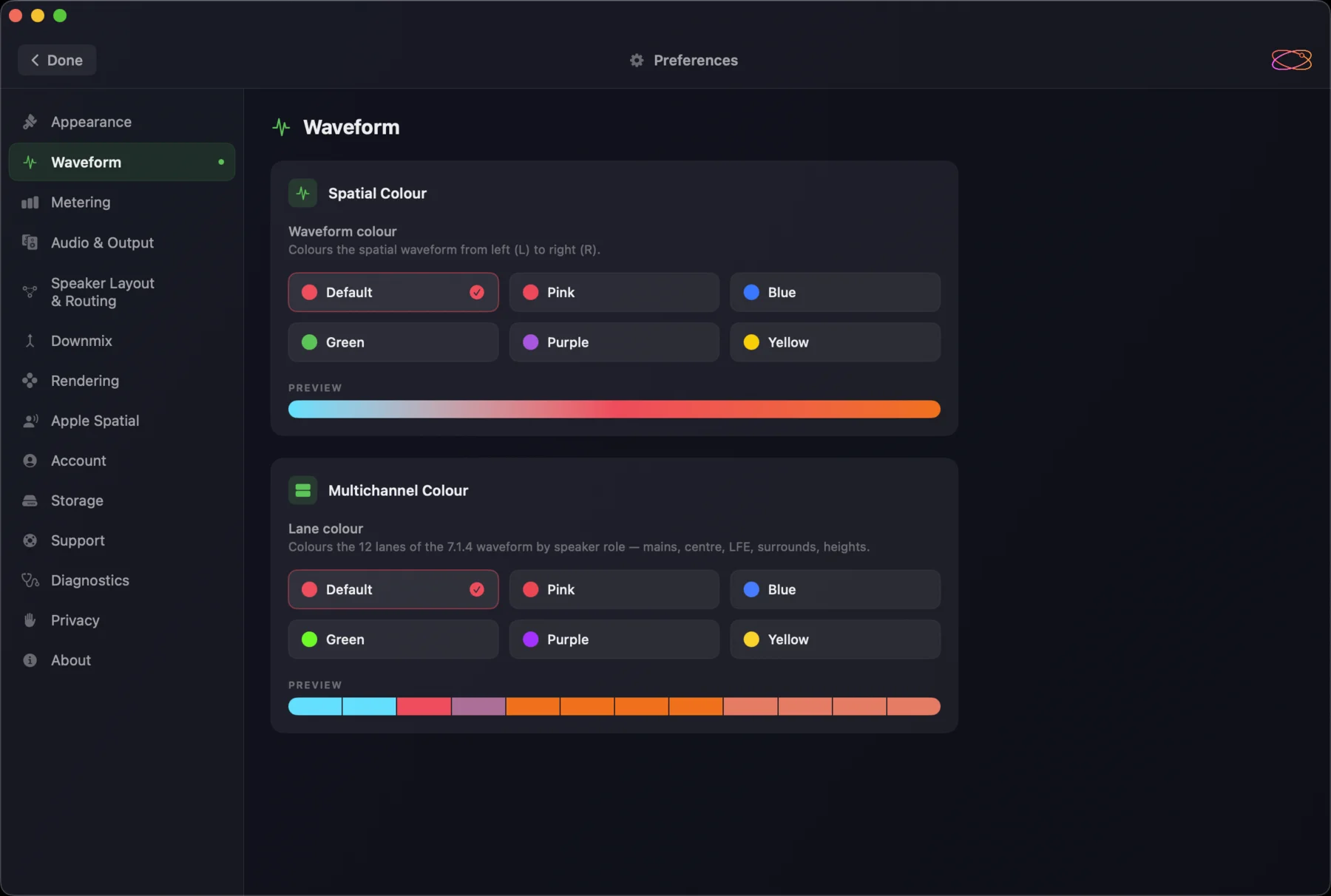
Press ⌘, to open Preferences. Panes cover appearance, the waveform, metering, audio output, speaker layout and routing (including a Speaker Test), downmixing, rendering, Apple Spatial, your account, storage (the waveform cache), support, diagnostics and privacy, and an About pane shows your app and engine versions. You can also switch between dark and light themes.
6. Full-screen playback
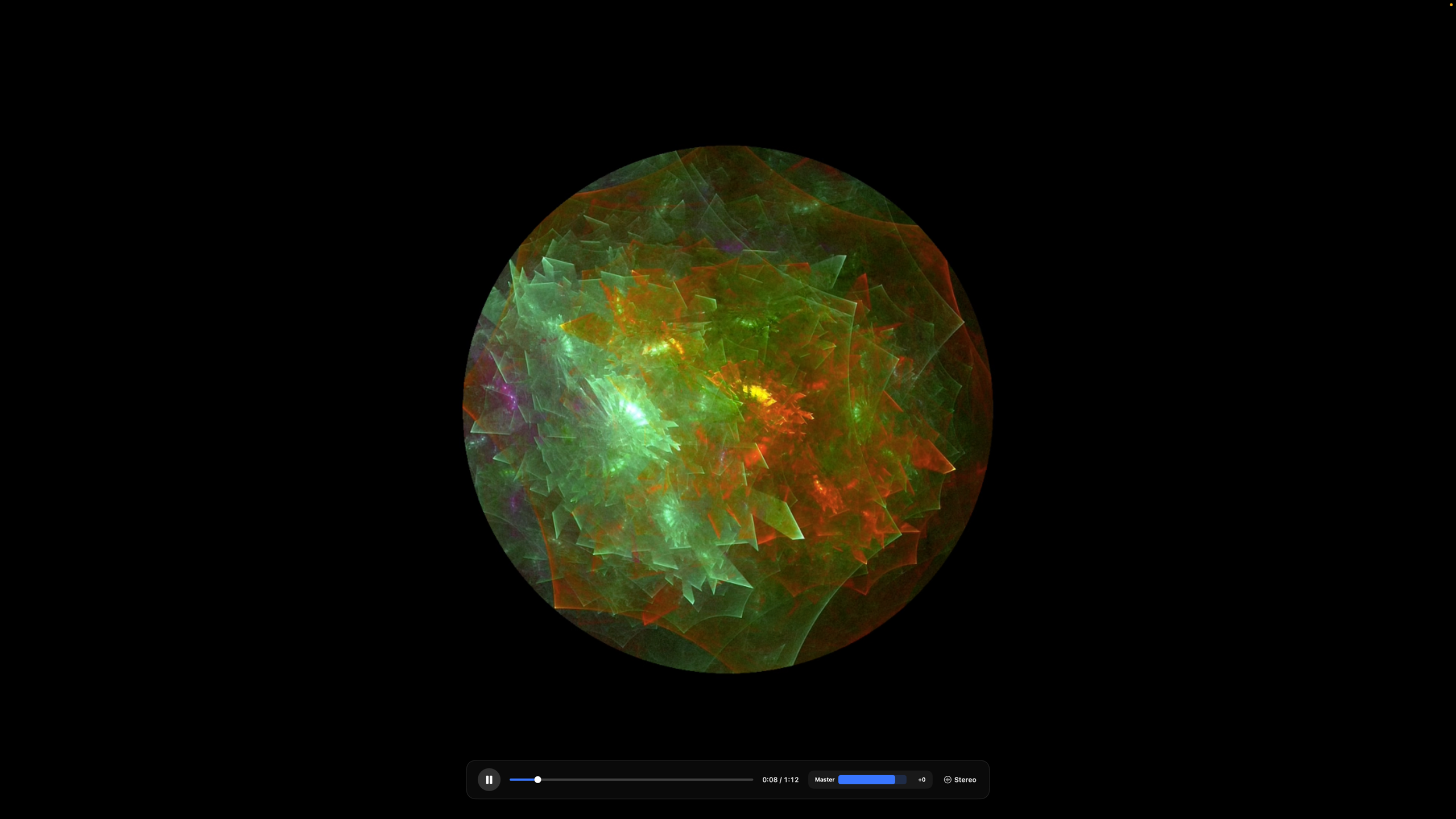
If your file has video, you can watch it full screen. A floating transport bar — play/pause, scrub, master volume, the current monitoring mode, and an exit button — auto-hides after 2.5 seconds of no mouse movement and reappears when you move the mouse.
7. Master volume and transport
The transport bar at the top of the window has two halves: your immersive master on the left and the stereo master on the right (+ Add Stereo Master… until you add one). Each shows its file name, channel count, duration and format, and the side you're listening to is tinted. Click a side's icon square to open a different immersive file, or to open Compare.
Play, stop and the master volume sit at the right of the bar.
8. Close the file
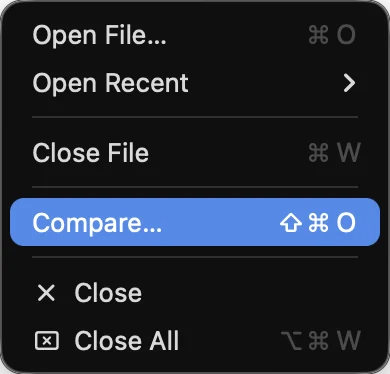
To unload the current file, choose File ▸ Close File or press ⌘W — you'll return to the welcome screen, ready to load another.
That's all there is to it — Orbit Lite is a super-simple way to play back immersive audio at the click of a button.
Before you begin
- Licence: You'll need a licence or a trial to use Orbit Lite. Visit orbitspatial.io to purchase, then or start a free trial, then activate via Orbit Lite ▸ Manage Licence….
- Output device: Make sure your audio interface or headphones are connected and selected. Use Output Routing to map channels to your device.
For detailed system requirements, see Requirements. For licensing details, see Licensing.
If something goes wrong
File won't load?
- Confirm the file is an ADM BWF with valid metadata (not just any .wav file), or a valid IAMF file.
- Try a smaller test file to verify your setup.
No audio?
- Check your output device in the output configuration.
- Make sure your monitoring mode matches your setup (e.g. Binaural for headphones).
For more help, see Troubleshooting.
Next steps
- Monitoring Modes — 7.1.4, binaural, Apple Spatial Audio, and stereo.
- Output Routing — device channels, custom layouts and the routing matrix.