
Appearance
Orbit Lite on iPhone & iPad
Orbit Lite also runs on iPhone and iPad. It plays the same ADM BWF and IAMF masters with the same engine, monitoring modes and Compare checks as the Mac app. The rest of this guide applies to both. This page covers what's different on a touch screen.
Install and unlock
- Orbit Lite for iPhone and iPad needs iOS 17 or later (iPadOS 17 on iPad).
- The app unlocks in one of three ways:
- Orbit Lite for iOS, bought in the app on the App Store. It unlocks the app on your Apple ID, needs no account and doesn't use a device seat. It doesn't unlock the Mac app.
- An Orbit Lite licence from the website. Sign in with your Orbit Spatial account and activate it on the device, which uses one of the licence's device seats. The same licence covers your Mac. See Licensing.
- A 14-day trial started in the app on the App Store. It's separate from the website trial.
- Signing in is optional if you bought Orbit Lite for iOS.
- The first time you open it, Orbit Lite asks whether to share anonymous usage data. Choose Keep sharing or Opt out, and change it later in Settings ▸ Privacy. See Data & Privacy.
Open a file
The welcome screen offers Open a file and Open with video, with your recent files under Continue. Both open the Files picker, so a master can come from the device, iCloud Drive or any Files location. You can also open an ADM BWF, WAV or IAMF file in Orbit Lite straight from the Files app.
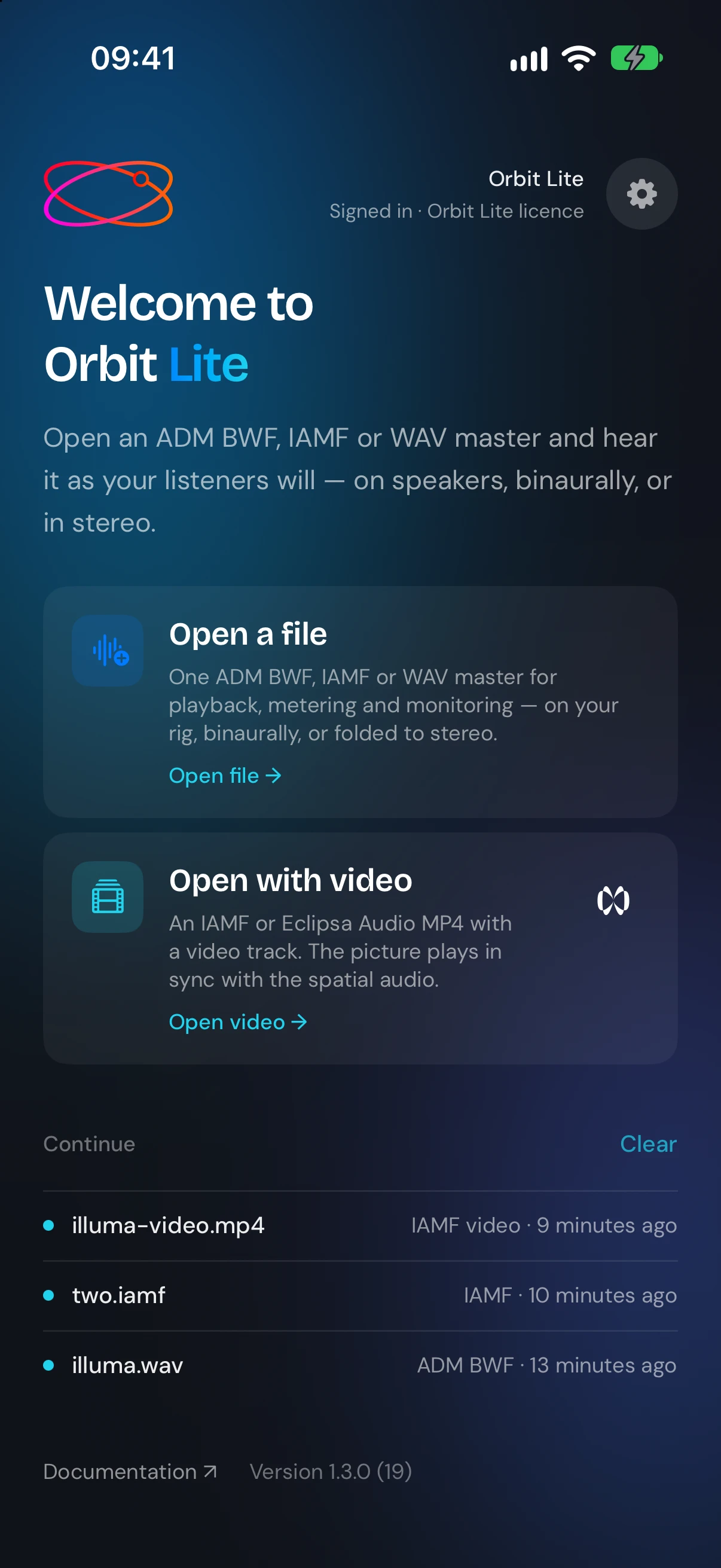
There's no Compare row on the iOS welcome screen. Open a master first, then add the stereo master from the player (see Compare below).
The player layout
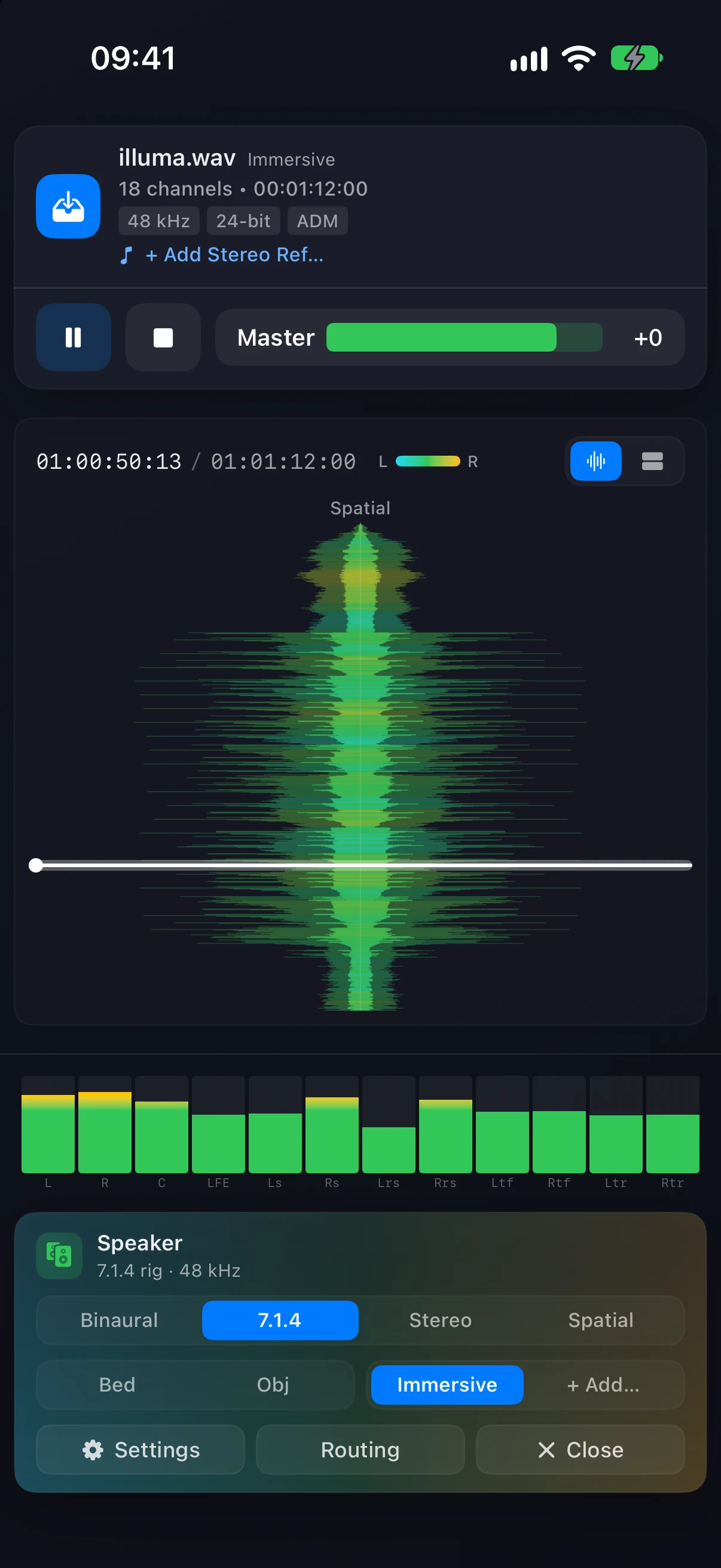
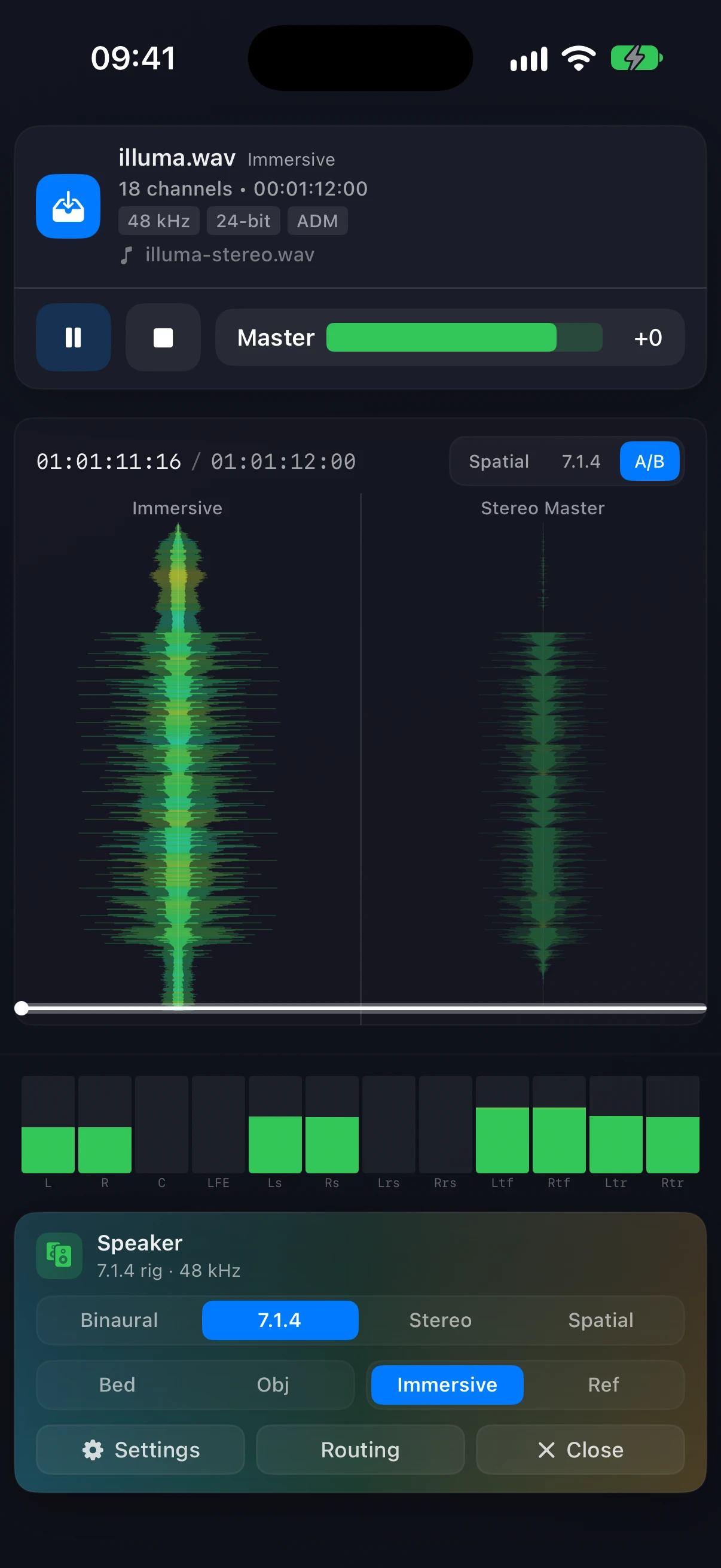
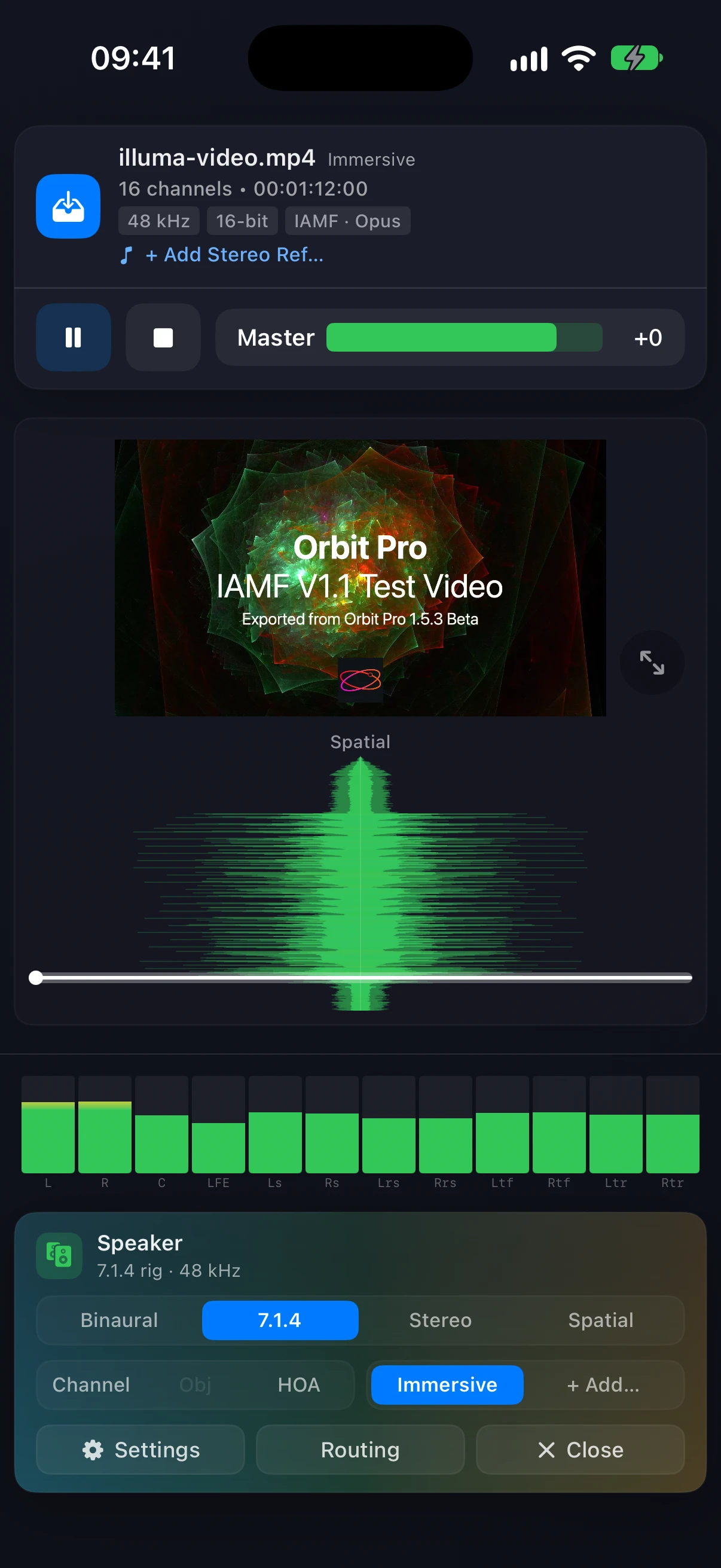
On iPhone the player is one column, top to bottom:
- The file card — the file name, channel count, duration and format, and the stereo master line (+ Add Stereo Ref… until you add one). Below it are play/pause, stop and the Master volume.
- The timeline — it runs top to bottom, with the playhead moving down the screen. The view switch in its header picks Spatial, 7.1.4 or, once a stereo master is added, A/B.
- The meters — one for each of the twelve 7.1.4 speakers.
- The footer card — the monitoring mode switch, the solo buttons, the Immersive / Ref switch, and Settings, Routing and Close.
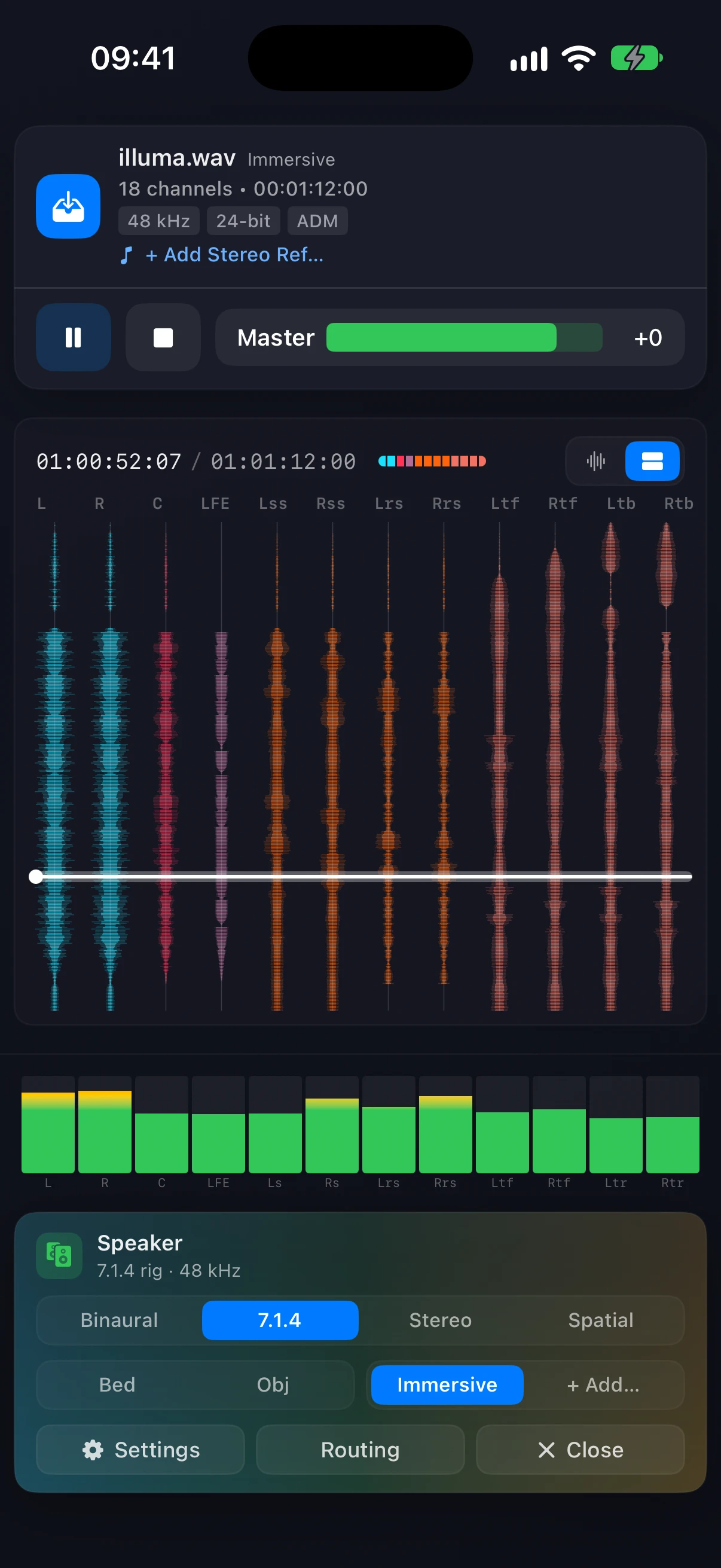
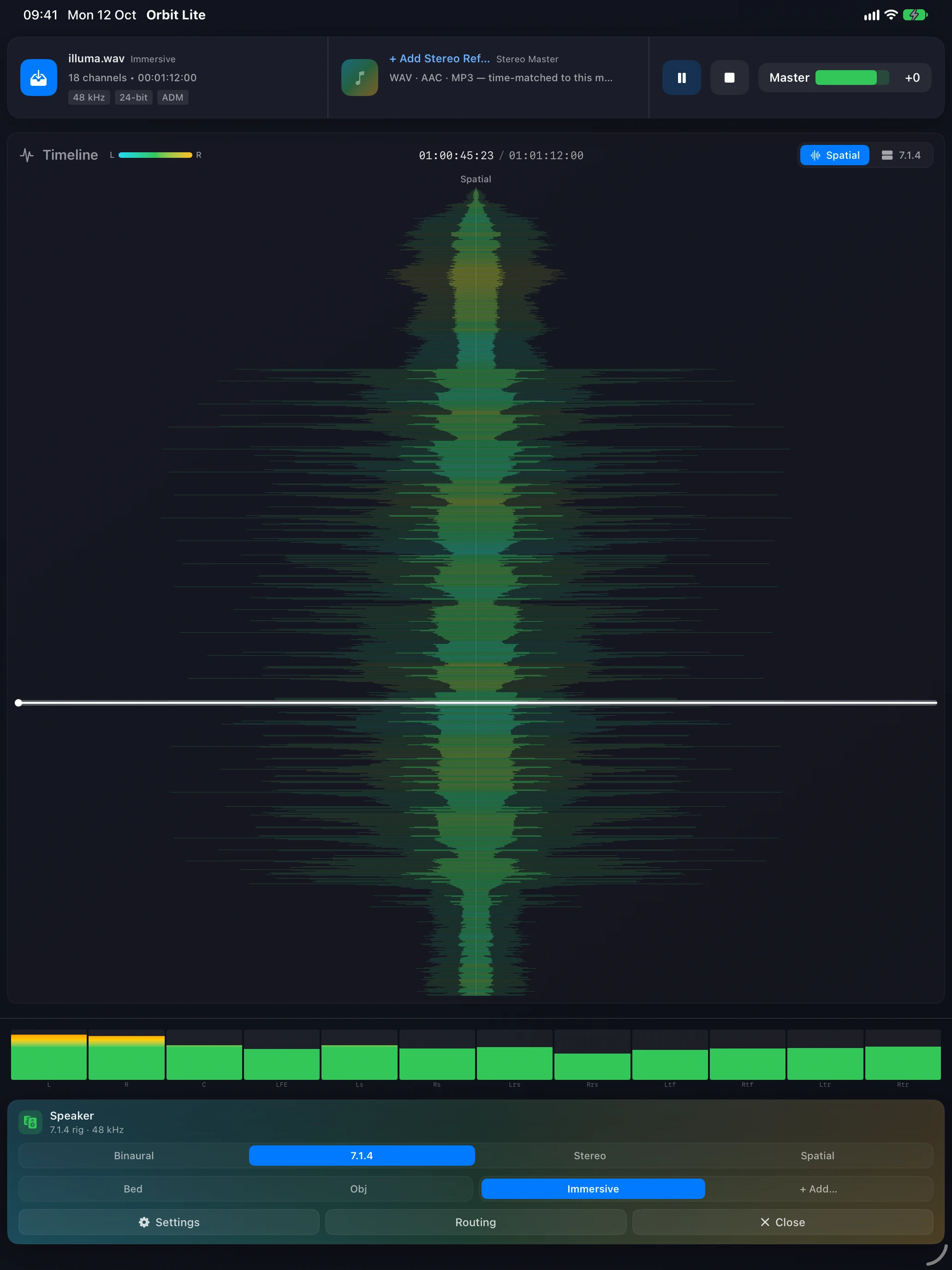
On iPad the file card, stereo master and transport sit side by side in one bar across the top. The timeline runs top to bottom there too.
Monitoring
The footer's mode switch reads Binaural, 7.1.4, Stereo and Spatial. They are the same four modes as on the Mac (see Monitoring Modes), with two iOS differences:
- 7.1.4 (called Multichannel in Settings ▸ Audio & Output) sends discrete channels to a connected class-compliant audio interface. With no interface connected, it renders the 7.1.4 reference through the device's built-in Spatial Audio.
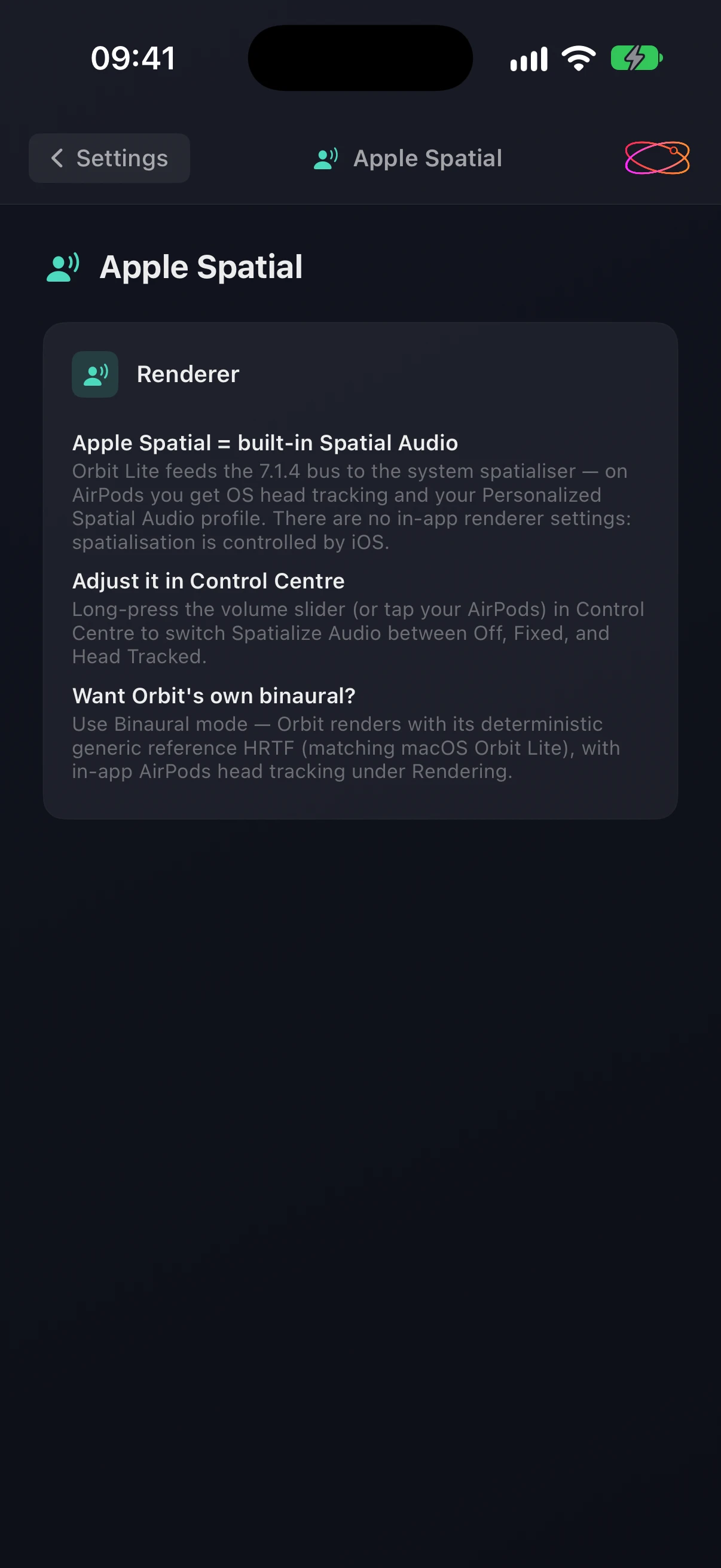
- Spatial hands the 7.1.4 bus to iOS's own Spatial Audio. There are no renderer settings in the app: switch Spatialize Audio between Off, Fixed and Head Tracked in Control Centre (long-press the volume slider). For Orbit Lite's own binaural render with AirPods head tracking, use Binaural.
The solo buttons read Bed and Obj for an ADM file, and Channel, Obj and HOA for an IAMF file. A button is dimmed when the file has no content of that kind.
Compare
Tap + Add Stereo Ref… in the file card to pick a stereo master (WAV, AAC or MP3). The footer's + Add… button opens the Compare screen. Once a stereo master is loaded, tap its line in the file card to reopen Compare. On iOS the stereo master is called Ref in the player, and Stereo Master on the Compare screen and in the A/B timeline.
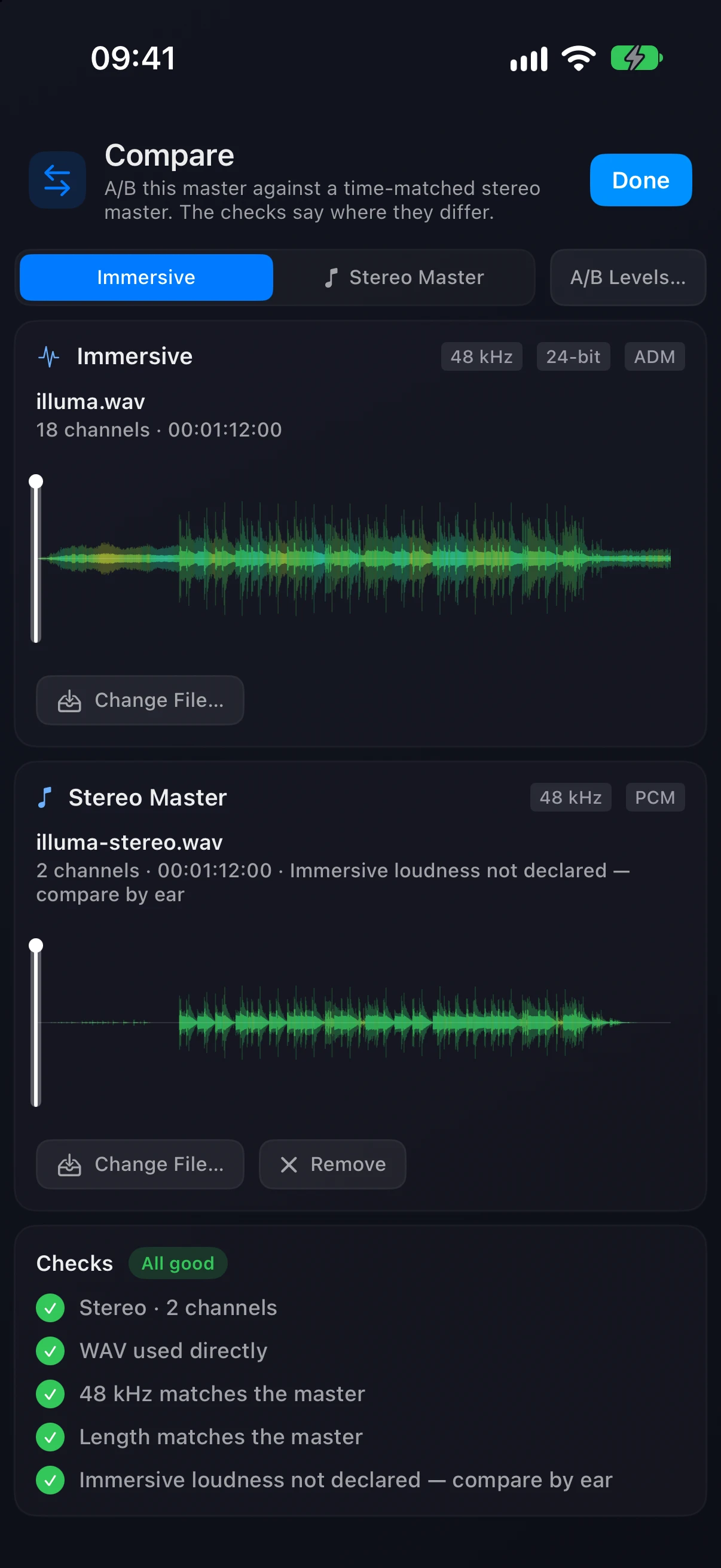
The checks are the same as on the Mac. See Compare (A/B). Switch what you're hearing with Immersive and Ref in the footer.
Mixes and programmes
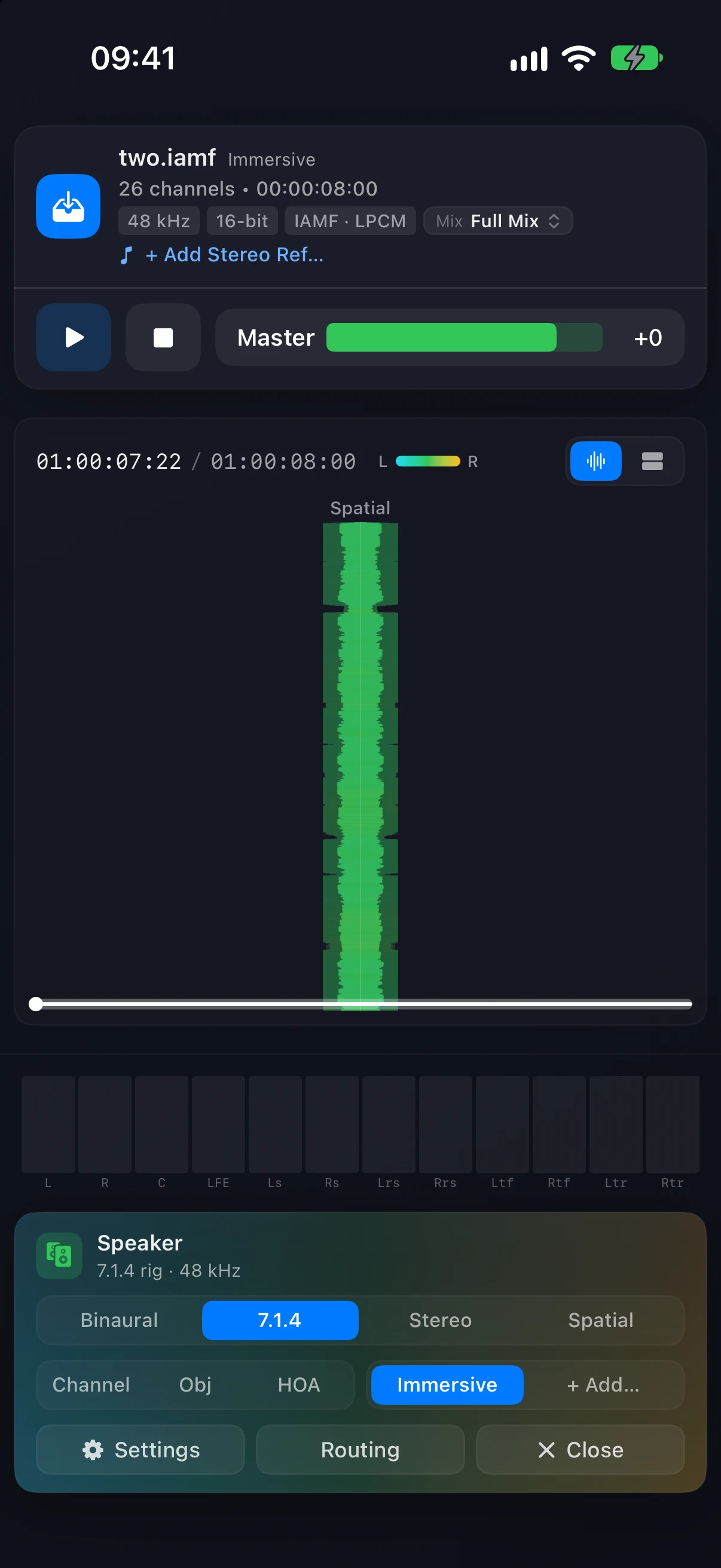
When a file has more than one mix or programme, the Mix or Programme pill sits in the file card, not in the timeline header. Tap it to choose a version. See Content Switching.
Video
Open with video takes an IAMF or Eclipsa Audio MP4 with a video track. The picture plays above the waveform. Tap the expand button for full screen.
Settings
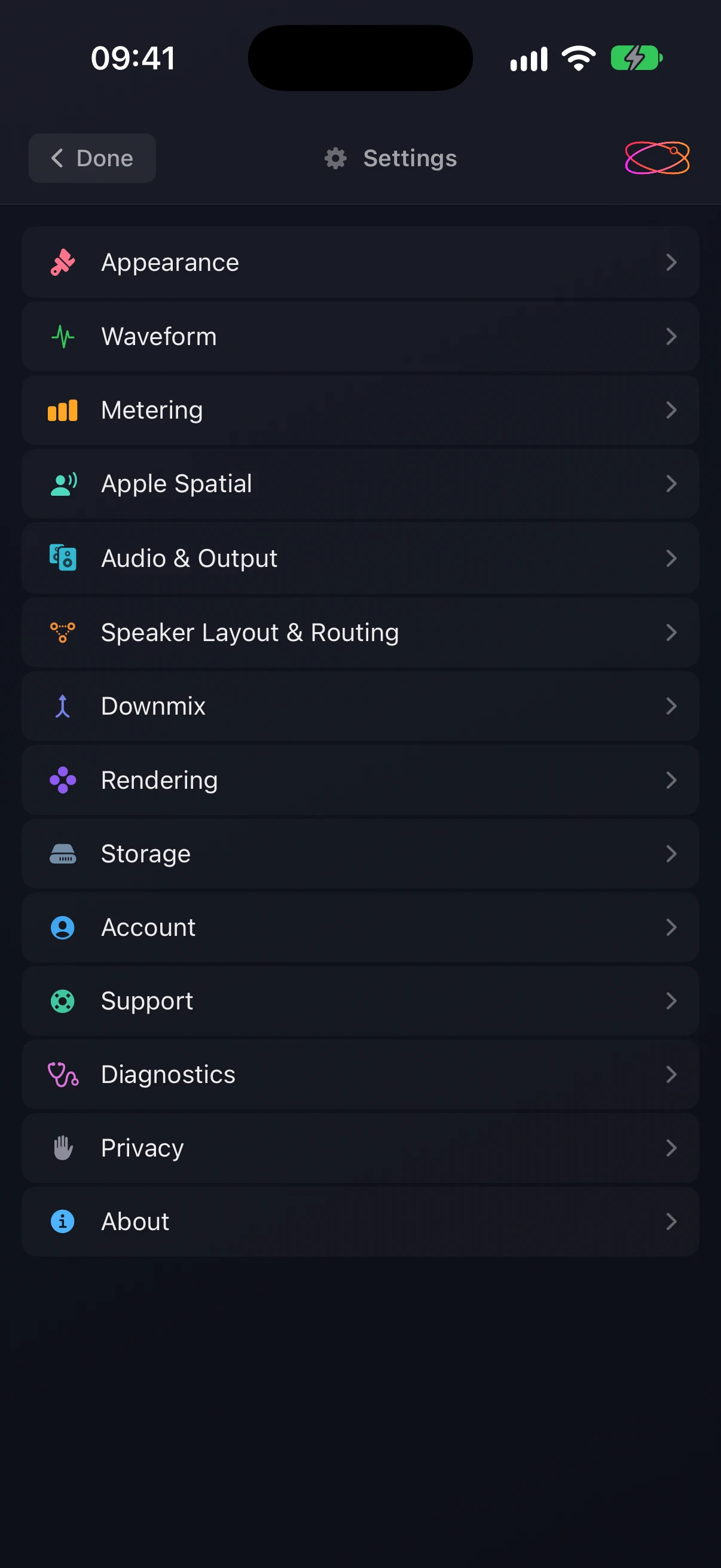
Tap Settings in the footer, or the gear on the welcome screen. The panes match the Mac's Preferences: Appearance, Waveform, Metering, Apple Spatial, Audio & Output, Speaker Layout & Routing, Downmix, Rendering, Storage, Account, Support, Diagnostics, Privacy and About.
- Audio & Output shows the current route and its sample rate, and the outputs used for Binaural and Stereo.
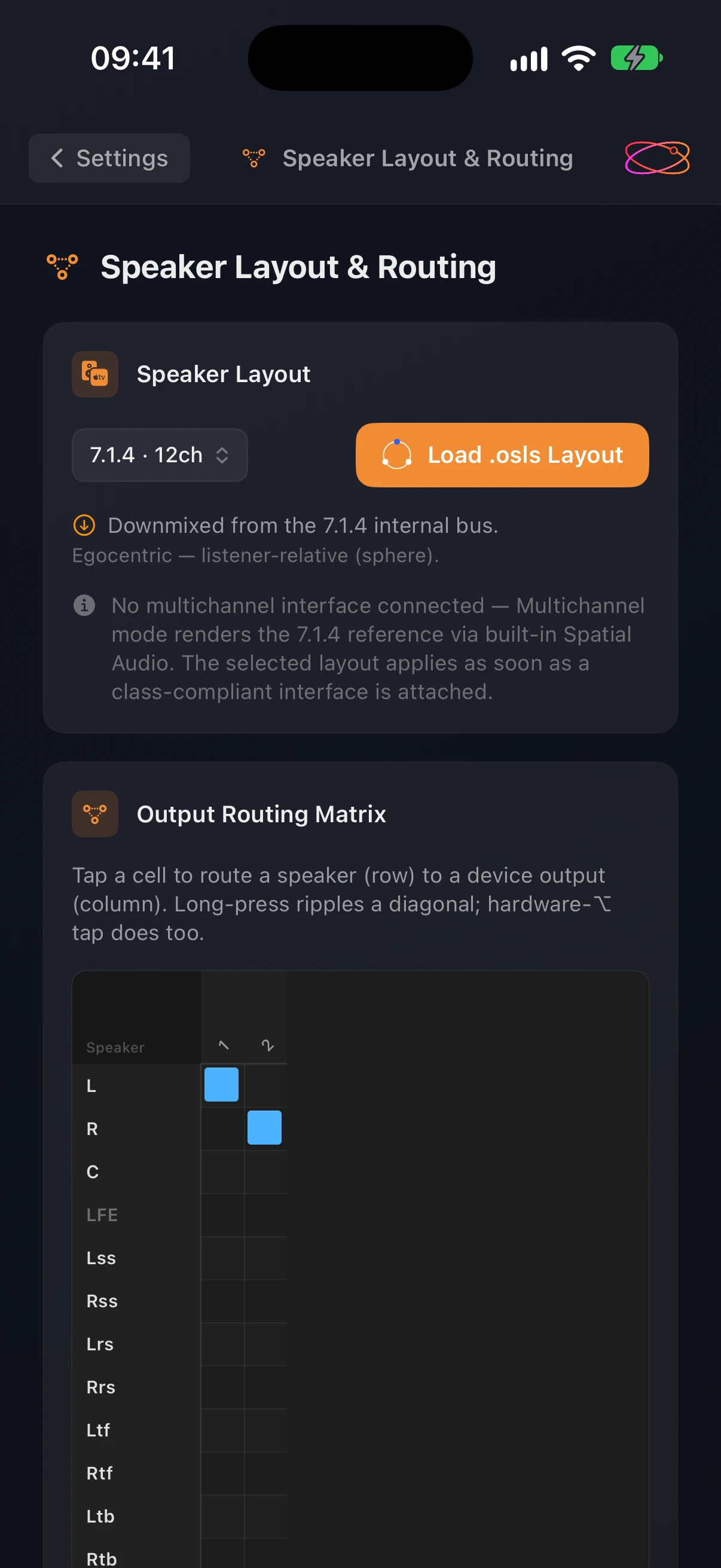
- Speaker Layout & Routing has the layout menu, Load .osls Layout, and the routing matrix. Tap a cell to route a speaker (row) to an output (column). Long-press to ripple a diagonal. With a hardware keyboard, ⌥-tap works too. See Output Routing.
- About shows the app and engine versions, and Manage License.
Keyboard shortcuts
With a hardware keyboard attached (iPad, mostly), these work:
| Action | Shortcut |
|---|---|
| Play / pause | Space |
| Stop | ⌘. |
| Open File | ⌘O |
| Close File | ⌘W |
| Rescan Waveform | ⇧⌘R |
| Settings | ⌘, |
| Compare | ⇧⌘O |
| Listen: Immersive / Stereo Master | ⇧⌘A |
| Solo Bed or Channel / Objects / HOA | 1 / 2 / 3 |
| Clear solos | 0 |
Differences from the Mac at a glance
| Mac | iPhone & iPad | |
|---|---|---|
| Stereo master in the player | Stereo Master, + Add Stereo Master… | Ref, + Add Stereo Ref… |
| Mix / Programme pill | Timeline header | File card |
| Compare on the welcome screen | Yes | No, open a master first |
| Timeline | Left to right | Top to bottom |
| Apple Spatial controls | In the footer | iOS Control Centre |
| Settings | Preferences (⌘,) | Settings in the footer |
| About | Version, engine and system details | Version and engine |