
Appearance
Monitoring Modes
Orbit Lite supports four monitoring modes, letting you hear the same ADM or IAMF content through different output formats. Switch modes with the mode switch in the footer.

On iPhone and iPad
The footer switch reads Binaural, 7.1.4, Stereo and Spatial. Spatial uses iOS's built-in Spatial Audio, which you set in Control Centre rather than in the app. The timeline runs top to bottom. See Orbit Lite on iPhone & iPad.
7.1.4 speaker monitoring
Best for validating channel mapping and room translation through a full immersive speaker array.
Use it to:
- Confirm beds hit the right speakers.
- Validate object localization across the room.
Binaural (headphones)
Best for headphone translation and spatial intent.
Use it to:
- Check front-to-back separation.
- Confirm height cues for objects.
- Listen on any wired or wireless headphones.
A binaural limiter is applied by default to prevent clipping on headphone output.
Beta — Binaural Rooms (1.3.2)
In the Orbit Lite 1.3.2 beta, Binaural plays in a room: Small Studio by default, or Control Room, Large Room, Off or a Custom room you make. Choose it from the room chip in the footer. The 1.3.2 beta also has about 3 dB less low end in Binaural. See Binaural Rooms.
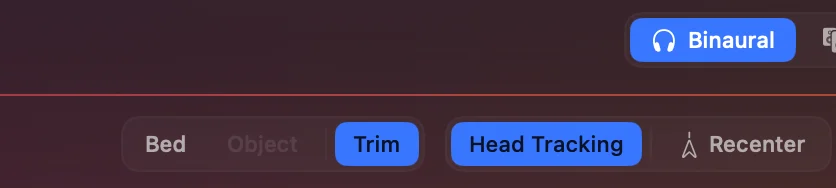
With compatible AirPods or Beats headphones, Binaural mode is head-tracked. Use the Head Tracking switch in the footer to turn it on or off (it's on by default), and Recenter to reset the front to where you're facing.
Apple Spatial Audio
Best for checking how your mix sounds through Apple's spatial audio pipeline — the same renderer used by Logic Pro, Final Cut Pro, and Apple Music.
Use it to:
- Hear your ADM or IAMF content through Apple's HRTF rendering.
- Compare Apple's spatial processing against the binaural engine.
- Test with personalised HRTF profiles (via iPhone ear scan).
Four sub-modes are available from the mode menu in the footer:
- Static — Apple HRTF without head tracking (any headphones).
- Static Personalized — Uses your personal ear scan profile (any headphones).
- Headtracking — Real-time head tracking via AirPods or Beats.
- Headtracking Personalized — Head tracking with your personalised HRTF.
A preset menu sits beside it.
An independent volume control is also available for Apple Spatial Audio output.
Beta — new Apple Spatial controls (1.3.2)
In the Orbit Lite 1.3.2 beta, the footer's menus become buttons and switches:
- Music | Cinema and a Level slider sit beside the mode switch.
- Head Tracking and Personalised are two switches where the Binaural controls go. Together they choose the four modes above: both off is Static, Personalised alone is Static Personalized, Head Tracking alone is Headtracking, and both on is Headtracking Personalized.
Apple Spatial Audio isn't offered on Intel Macs.


96 kHz content over Bluetooth
When using Apple Spatial Audio with 96 kHz or higher sample rate content, wired headphones are recommended instead of Bluetooth for best results.
Stereo fold-down
Best for compatibility checks and quick balance decisions.
Use it to:
- Confirm essential elements remain audible.
- Catch phase and summing issues.
TIP
Switch modes at the same playback position to compare translation.
Timeline views
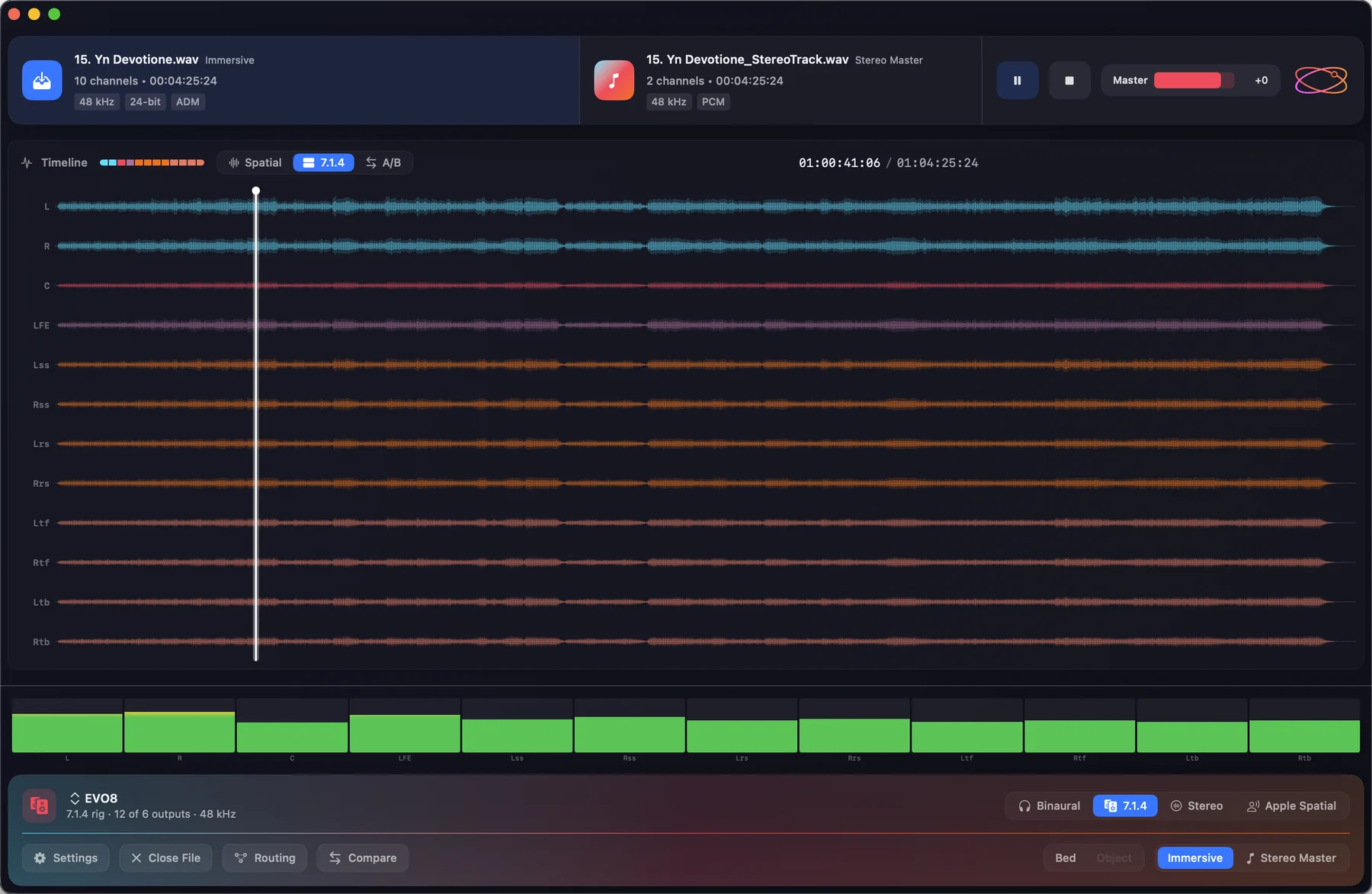
The timeline has a view switch with three views:
- Spatial — the waveform of what you're listening to.
- 7.1.4 — the twelve lanes of the 7.1.4 bus, one under another, coloured by speaker role, so you can see which speakers carry the level. You can also choose it from the View menu and in Settings.
- A/B — the immersive master over the stereo master on one time scale. It appears once you've added a stereo master; see Compare (A/B).
The 7.1.4 and A/B views appear once the file's lanes have been drawn.
When a file carries video, the timeline is a single strip beside the picture and stays on the Spatial view of the immersive master.
Soloing elements
The footer has solo buttons that isolate part of the mix:
- Bed (ADM) or Channel (IAMF) — solo the channel-based content.
- Object — solo the objects.
- HOA — solo the Ambisonics / scene-based content. This button appears only when the loaded file contains Ambisonics (ADM BS.2076-3 HOA) or scene-based audio (IAMF).
Solo from the keyboard too: 1 (Bed or Channel), 2 (Object), 3 (HOA); press 0 to clear all solos. A button is dimmed when the file has no content of that kind.

Sample-rate matching
If your audio device is running at a different sample rate than the loaded file — for example Logic Pro holding the device at 44.1 kHz while you QC a 48 kHz file — a banner appears at the top of the window. Click Match device to file and Orbit Lite switches the device automatically. Preferences ▸ Audio & Output also shows the live device rate alongside the file's rate.