
Appearance
Getting Started
Aro's main job is to take an Ambisonic WAV and decode it. Here's the whole journey, from opening a file to a finished WAV.
Before you begin
- Sign in. Aro uses your Orbit Spatial account. The first time you open it, sign in and activate this Mac. See Licensing.
- Choose an output. Pick your output device under Preferences ▸ Monitoring (⌘,). Until you do, Aro uses your Mac's default output.
Step by step
1. Open a file
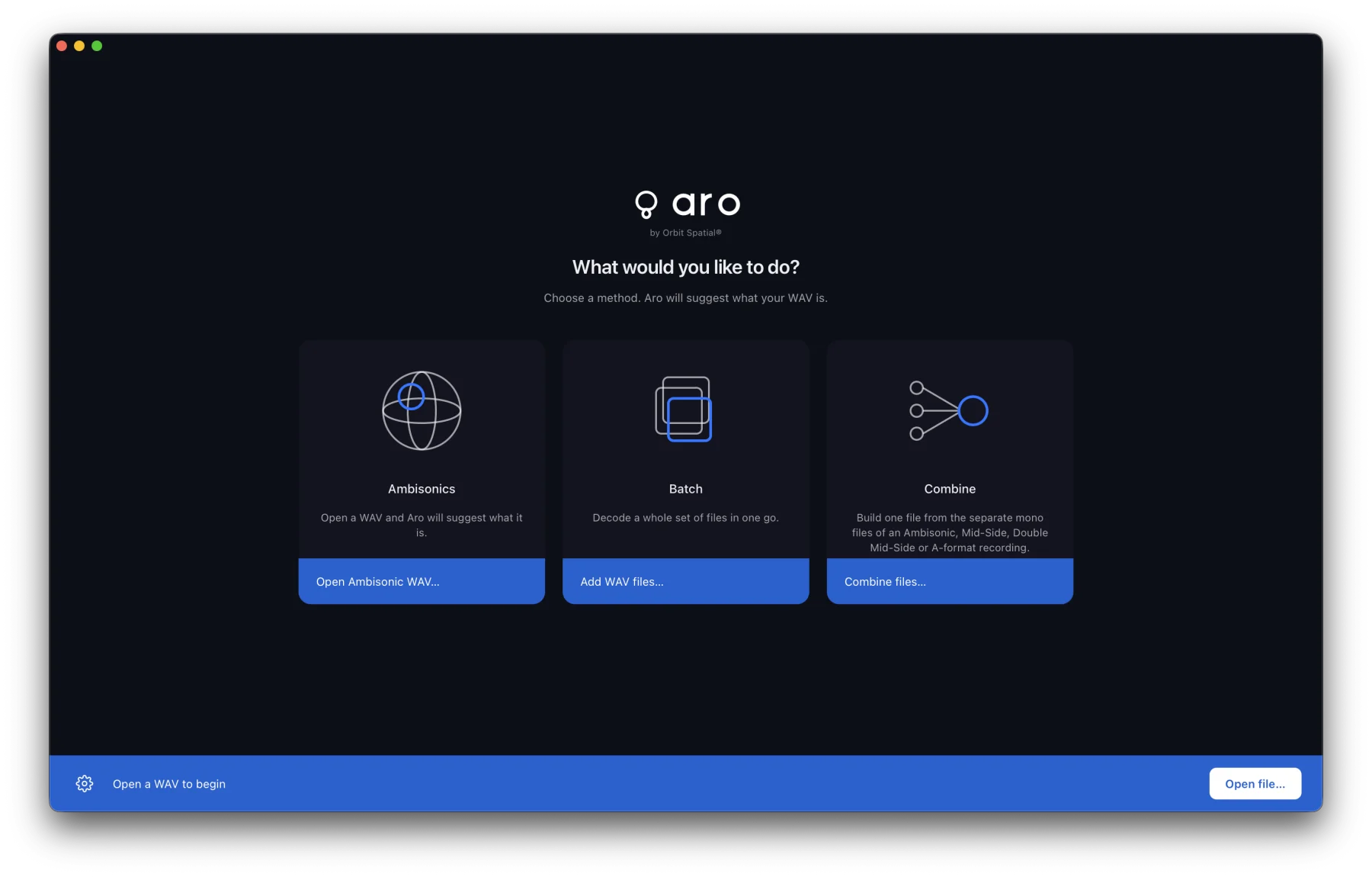
On the welcome screen, choose Open Ambisonic WAV… on the Ambisonics card, or press ⌘O. You can also drag a WAV onto the window, or open it from Finder with Open With ▸ Aro.
Aro reads the file and shows its Ambisonic order, channel count and sample rate. A 4-channel file could be several things, so Aro asks What is this file? instead of guessing. See Opening Files.
2. Check the format
A plain WAV doesn't say which Ambisonic format it uses, so check it in the Configuration sidebar under Format: AmbiX (the default and the most common), N3D or FuMa. Click Config in the footer to open the sidebar. A .amb file, or a WAV marked as B-format, opens as FuMa by itself.
3. Choose a layout and listen
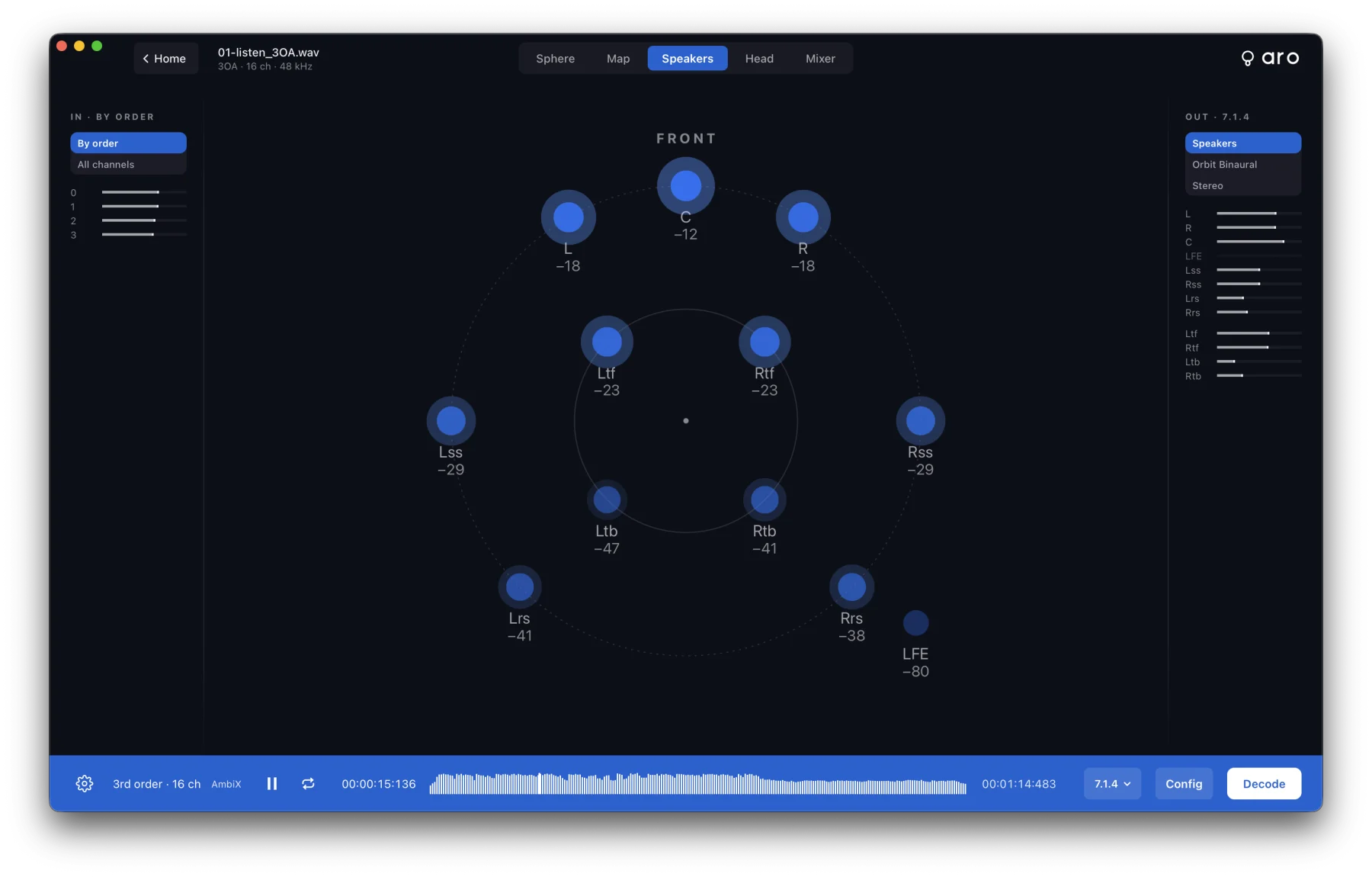
Pick a speaker layout from the layout picker in the footer. 7.1.4 is the default; Orbit Binaural is there too, for headphones. Press Space to play.
You hear the decode live, in stereo, Orbit Binaural or on discrete speakers: choose with the Monitoring switch at the top of the meters, on the right. The meters always show every speaker of the layout. See Monitoring.
4. Aim and shape the decode
While it plays, change the layout, the decode mode, the Orientation of the scene, the LFE feed and the mixer, and hear each change straight away. See Decoding.
5. Decode to a WAV
Press Decode (⌘E), choose a name and a place, and watch the progress. Cancel at any time; nothing is left behind. When it's done, Show in Finder takes you to the file. See Decoded Files.
Next steps
- Decode a folder of files at once with Batch.
- Have a Mid-Side or A-format recording? See Mid-Side & A-format.
- Learn the keys in Keyboard Shortcuts.