
Appearance
Views & Playback
The views
Once a file is open, the tabs in the top bar switch between five views. Every view is live while the file plays.
| View | Shortcut | What it shows |
|---|---|---|
| Sphere | ⌘1 | The sound field on a sphere around the listener, glowing where the sound comes from. |
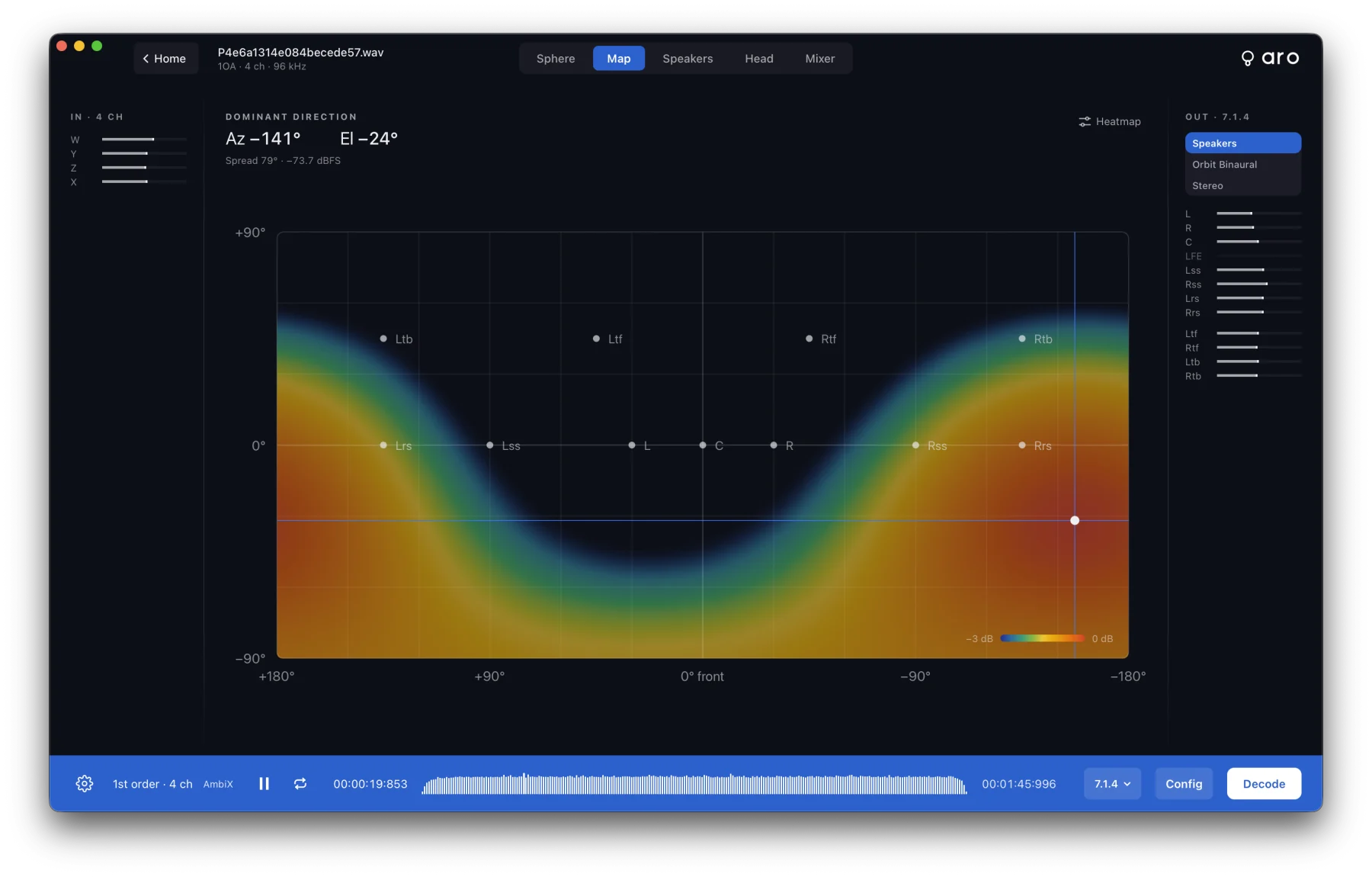
| Map | ⌘2 | The same field unrolled flat, azimuth across and elevation up, with an optional heatmap. |
| Speakers | ⌘3 | The speaker plan of the chosen layout, with a meter for every speaker. |
| Head | ⌘4 | Top, front and side rings around a head, and a direction-over-time strip. |
| Mixer | ⌘5 | A fader and a mute for every output channel. See Mixer. |
Reading the direction views
Sphere, Map and Head show the dominant direction, with readouts for Az (azimuth), Left–Right and Up–Down. Positive azimuth is to the listener's left. The glow follows sources smoothly as they move.
Heatmap
The Map and Head views draw a heatmap of where the sound is. Click Heatmap at the top right of the view for its settings:
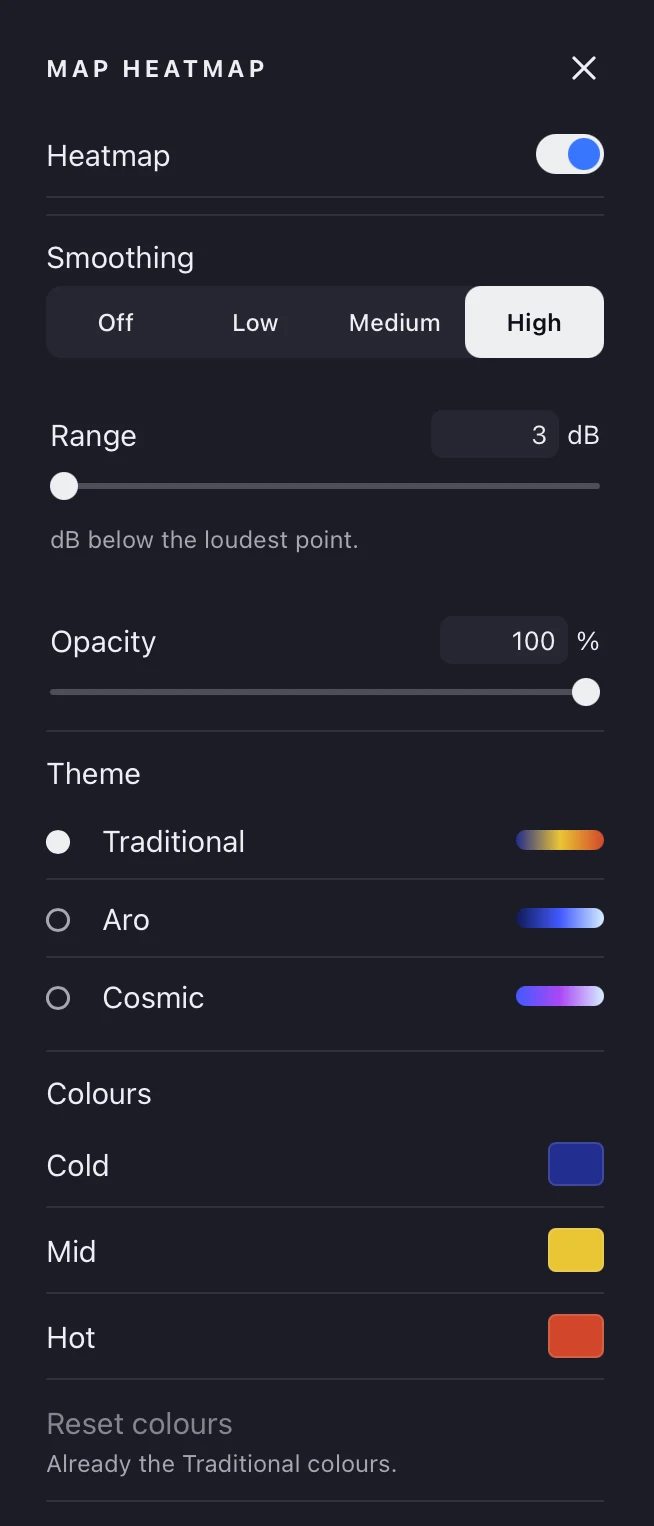
- Heatmap — on or off.
- Smoothing — Off, Low, Medium or High.
- Range — how far below the loudest point is drawn, 3 to 40 dB.
- Opacity — 20 to 100 %.
- Theme — Traditional, Aro or Cosmic, or pick your own Cold, Mid and Hot colours. Reset colours goes back to the theme's.
Aro remembers them.
Sphere settings
Click Sphere at the top right of the Sphere view to change how it's drawn: Auto-rotate, perspective or orthographic Projection, speaker Node size, Level release and Bloom, Grid brightness and width, and the Comet that marks the sound. The comet can follow the Speaker feeds, the Ambisonic field or Both, each with its own colour, and has Glide, Trail length, Trail fade, Trail intensity and Trail size. Reset puts everything back.
The Head view's rings sit in a row (Top, Front and Side). The Direction over time strip under them shows where the sound has been. Bars scale with level, so a very quiet file draws short bars.
Mid-Side, Double Mid-Side and A-format recordings show a converter stage instead of these views. See Mid-Side & A-format.
The meters
The IN and OUT meters stand in rails at the sides of the stage. For a 2nd-order or higher file, the IN rail has a By order | All channels switch: by order meters each order, and all channels meters every Ambisonic channel. The OUT rail starts with the Monitoring switch. A bar turns orange near full scale.
Playback
The footer holds the transport and a waveform of the file behind the seek bar. Click or drag the waveform to seek. It fills in as Aro reads the file, even while it's playing.
- Space plays and pauses. ⌘. stops and goes back to the start.
- ← and → skip 5 seconds; with ⇧, 30 seconds.
- Loop (the button beside Play, ⌘L) repeats the whole file with no gap. It stays on as you open other files, and is off when Aro starts.
- At the end of the file, Aro stops and goes back to the start.
Controls such as levels, orientation and width are heard about 40 ms after you move them. Bluetooth headphones add their own delay.
If playback stalls, for example on a slow or disconnected drive, Aro says so under the stage.