
Appearance
Monitoring
Aro plays the decode live, so you can hear what you'll get before you write the file.
Listen as
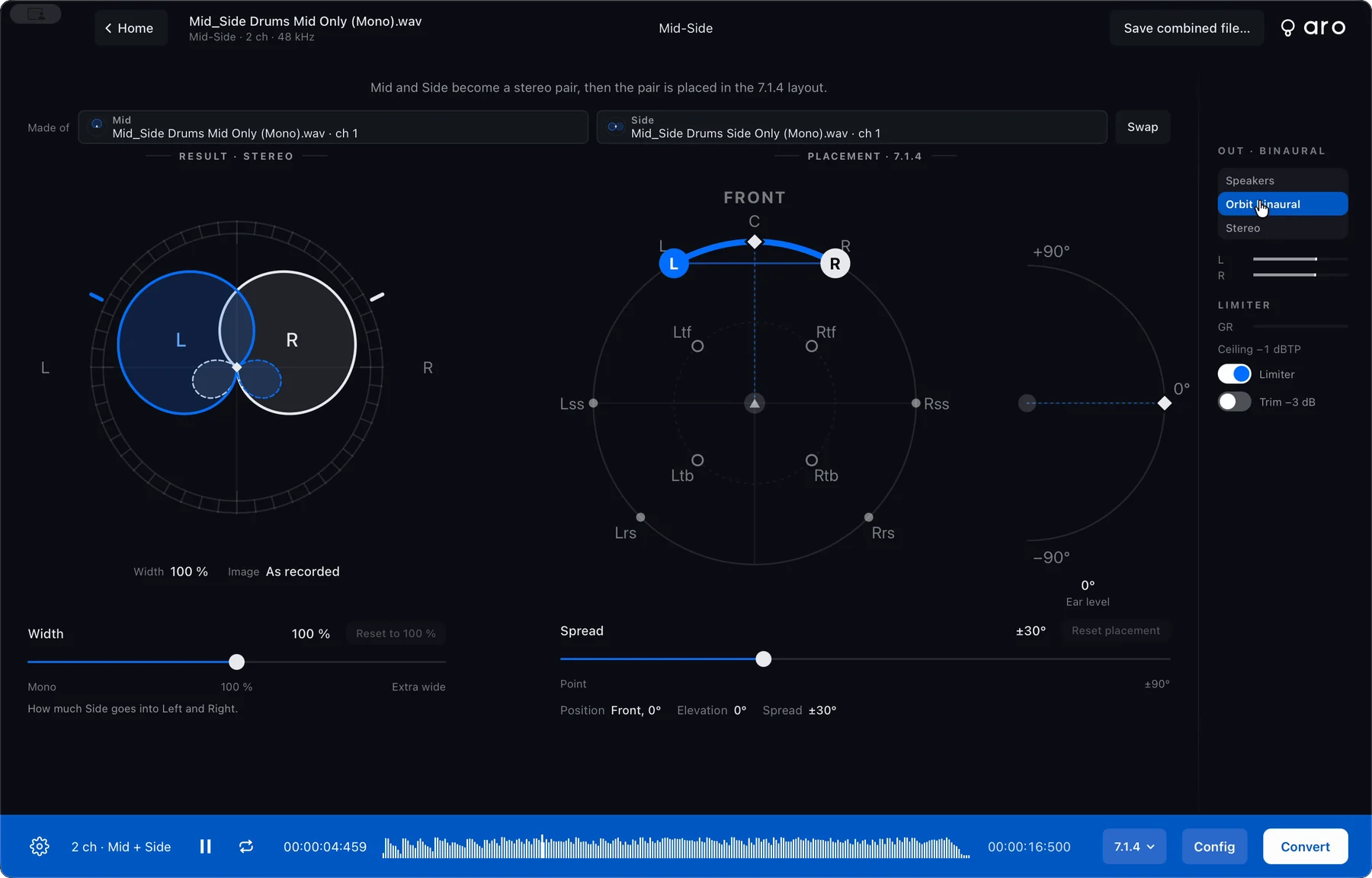
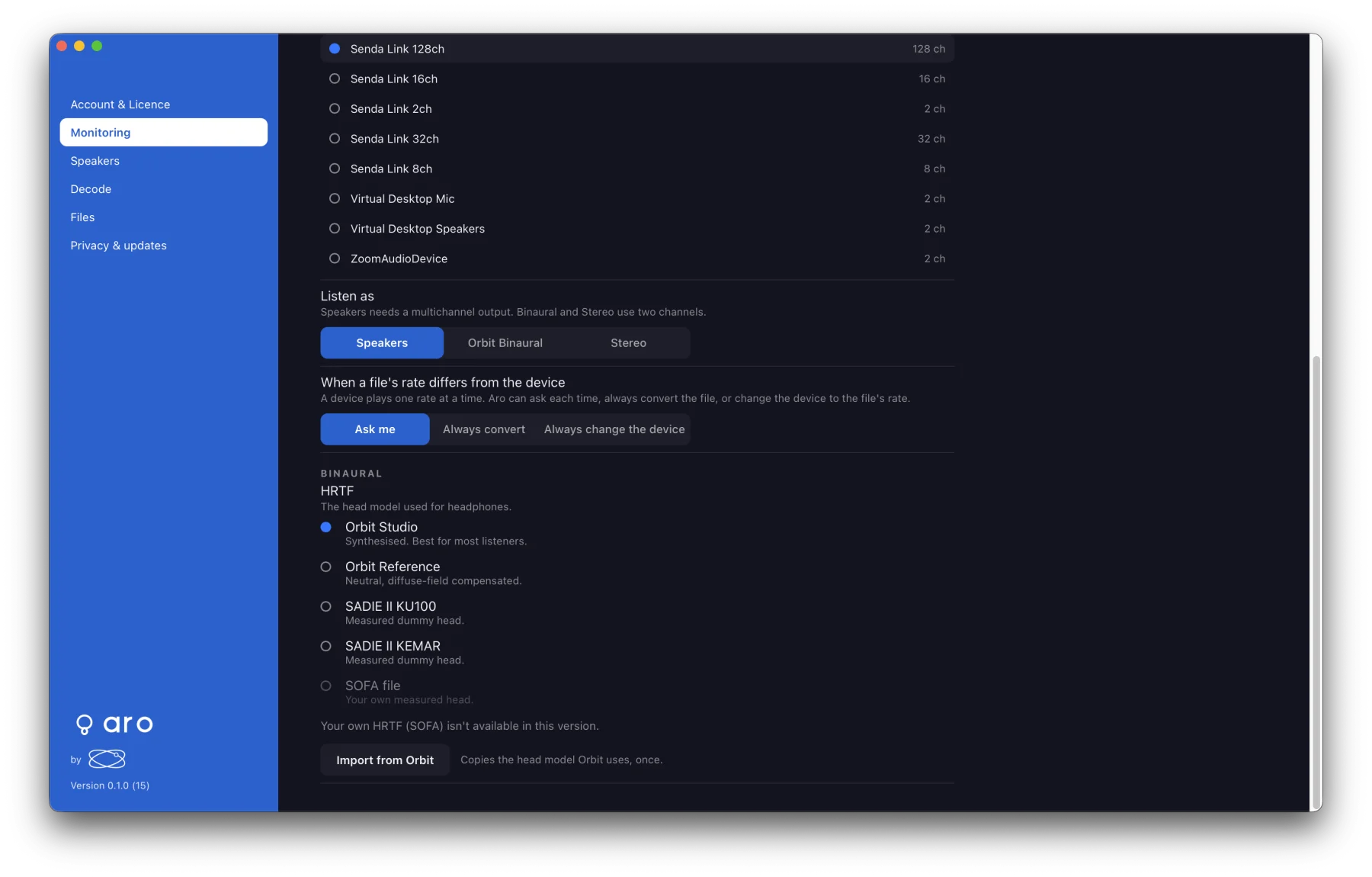
Choose how you listen with the Monitoring switch at the top of the OUT meters, under Preferences ▸ Monitoring ▸ Listen as, or from the Monitor menu. All three are the same setting.
- Stereo (⌥⌘1, the default) — a fold of the speaker layout to your device's first two outputs. It's for a quick listen, and it isn't the same as decoding to the Stereo layout: the two can differ by a few dB.
- Orbit Binaural (⌥⌘2) — headphones, through Orbit's own HRTF renderer.
- Speakers (⌥⌘3) — discrete outputs, one per speaker of the layout. It needs an output device with 3 or more channels, and is unavailable on a 2-channel device, with the reason shown. To patch speakers to outputs, see Speakers & Routing.
The meters show every speaker of the chosen layout in all three modes. Stereo and binaural monitoring follow the layout's mixer, including its solos and mutes.
Orbit Binaural
HRTF profile
Choose the HRTF profile under Preferences ▸ Monitoring:
| Profile | What it is |
|---|---|
| Orbit Studio | Synthesised. Best for most listeners. |
| Orbit Reference | Neutral, diffuse-field compensated. |
| SADIE II KU100 | Measured dummy head. |
| SADIE II KEMAR | Measured dummy head. |
Import from Orbit copies the profile you use in Orbit, once. It reads Orbit's settings and never changes them. SOFA file (your own measured head) is shown, but isn't available in this version.
Limiter and trim
In Orbit Binaural monitoring, the OUT rail reads OUT · BINAURAL, meters the two ears as you hear them, and shows the limiter:
- Limiter — on by default. Holds each ear under −1 dBTP. A bar shows how much it's reducing (0 to 12 dB).
- Trim — off by default. Lowers the binaural output by 3 dB.
Both are heard live and written into every Orbit Binaural file, so a decoded binaural file is the level you heard.
Output device
Pick your output device under Preferences ▸ Monitoring ▸ Output. Aro remembers it.
- If your device isn't connected when Aro opens, Aro plays through the Mac's default output, says so once, and goes back to your device when it returns.
- If the device is unplugged or its sample rate changes while playing, Aro stops where it was, finds the device again, and carries on at the right speed.
- If you chose Speakers and the current device can't carry them, Aro listens in stereo, says why, and goes back to Speakers on a device that can.