
Appearance
Headphone EQ
Headphone EQ applies frequency-response correction to your binaural monitoring path so what you hear in headphones better matches a calibrated reference. Available in both Orbit and Orbit Pro.
Different headphones have wildly different frequency responses — a Sennheiser HD 600 sounds different from a Sony WH-1000XM5, which sounds different again from a pair of AirPods Max. Without correction, every binaural mix is filtered through that headphone's tonal signature, which means a mix that "sounds right" on one pair can be misjudged on another. Orbit's Headphone EQ levels that out: pick your headphones from a curated catalogue and Orbit applies the parametric biquad filter chain measured for that model, putting you closer to a flat reference.
When EQ is active
Headphone EQ runs only when you're monitoring through headphones. Specifically:
- Binaural monitoring mode — yes, EQ active.
- Stereo monitoring mode — yes, EQ active. Stereo fold-down is also typically auditioned on headphones, so the same correction applies.
- Multichannel speaker monitoring — no. Speakers have their own room calibration and don't need a headphone-shape correction.
- Apple Spatial Audio — no. Apple's renderer applies its own personalisation and EQ; Orbit's chain stays out of the path.
A status banner in the Headphone EQ preferences panel reminds you when the panel's settings aren't currently being heard (e.g. if you're tweaking presets while monitoring through speakers).
The signal chain
Three stages, all applied in series after binaural rendering:
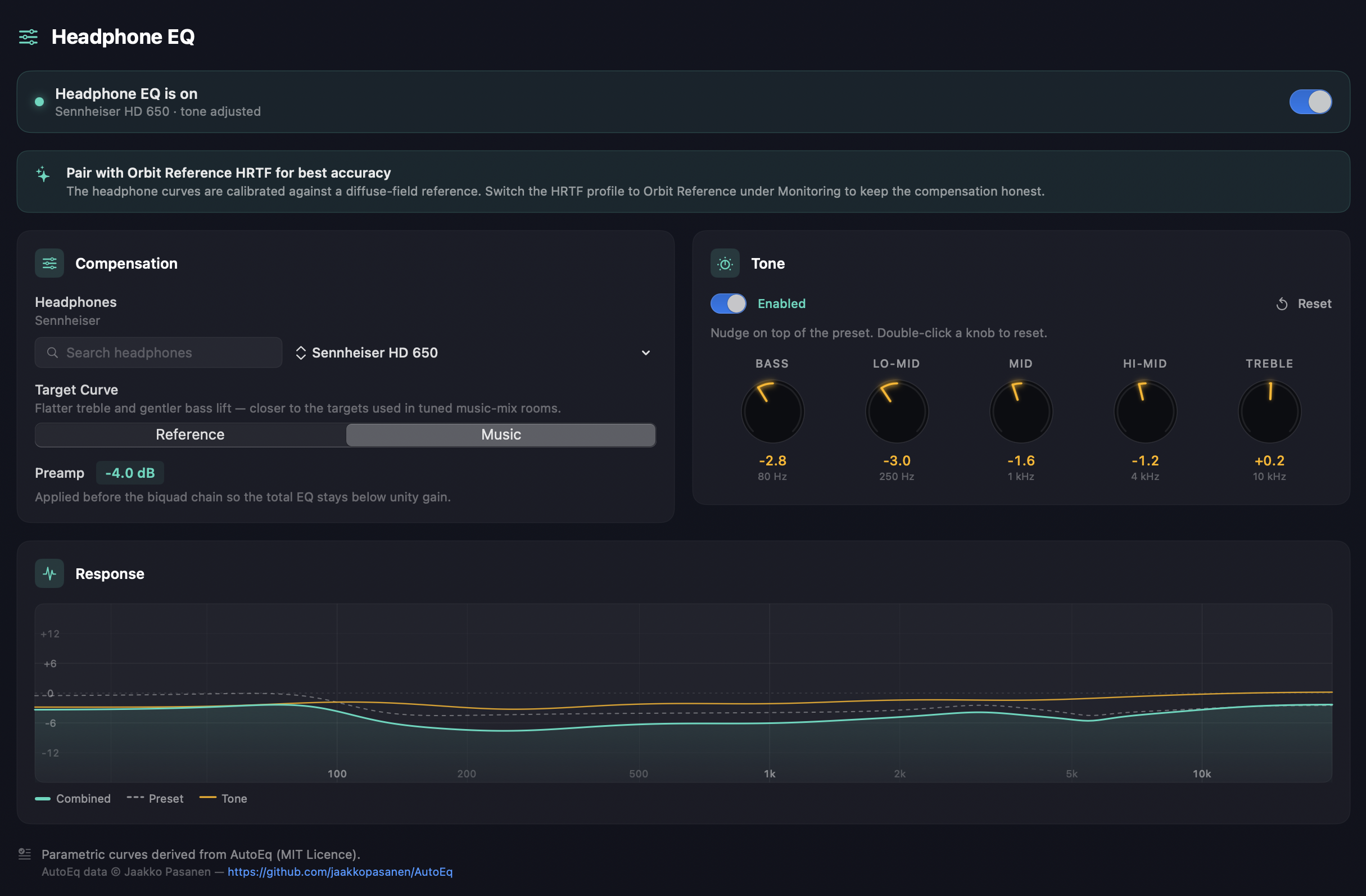
- Preset — the parametric biquad chain measured for your specific headphone model. Each preset is 4 or 5 bands of peak / shelf filters. Read-only — you pick from the catalogue rather than dialling in your own bands. The Preamp figure shown beneath the target curve (for example
−4.0 dB) is applied before the biquad chain, so the total EQ stays below unity gain and a boosted band can't clip. - Target curve — applied as part of the preset. Every preset ships with two targets: Reference (the Harman over-ear 2018 target, the AutoEq default — a slight bass shelf and gently falling treble) and Music (flatter treble and gentler bass lift, closer to the targets used in tuned music-mix rooms). Music applies less bass and treble boost than Reference — on the HD 600, for example, the bass shelf is +5.4 dB on Reference and +3.2 dB on Music. Pick whichever matches the work you're doing.
- Tone — five knobs you can nudge on top of the preset, with fixed centre frequencies (Bass 80 Hz / Lo-Mid 250 Hz / Mid 1 kHz / Hi-Mid 4 kHz / Treble 10 kHz), each ±12 dB. Double-click a knob to zero it, or Reset to zero the lot. Optional — its own Enabled switch leaves you monitoring on the preset alone.
The whole chain can be bypassed with one toggle for A/B comparisons without losing your settings.
Pair it with the Orbit Reference HRTF
The compensation curves are measured against a diffuse-field reference head, so they assume a neutral HRTF sits after them. Pair them with the matching Orbit Reference HRTF profile and the combined path is clean.
Stack them on a coloured HRTF — Orbit Studio, say — and both stages compensate the same band, so you hear that correction twice. Orbit watches for this: while the EQ is on and your HRTF profile is anything other than Orbit Reference, the panel shows a Pair with Orbit Reference HRTF for best accuracy tip. The HRTF profile lives in Audio & Monitoring.
The Response graph
The graph at the bottom plots what the chain is actually doing, across the audible band on a ±18 dB scale:
| Trace | What it is |
|---|---|
| Combined — solid, filled | What the engine plays. This is the one that matters. |
| Preset — dashed | The headphone compensation on its own, without your tone nudges. |
| Tone | Your five knobs on their own. |
Reading Preset against Combined is the quickest way to see whether your tone stack is gently seasoning the preset or fighting it — see the tip below about heavy cuts.
Picking your headphones
Open Preferences → Headphone EQ and choose your model from the searchable list. The catalogue is grouped into three categories:
- Pro Open-Back — studio reference open-backs (HD 600 / 650 / 800 S, HiFiMAN, Audeze, Focal, Beyerdynamic open, Neumann NDH 30, etc.).
- Pro Closed-Back — studio reference closed-backs (HD 280 Pro, ATH-M50x, MDR-7506, DT 770 Pro, Audeze LCD-XC, etc.).
- Consumer — popular consumer / wireless models (AirPods Max, AirPods Pro 2nd gen, Bose QuietComfort Ultra, Sony WH-1000XM5, Sennheiser Momentum 4 Wireless).
For the full list of supported models with the as-of date of the catalogue, see Headphone EQ preferences → Available headphones.
If your specific model isn't in the catalogue, pick None (bypass) at the top of the list. The user tone stack still works in this state, so you can dial in basic personal compensation by ear even without a measured preset.
Where the data comes from
The catalogue is a curated set of compensation profiles maintained inside Orbit's audio engine — measured, validated, and baked into the build. It's the same data across every product in the family (Orbit, Orbit Lite, Esfera, OrbitMonitor), updated together when new headphone profiles are added.
The parametric curves are derived from AutoEq (MIT Licence) — AutoEq data © Jaakko Pasanen, github.com/jaakkopasanen/AutoEq — with target curves and preamp values tuned by Orbit to fit the engine's biquad chain. The same attribution appears at the foot of the preferences panel.
Practical tips
- Reference vs Music: if you're doing delivery QC — checking levels, integrated loudness, true-peak compliance — stay on Reference. Music is a gentler correction, closer to the targets used in tuned music-mix rooms.
- Tone stack as touch-up, not correction: the user tone stack isn't a substitute for picking the right headphone preset. It's there for personal taste deltas — adding a couple of dB at 80 Hz because you like a bit more low-end, that kind of thing. If you're cutting heavily at 4 kHz to fix a peak, you've probably picked the wrong preset (or your headphones genuinely aren't in the catalogue).
- Bypass for A/B: the master on/off toggle is the quickest way to hear what the preset is doing. Toggle it during sustained content and the difference is usually obvious — particularly in the upper mids where most headphones diverge from neutral. The Response graph shows you the same thing with your eyes.
- Speaker mode: Headphone EQ is silent on the speaker bus regardless of the preferences panel state. You don't need to manually disable it when you switch to Multichannel.
See also
- Headphone EQ preferences — the panel itself, including the full list of supported headphones and date of last update.
- Monitoring Modes — the binaural and stereo modes that activate the EQ chain.
- Audio Preferences — the HRTF profile to pair this with, and your SOFA library.