
Appearance
Overview
The Overview is the first thing you see when a file loads — a clean summary of the whole programme before you drop into detailed QC. It combines a session-wide waveform, a per-element activity grid, and a live 3D scene, backed by a sidebar that switches between file inspection, track management, and monitoring controls.
Session Overview
The Session Overview waveform gives you the whole file at a glance, with a picker in the top-right to switch how it's drawn:
- Spatial — a single waveform per bed/object row, coloured by pan position, so width and movement are visible without opening every element individually.
- Multichannel — separate rows per bed channel and object, the same layout used in the Overview Waveform View's Multichannel mode.
Rendered through the same bus as everything else
The Spatial waveform isn't a separate analysis path — it's rendered from Orbit's internal 7.1.4 bus, the same reference bus used for Binaural and Apple Spatial monitoring and for loudness measurement. What you see here is what you'll hear and measure everywhere else in Orbit. See Monitoring Modes for more on the shared bus.
Activity
The Activity grid gives every bed channel and object its own tile, so you can see what's live in the file without hunting through the sidebar list. Bed channels and objects are colour-coded separately, and a tile lights up when its element carries signal — dark tiles are silent or unused for the current selection. It's also a shortcut into deeper inspection: click a tile to select that element and jump the 3D Visualizer and Overview Waveform View to it directly.
Selection is synced everywhere: clicking a tile rings the matching point in the Scene and highlights the element in the Inspect sidebar, so you can jump straight from a live tile to its metadata and position.
Scene
The Scene panel is a compact live view of the same 3D visualization documented in full on the 3D Visualizer page — object positions and Ambisonics activity moving in real time as the file plays. Use the corner controls to switch room shape, toggle the front indicator, or pop it into the full visualizer.
Sidebar
The left sidebar has three tabs, always available regardless of what's playing:
Inspect
The default tab. Shows the relevant ADM or IAMF content information for the loaded file — programme, content groups, beds, and objects — along with solo and mute controls for every element (IAMF) or source (ADM). This is the same solo/mute state reflected in the Activity grid, the Waveform View row gutters, and the footer's Solos & Mutes panel.
Tracks
Orbit Pro
The Tracks tab requires Orbit Pro and an open Session.
Shows every track available in the current session when more than one has been imported. Click a track to load it — playback, markers, loops, and view state switch to that track while the rest of the session's state is preserved.
Right-click a track for more options:
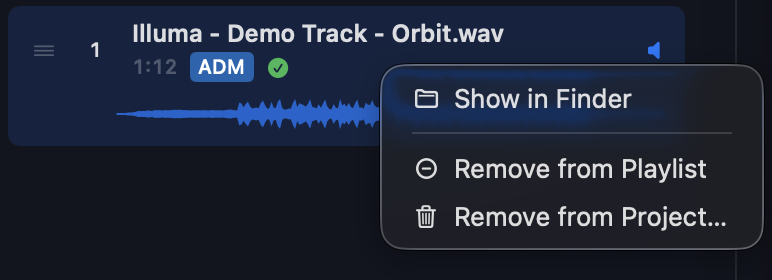
- Show in Finder — reveal the track's audio file on disk.
- Remove from Playlist — drop the track from the current playback order without deleting it from the session.
- Remove from Project… — delete the track from the session bundle entirely (prompts for confirmation).
See Sessions for how the Tracks sidebar's playlist is built and persisted.
Monitoring
Switches monitoring mode — Multichannel, Binaural, Stereo, or Apple Spatial — without leaving the Overview, plus whichever settings are relevant to the active mode (for example, output device selection or Spatial Options).
See Monitoring Modes for what each mode does and when to use it.
Footer
Beneath the main view, the footer surfaces the same Solos & Mutes, Output Meters, spectral view, and Integrated LUFS panel available elsewhere in Orbit, so you can keep an eye on levels and loudness while you work the Overview. See Meters & Levels and Loudness for details on those panels.
See also
- Waveform View — the full Spatial / Multichannel / All Tracks / Inspect timeline, of which the Session Overview waveform is a summarized view.
- 3D Visualizer — the full-size version of the Scene panel.
- Sessions — multi-track sessions and the Tracks sidebar.
- Monitoring Modes — the four monitoring modes and the shared 7.1.4 reference bus.
- Meters & Levels and Loudness — the footer panels shown alongside the Overview.