Skip to content
ProThis page covers Orbit Pro features.

Waveform View

The Waveform View is the timeline's main display — a visual representation of the audio in the file laid out against time, with several modes that progressively reveal more per-element detail. The view sits in the centre of Orbit's main window and is what you scroll, zoom, mark, and loop against.

Not the Tracks sidebar

This page is about the waveform display. If you're looking for the Tracks sidebar — the list of tracks in an open session, where you switch between files and toggle the auto-advance pill — see Workspace Tour.

The mode picker (top-left of the timeline toolbar) has up to four segments. The first two are available in Orbit; the last two are Pro:

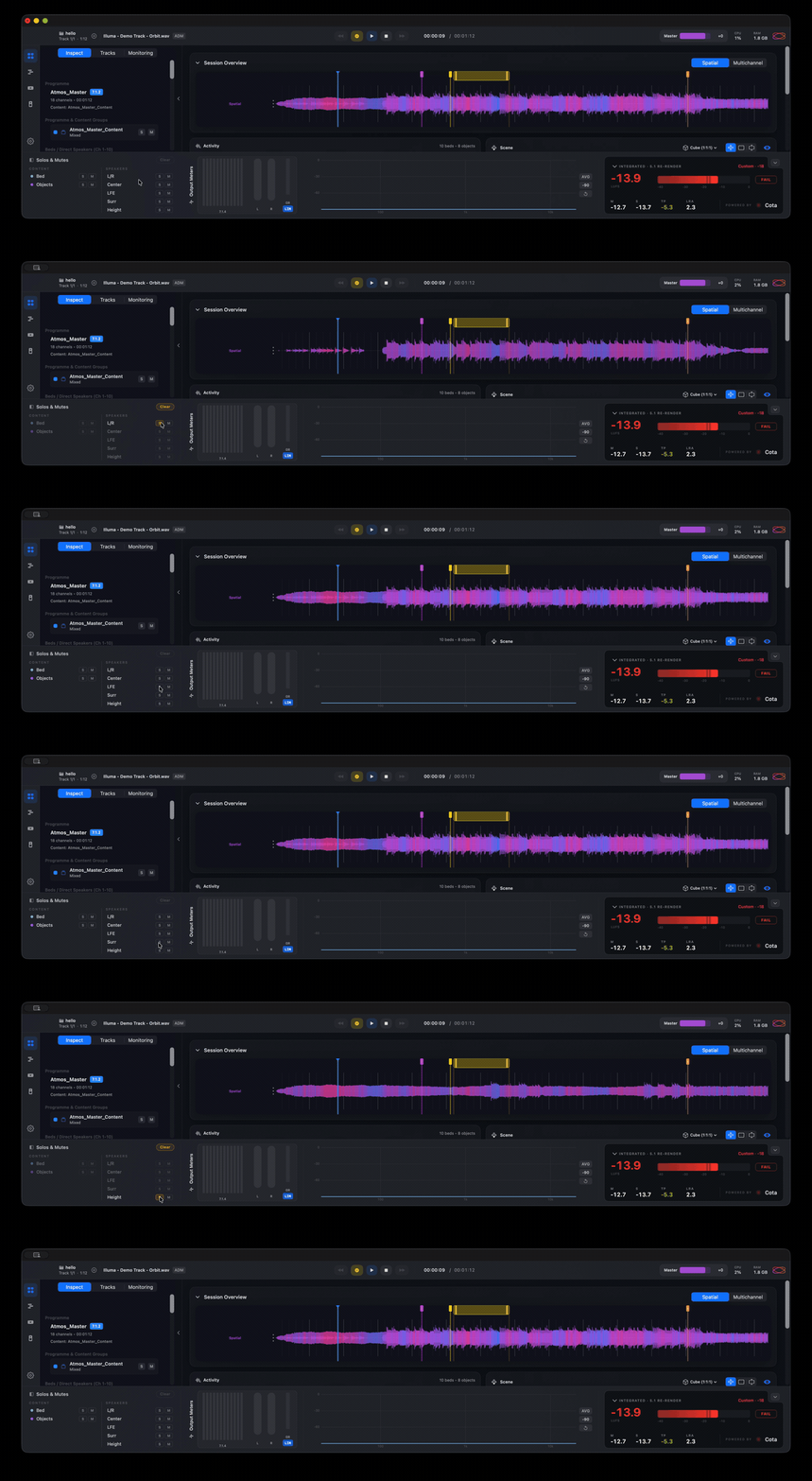
  • Spatial — a single waveform with each peak coloured by its left-right pan position. Best for "is the mix wide enough?" at a glance.
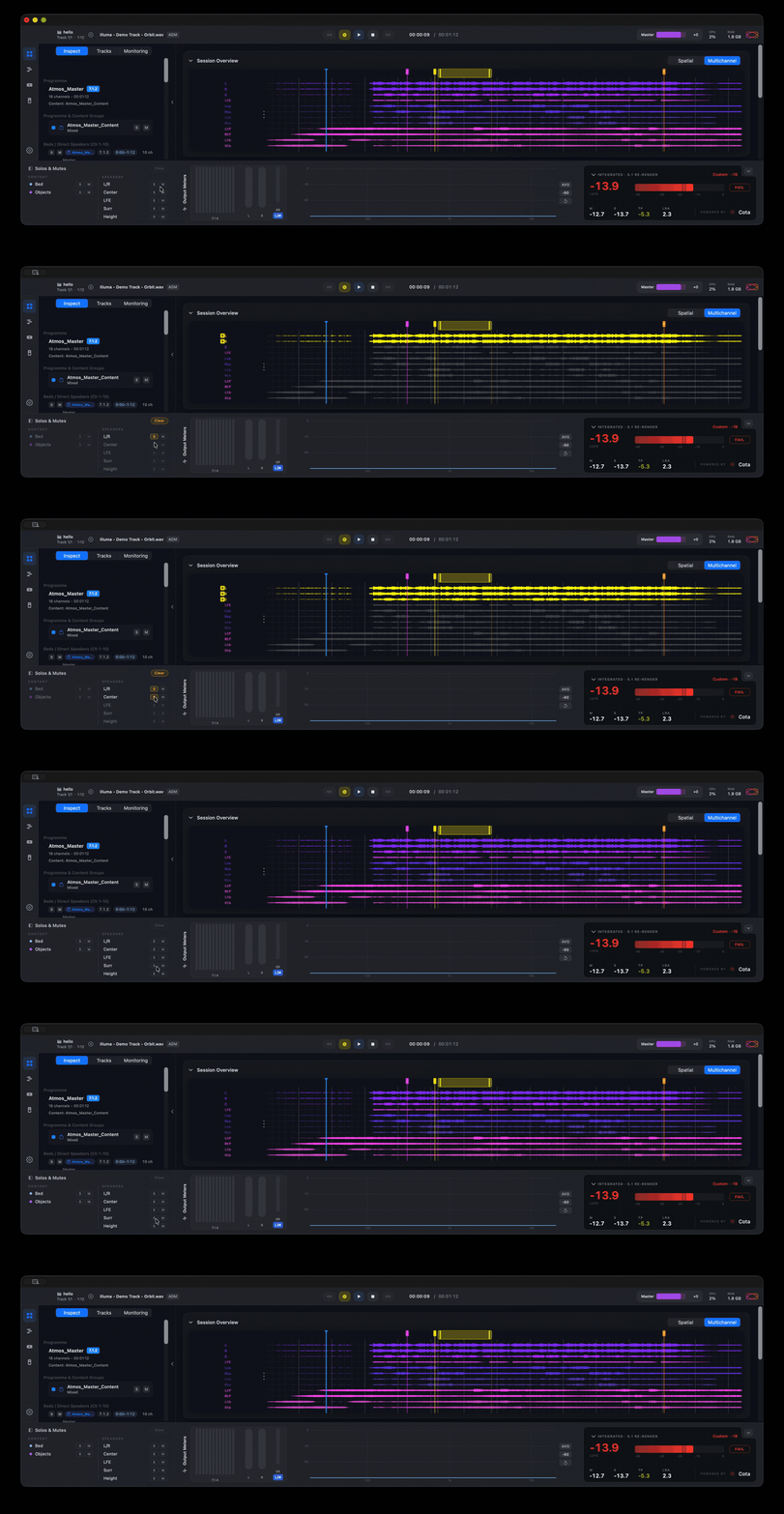
  • Multichannel — separate top-level rows for the bed and the objects, each with their own waveform. Good middle ground between an overview and full per-element detail.
  • All Tracks (Pro) — one row per bed channel + one row per object + one row per Ambisonics group. The full per-element view; this is the workhorse mode for QC.
  • Inspect (Pro) — drills into a single object, ChannelBased element, or HOA group on its own. Shows up as a fourth picker segment only while you're inside it.

The standard Spatial and Multichannel modes are covered in the Timeline reference. The rest of this page focuses on the two Pro modes that add per-element inspection.

Pro

All Tracks and Inspect modes require Orbit Pro.

All Tracks mode

Click All Tracks in the mode picker to expand the timeline into one row per element in the file:

  • Bed channels — one row each (L, R, C, LFE, Ls, Rs, Lrs, Rrs, Ltf, Rtf, Ltb, Rtb), in standard 7.1.4 order. Each row shows that channel's waveform in isolation.
  • Objects — one row each, in the order they appear in the ADM. The row label uses the object's name from the ADM metadata when available.
  • Ambisonics groups — one row per group (HOA scene-based audio shows here as a single row representing the group's energy, not per-component).

Use it when:

  • You're hunting for which channel a clip / pop / dropout is on.
  • You're verifying object positioning by reading peaks against a known transient.
  • You want to confirm an LFE rumble is genuinely on the LFE bed and not bleeding from a side channel.
  • You're checking that an object's automation lines up with where the audio actually starts and stops.

The number of rows can get long quickly — a 7.1.4 bed plus 50 objects is 62 rows. Use the size selector (described below) to compact them when the row count is high.

Inspect mode

To enter Inspect: click an object, ChannelBased element, or HOA group in the 3D scene or in the Activity Grid. The timeline automatically switches to a four-segment picker, with the new Inspect segment selected, focused on the item you clicked.

Inspect shows:

  • One row per channel of the inspected element. For an object, that's the single audio track. For a ChannelBased element (e.g. a 5.1 stem), that's all five channels with their canonical labels. For a HOA group, that's the W / Y / Z / X (and higher-order) ambisonic components.
  • The element's metadata in the row gutter — name, channel count, format.

Use Inspect when:

  • A single object is misbehaving and you want a large, focused view of just its audio.
  • You're verifying the channel ordering of a ChannelBased element (e.g. checking that the L/R/C/LFE/Ls/Rs of an embedded 5.1 stem land on the expected speakers).
  • You're examining an Ambisonics group's individual components for level / phase issues that the energy summary in All Tracks doesn't expose.

Switch back to a non-Inspect mode by clicking any of the other picker segments. The Inspect segment disappears once you leave it.

Size and zoom

Both Pro modes share the timeline toolbar's right-hand controls:

  • Size (Compact / Medium / Large segmented control) — interprets differently per mode. In All Tracks and Inspect it sets per-row height; in Multichannel it sets the total view height. Pick Compact when you've got many rows, Large when you want the waveform detail.
  • Zoom — standard timeline zoom. Pinch on a trackpad or use the zoom controls in the timeline header. Zoom is shared across all modes — the position you're zoomed to follows you when you switch.
  • Auto-scroll — when on, the view follows the playhead automatically. Toggle from the timeline toolbar.

What's shared with the rest of the timeline

Every mode in the waveform display shares:

  • Markers — visible on every row, click to seek, drag to move (Pro).
  • Loop region — drawn over the timeline regardless of mode (Pro).
  • Playhead — same playhead in every mode; switching modes never loses your place.
  • Solo / mute — the row gutter in All Tracks and Inspect carries solo / mute affordances tied to the same engine state as the Activity Grid and the Tracks sidebar.

See also

  • Timeline — the broader timeline behaviour (ruler, playhead, scrubbing, zoom controls) that underlies every waveform mode.
  • Workspace Tour — where the timeline and waveform views sit in the layout, and where the Tracks sidebar (a separate UI area) is documented.
  • Sessions — markers and loops are persisted per-session.
  • Metering Preferences — the meter scale that the row gutter uses.

Orbit documentation by South Loop Studios