
Appearance
Transform, Crop & Masking
Pro
Transform, Crop & Masking is an Orbit Pro feature.
Transforming, cropping and masking in Orbit Pro is very simple. Every clip — video, text and graphics — can be transformed, cropped or masked.
Getting started
Select a clip, then choose one of the three tools in the top-left of the video window.
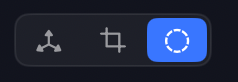
From left to right: Transform, Crop and Mask. You can also edit these settings from the inspector sidebar on the right when a clip is selected.
Transform
Move, scale and rotate the clip within the frame.
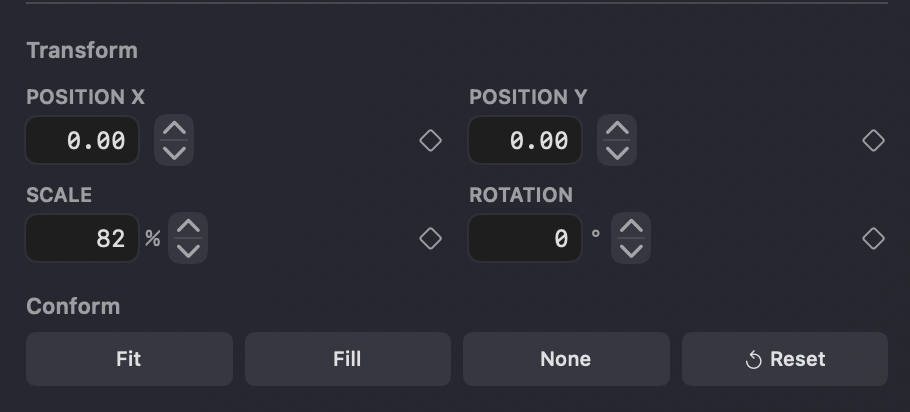
- Position X / Y
- Scale (%)
- Rotation (°)
- Conform — Fit, Fill or None, plus Reset
Transform can also be keyframed. We're bringing more items to keyframing over time, so watch this space in future updates.
Crop
Trim in from each edge of the frame.
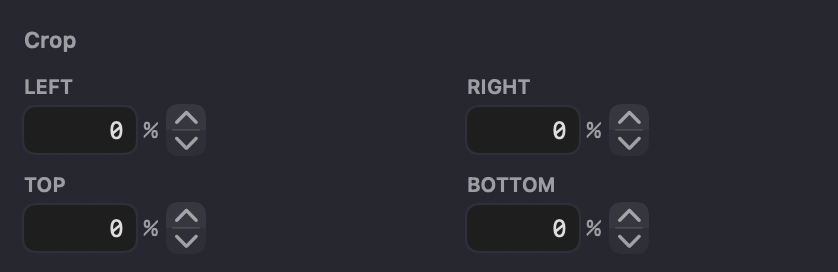
- Left, Right, Top, Bottom (%)
Mask
Mask the clip to a shape.
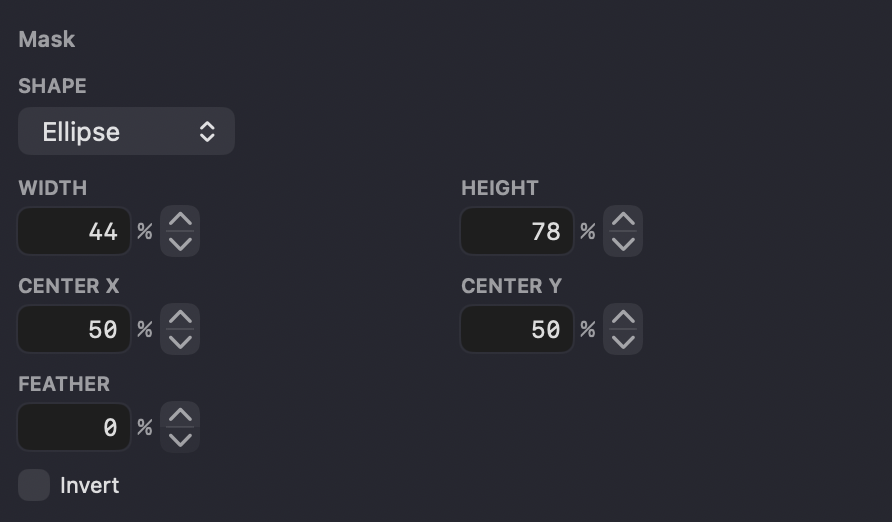
- Shape — e.g. Ellipse
- Width / Height (%)
- Center X / Y (%)
- Feather (%) — soften the mask edge
- Invert — mask the outside instead of the inside
Opacity
Opacity is a separate tool, and can also be keyframed.

- Opacity (%)
INFO
Opacity is separate from the fade tool — see Video Editing.