
Appearance
Video Programme Settings
Pro
Working with video is an Orbit Pro feature.
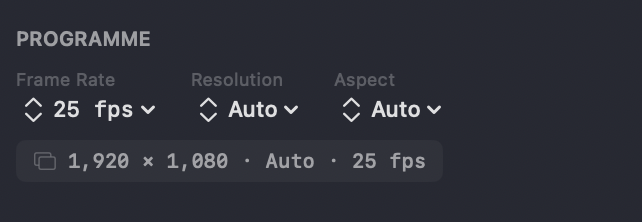
The Programme settings define the frame rate, resolution and aspect ratio of your video timeline. They sit at the top of the Video Clips panel in the Video View.
By default the programme is auto-detected from your first imported clip, and the summary line beneath the controls shows the current resolution, aspect and frame rate. You can change any of these at any time to suit your project.
INFO
Changing a programme setting while content is already on the timeline will trigger a re-render so playback stays optimised.
Frame rate
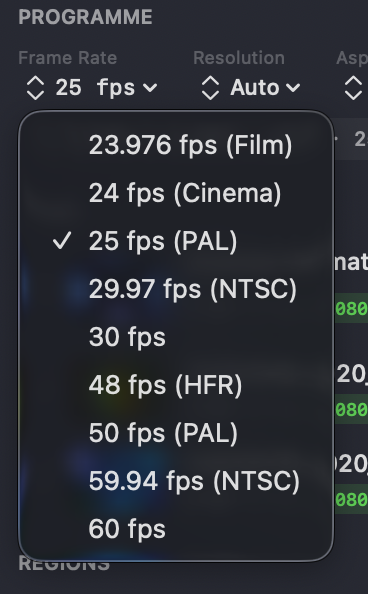
Choose the timeline frame rate:
- 23.976 fps (Film)
- 24 fps (Cinema)
- 25 fps (PAL)
- 29.97 fps (NTSC)
- 30 fps
- 48 fps (HFR)
- 50 fps (PAL)
- 59.94 fps (NTSC)
- 60 fps
Orbit doesn't interpolate or synthesise frames. Content below the programme frame rate plays at its native rate rather than being frame-generated up to match; content that supports the programme rate plays back at it.
Resolution
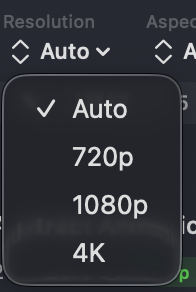
Leave it at Auto to follow your source, or set it explicitly:
- Auto
- 720p
- 1080p
- 4K
Aspect ratio
- Auto
- 16:9 — standard widescreen
- 9:16 — vertical (phone)
- 1:1 — square
- 4:3 — classic
- 2.39:1 — cinemascope
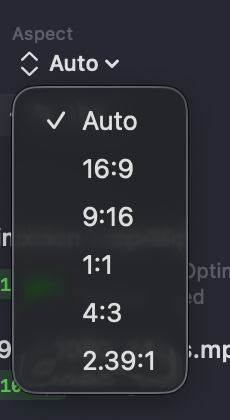
Square (1:1) and vertical (9:16) are supported for phone-based content — paving the way for the future of spatial content on mobile.