
Appearance
Performance Preferences
Two trade-off knobs for systems where Orbit is competing for resources — older machines, hot CPUs, big sessions, or simply a Mac that's also running a video editor and a DAW alongside. Both default to the highest-quality option; turn them down when you'd rather give something up to free up headroom.
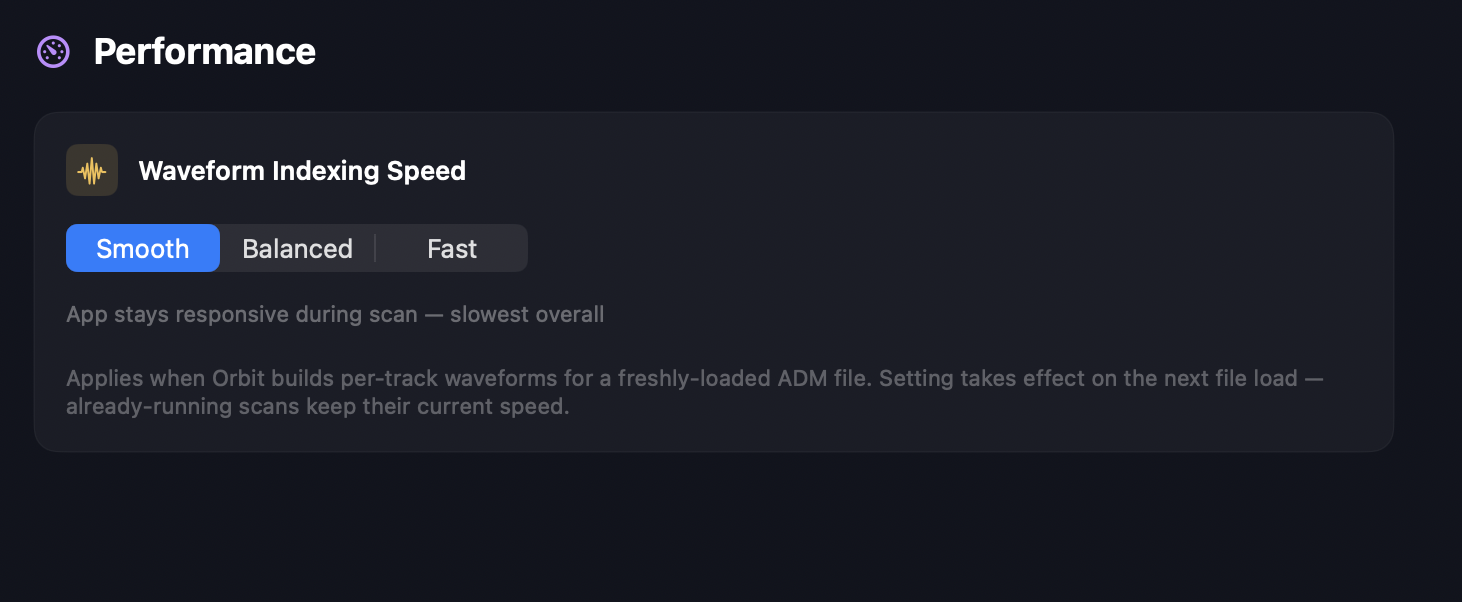
Waveform indexing speed
Deprecated in Orbit 1.5.x
As of 1.5.x, all waveform scanning runs through the new fast waveform scanner, enabled by default — indexing no longer has the responsiveness/speed trade-off this setting was built for. The Smooth / Balanced / Fast picker is still present but has no meaningful effect and is expected to be removed in a future release.
Three options for how aggressively Orbit indexes waveforms when an ADM file is first loaded.
Smooth — background priority with periodic yields. The slowest of the three but the most responsive: the rest of the UI never feels chopped while indexing runs. Default.
Balanced — middle ground. Faster scan completion, with brief moments where UI updates feel slightly less smooth.
Fast — aggressive scheduling, no yielding. Completes scans noticeably quicker, but you may see brief UI hiccups during the scan, especially on slower machines.
The setting applies to fresh file loads — switching mid-scan doesn't change the in-flight scan's speed.