
Appearance
Meters & Levels
Orbit's meters help you verify that levels are healthy and the mix is behaving as expected. They adapt to your monitoring mode — showing every channel of your active speaker layout in Multichannel mode, or simple L/R meters in binaural and stereo — so you always see what's relevant to your current output.
Meter types
Meters adapt to the current monitoring mode:
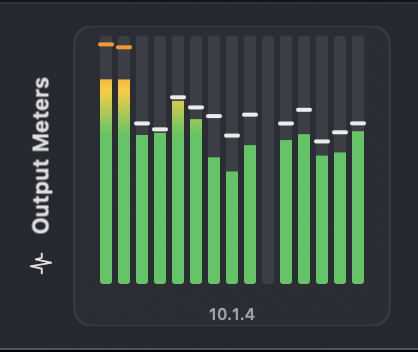
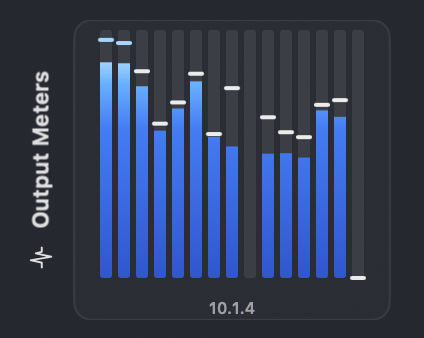
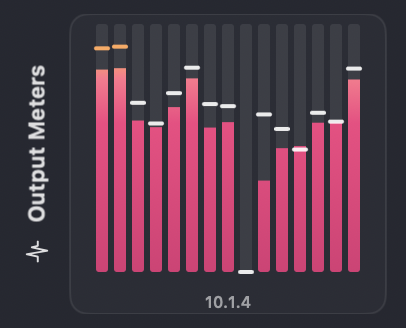
- Multichannel mode: per-channel metering for your active speaker layout. This follows whatever OSLS layout you've selected — 12 channels for 7.1.4, or the full channel count of a wider rig (for example 14 for 10.1.4, or many more for a large custom layout). The block is labelled with the layout's name, and wide layouts wrap onto multiple rows.
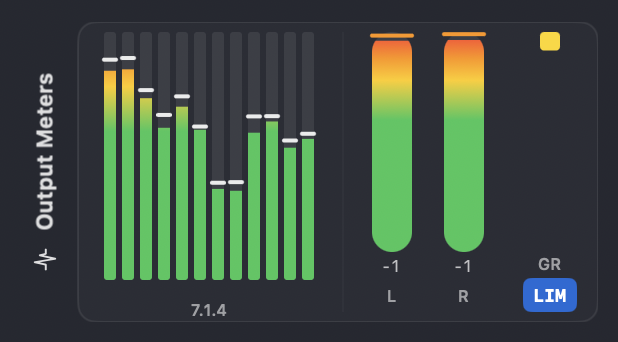
- Binaural mode: Left and right binaural output meters showing the actual signal after HRTF processing. Enable View → Show Virtualized 7.1.4 Meters in Binaural Mode to see the underlying 7.1.4 speaker feed alongside binaural output.
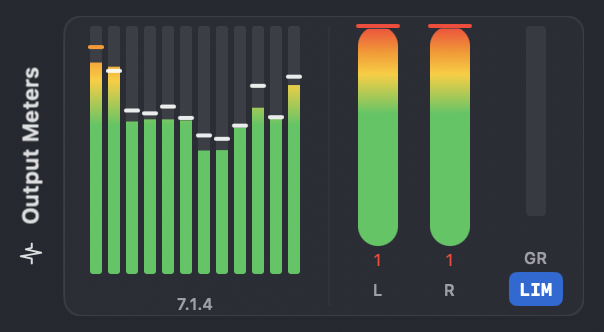
- Apple Spatial Audio mode: Left and right binaural output meters showing the stereo signal after Apple's HRTF processing (with the virtualized 7.1.4 reference feed available the same way as in Binaural mode).
- Stereo mode: Left and right stereo fold-down meters.
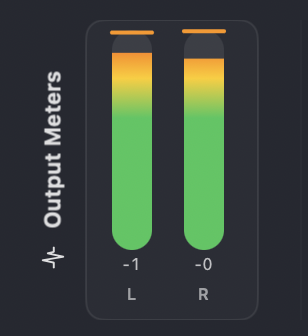
Meters use position-fixed gradient colouring (green to yellow to orange to red) mapped to absolute dB levels, with peak hold indicators (1.5-second hold time with decay) and vertical channel labels. All meters update in real-time during playback and scrubbing.
Multichannel metering scales to your layout
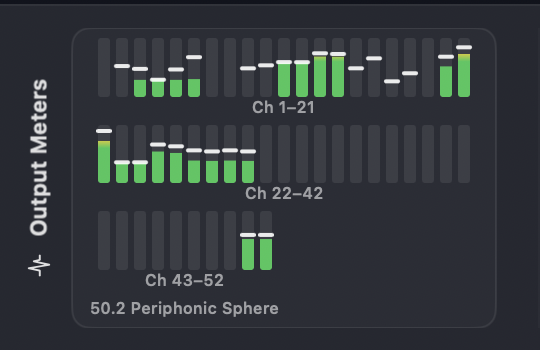
The multichannel meter block follows your selected OSLS layout. Smaller rigs show a single labelled block; large layouts wrap onto multiple rows, each with a channel-range label.
A large custom rig — here a 52-channel "50.2 Periphonic Sphere" — wraps across labelled rows (Ch 1–21, Ch 22–42, Ch 43–52):
Binaural and Apple Spatial
Binaural and Apple Spatial Audio show the L/R output, with an optional virtualized 7.1.4 reference block and the binaural limiter's gain-reduction (GR) readout:
Stereo
Stereo fold-down shows a simple L/R pair:
For loudness measurement (LUFS, true peak, LRA) and the Powered by Cota engine, see Loudness.
Meter colours
Here at Orbit Spatial we believe app customisation matters — yet very few apps let you change the colour of your meters. We thought, why not? So Orbit ships with a range of beautiful meter colours to suit your taste.
Open Preferences → Meters and pick a Meter Theme. Your choice applies everywhere meters appear, in every monitoring mode.
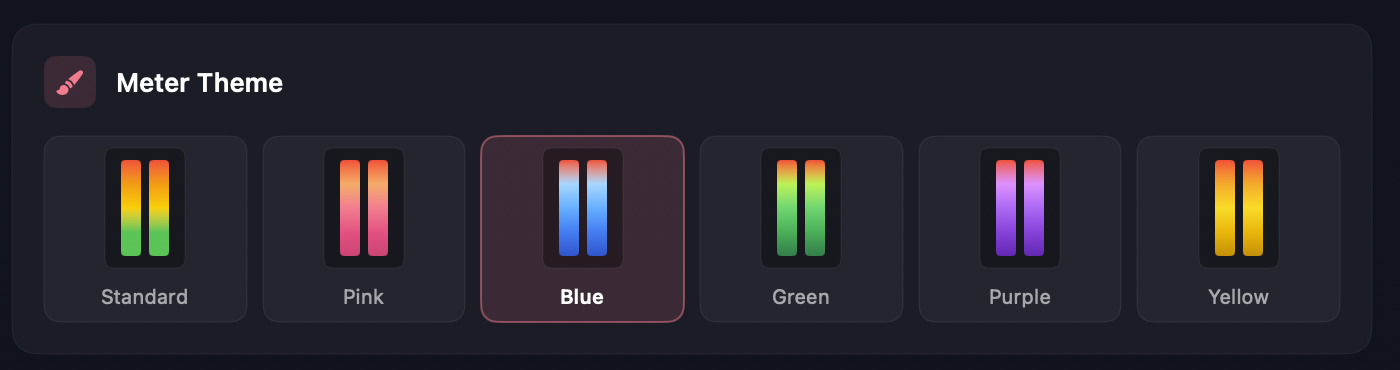
The Standard theme is the position-fixed green-to-red gradient described above. The remaining themes recolour the meters while keeping the same scale, peak-hold, and clipping behaviour:
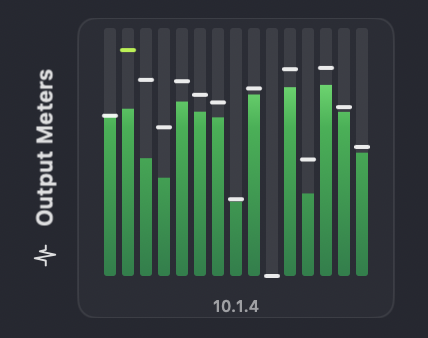
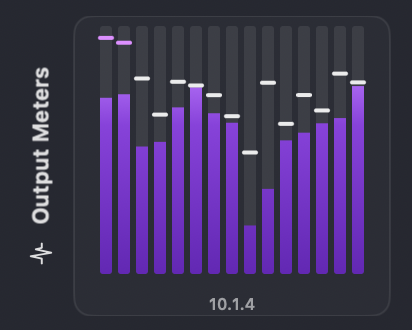
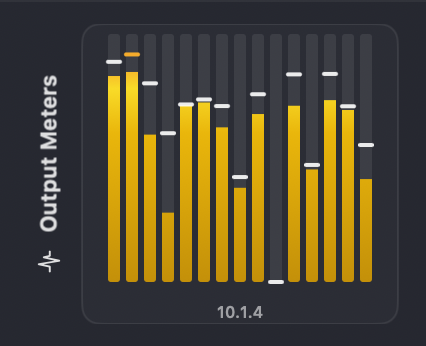
TIP
The theme is purely cosmetic — peak-hold indicators, clipping, and the underlying dB mapping are identical across every colour, so switching themes never changes what the meters are telling you.
What to check
- Peaks and clipping during loud sections.
- LFE activity only when expected.
- Bed vs object balance across the programme.
- Loudness compliance with delivery specifications.
Practical tips
- Compare meters across monitoring modes to catch translation issues.
- Use solo and mute controls to isolate problem elements.
- Reset loudness measurements when checking specific sections.
TIP
If you see unexpected peaks, revisit the same timecode in a different monitoring mode to confirm the source.
Meter scales
Change the scale via View → Meter Scale. The default is Digital Peak.
DAW-style meters
These meters show 0 as clipping (full scale):
| Scale | Range | Use for |
|---|---|---|
| Digital Peak | -60 to 0 dBFS | General DAW work |
| True Peak | -60 to +3 dBFS | Checking inter-sample peaks |
| Peak Wide | -72 to 0 dBFS | Classical/film (more dynamic range) |
Broadcast meters
These meters show 0 as nominal (reference) level:
| Scale | Reference | Use for |
|---|---|---|
| EBU R128 | -18 dBFS | European broadcast |
| BBC PPM | -18 dBFS | BBC-style broadcast |
| K-20 | -20 dBFS | Wide dynamics (film/classical) |
| K-14 | -14 dBFS | Music mixing |
| K-12 | -12 dBFS | Streaming/commercial |