
Appearance
Audio Preferences
Preferences ▸ Audio & Monitoring (⌘,) is where you choose your output device, pick a monitoring mode, and manage your HRTF profiles. Sections that only apply to the current monitoring mode appear and disappear as you switch.
Output Device
Pick the audio interface Orbit plays through. Refresh re-scans for interfaces if you've plugged something in since launch.
Patching individual speakers to individual outputs is done next door, in Speaker Layout & Routing — pick Speaker Layout & Routing in the Preferences sidebar.
Stereo / Binaural Output Pair
The pair of outputs used for Stereo, Binaural and Apple Spatial Audio. This can be your system's first two channels, or a dedicated pair — outputs 23/24 for a separate headphone feed, for example — so headphone monitoring doesn't fight your speaker patch.
Monitoring Mode
The mode Orbit renders to: Multichannel, Binaural, Stereo or Apple Spatial. See Monitoring Modes for what each one does.
Binaural Options
Shown when Binaural is the active mode.
- HRTF Profile — the head model used for binaural rendering. The menu lists the Built-in profiles and, in an Imported section below them, every SOFA profile in your HRTF Library.
- Binaural Limiter — catches peaks created by HRTF summing.
- Binaural Trim (−3 dB) — a fixed trim for headroom.
Content wider than 7.1.4 (9.1.4 / 9.1.6) is folded to a 7.1.4 virtual array before HRTF rendering.
No quality selector
Binaural always renders on the interpolated HRTF grid. There's no quality choice to make and no lower-quality path to accidentally leave selected.
HRTF Library
Your own HRTF profiles live here — personal or measured HRTFs in SOFA format, including the ones from hrtf.orbitspatial.io.
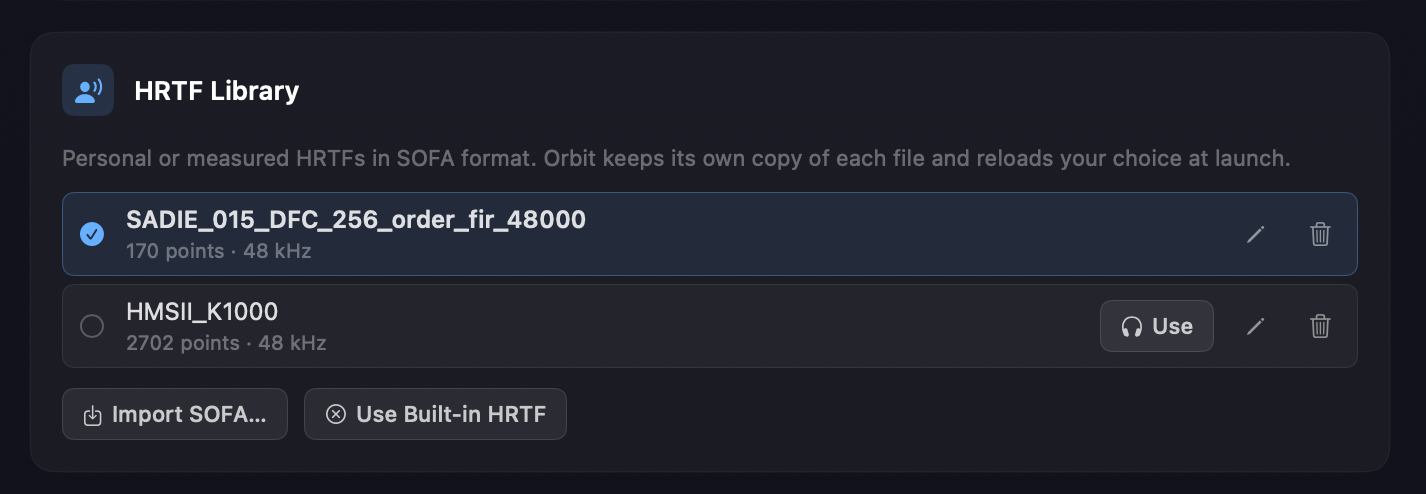
Each profile lists its measurement point count and sample rate, which is the quickest way to tell two similarly-named SOFA files apart.
- Import SOFA… — choose a
.sofafile. Orbit keeps its own copy, so moving or deleting the original later doesn't break your monitoring. - Rename — give a profile a name you'll recognise in the HRTF menu.
- Remove — delete Orbit's copy. The file you imported from is untouched.
- Use — monitor through that profile. The active one is checked.
- Use Built-in HRTF — go back to a built-in profile without removing anything from your library.
Imported profiles appear by name in the HRTF Profile menu, in their own Imported section — everywhere that menu appears, including the Virtual Studio tab of the Speaker Configuration window.
Your choice survives a restart
The active profile is restored at launch. Previously a custom SOFA was forgotten on quit, and binaural came back on the built-in head model without saying so.
The library is available whatever monitoring mode you're in, so you can import and tidy profiles without switching to binaural first.
Apple Spatial Audio
Shown when Apple Spatial Audio is the active mode. Choose the renderer Mode and a Volume trim. As with binaural, content wider than 7.1.4 is folded to a 7.1.4 virtual array before rendering.
Solo Options
Solo in Pairs — applies to object solos in the sidebar and the activity grid: soloing an object also solos the next one (solo object 1 and you hear 1 + 2; solo 2 and you hear 2 + 3). It's off at every launch — the setting isn't remembered between sessions.
Related
- Output Routing & Devices — device selection, the routing matrix and the speaker test.
- Speaker Configuration — virtual studio positions and physical room calibration.
- Monitoring Modes — what each mode renders.
- Head Tracking · Headphone EQ