
Appearance
Timecode Preferences
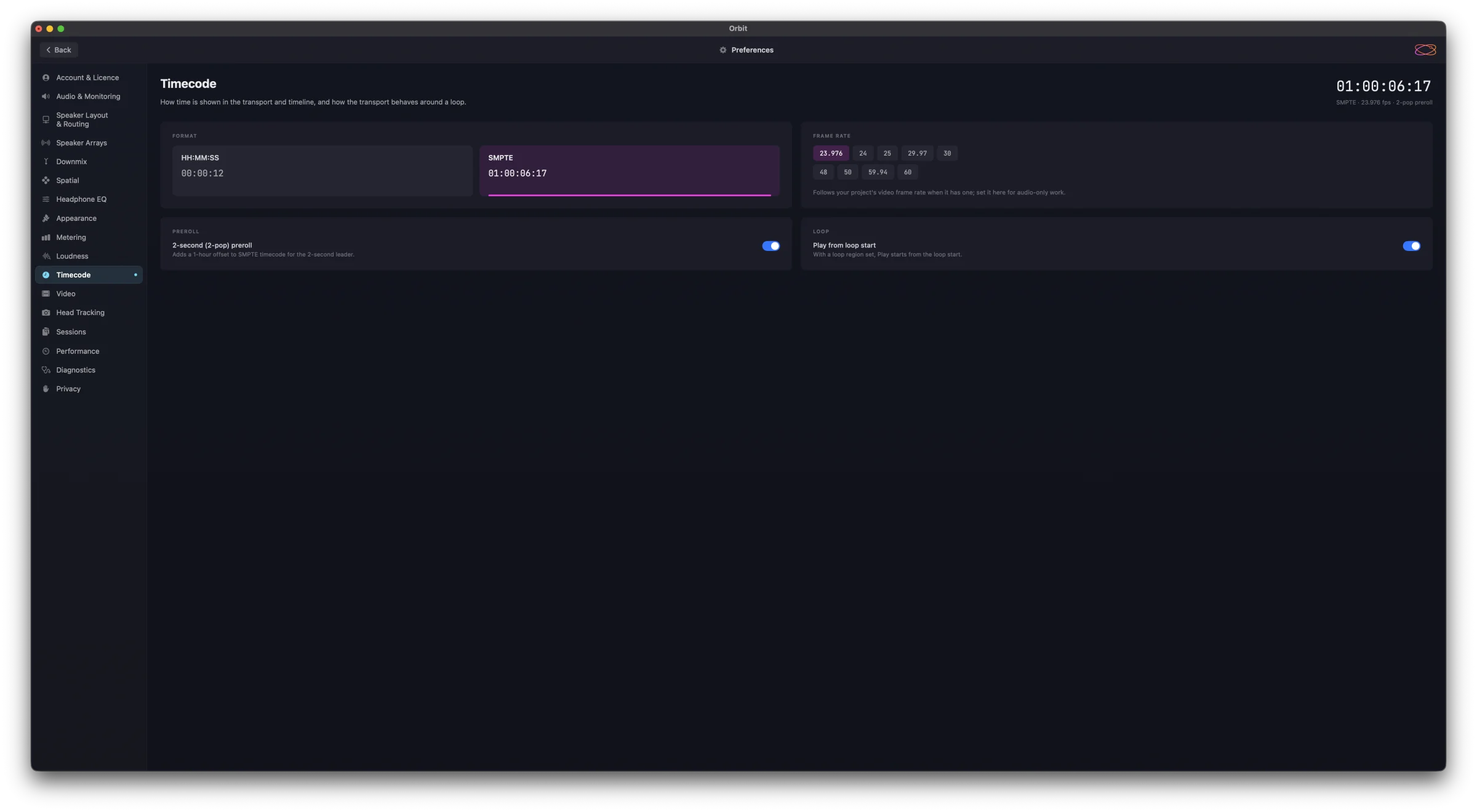
Preferences ▸ Timecode sets how time is shown in the transport and timeline, and how the transport behaves around a loop. The current time, as it will read, sits at the top right of the pane.
Format
HH:MM:SS — hours, minutes and seconds (00:00:12). The default. Good for music, where you just want to know how far into the file you are.
SMPTE — SMPTE timecode at the frame rate below (01:00:06:17). Use it whenever you're working to picture, comparing notes with a video editor, or your delivery spec calls for it.
The format applies to the transport readout, the timeline ruler and the timecode in the loudness panel.
Frame Rate
23.976, 24, 25, 29.97, 30, 48, 50, 59.94 or 60. The default is 24. It follows your project's video frame rate when it has one (see Video); set it here for audio-only work. The rate only matters in SMPTE — HH:MM:SS doesn't count frames.
TIP
If timecode "looks right" but drifts visibly against picture, the frame rate is almost always the culprit.
Preroll
2-second (2-pop) preroll — adds a 1-hour offset to SMPTE timecode for the 2-second leader. With it on, SMPTE starts at 00:59:58:00 (the 2-pop leader) and programme content begins at 01:00:00:00 — the usual convention for handing off to a video editor. With it off, SMPTE starts at 01:00:00:00 with no leader offset.
It only changes how positions are labelled — the audio and the playhead are the same either way — and only in SMPTE. On by default.
Loop
Play from loop start — with a loop region set, Play starts from the loop start rather than from the playhead. On by default, so every Play drops you back to the start of the region you're checking; turn it off to have Play resume from the playhead and enter the loop when it gets there.
Pro
Looping is an Orbit Pro feature. This option has no effect without a Pro licence.
See also
- Sessions — sessions keep loop regions and markers.
- Timeline View — the ruler, markers and loop region.