
Appearance
Markers
Pro
Markers is an Orbit Pro feature.
Markers are extremely useful for QC and listening sessions. Drop them at glitches, level concerns, or anywhere you want to flag for revisit — keep them for reference later, or export them with your PDF report.
Unlike markers in a standard audio app, Orbit lets you link a marker to specific bed channels and objects, each marker with its own title and comment. It's an understated but powerful tool.
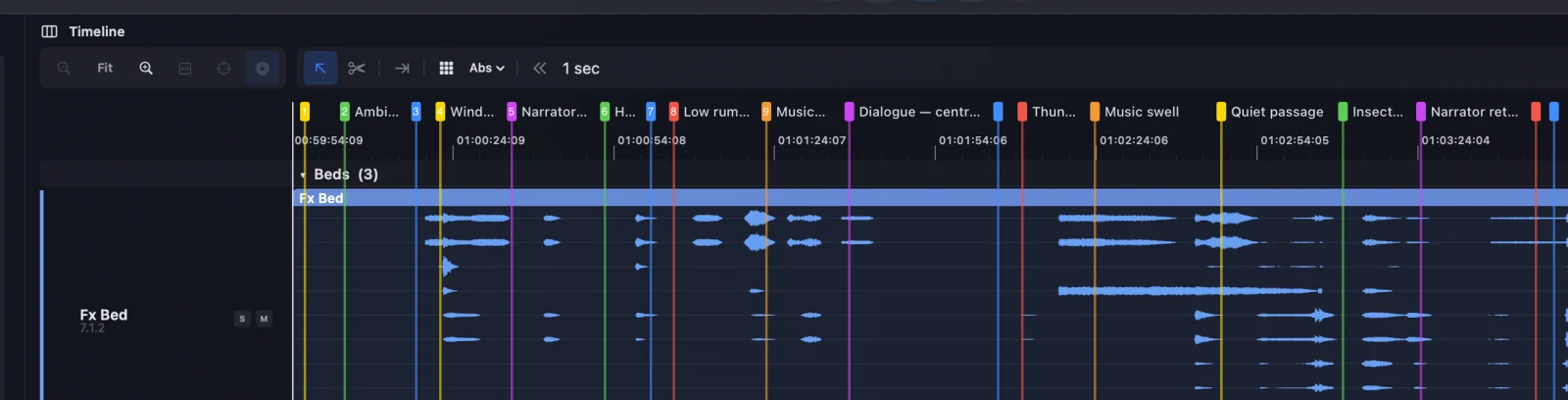
Marker names on the timeline
New in Orbit 1.5.9
Marker names on the timeline, in a row of their own.
Each marker shows its name beside its number, in a row of its own at the top of the timeline. When markers sit close together their names shorten so they never overlap — hover a marker for its full name. Because markers have their own row, a loop region never covers their names.

Adding a marker
Position the playhead where you want the marker and press ⇧M. This opens the marker modal.
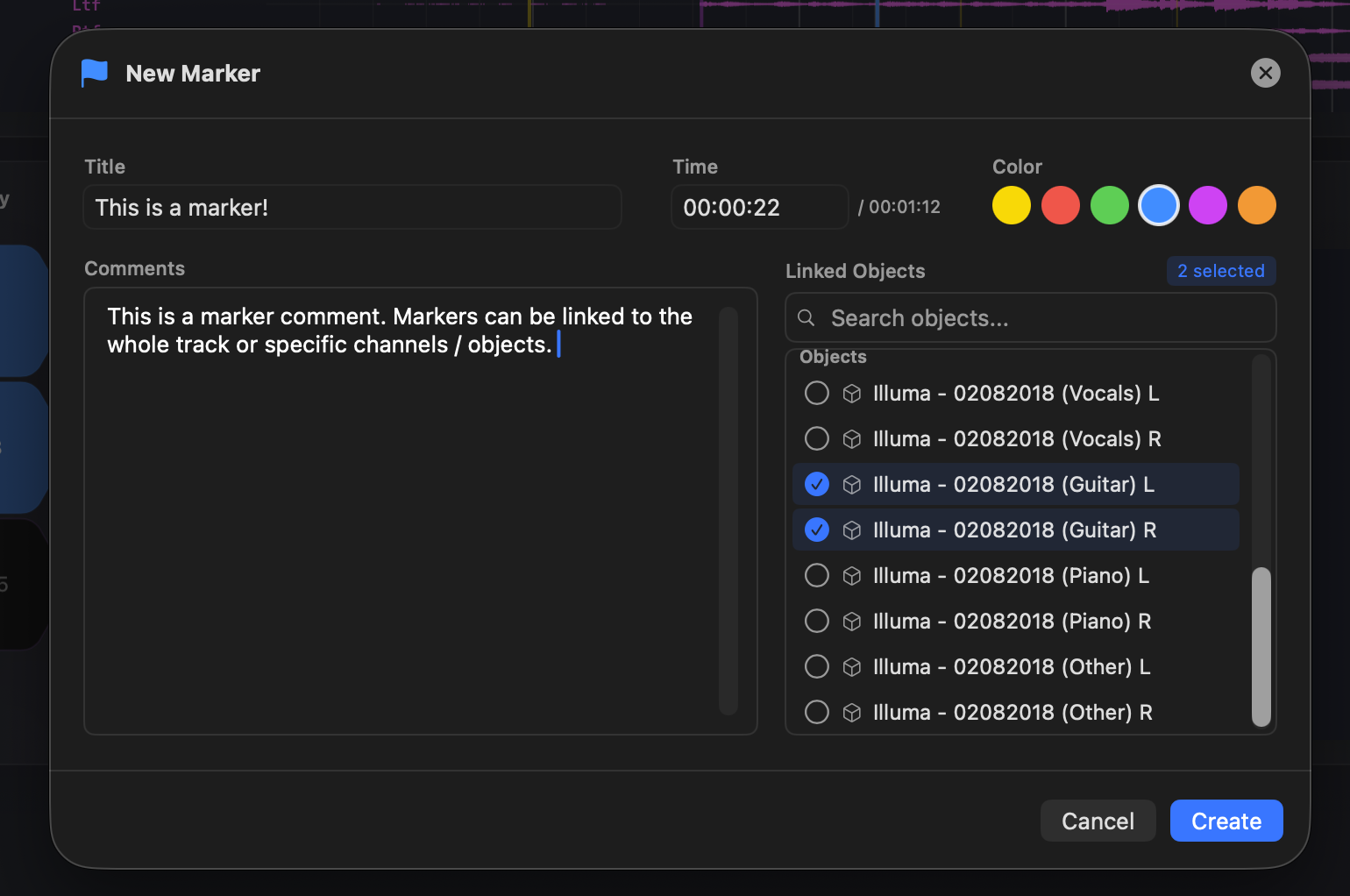
Give it a title and a comment, then either:
- Create the marker without linking to attach it to the current track's timeline as a whole, or
- Link it to specific elements using the Linked Objects selector on the right.
A marker can be linked to as many bed channels and objects as you like. Beds are linked per bed channel; objects are linked individually. Pick a colour to categorise markers at a glance.
Editing and moving markers
- Edit — click a marker's flag on the timeline to reopen the marker modal.
- Move — hold ⇧ (Shift) and drag the marker along the timeline.
The Markers tab
New in Orbit 1.5.9
A Markers tab beside the timeline.
The Timeline's right-hand panel has two tabs, Activity and Markers. The Markers tab lists every marker with its number, colour, name and time.
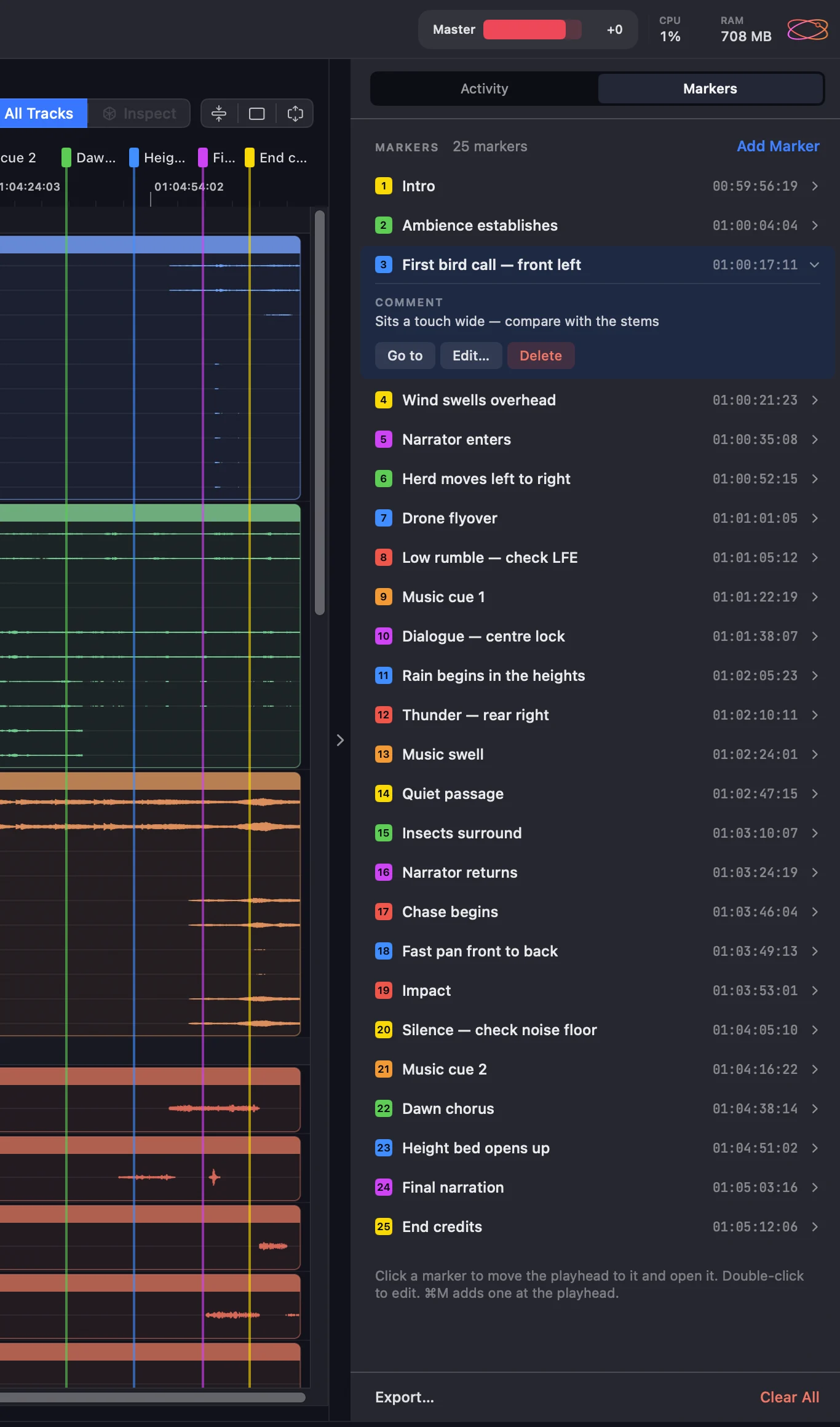
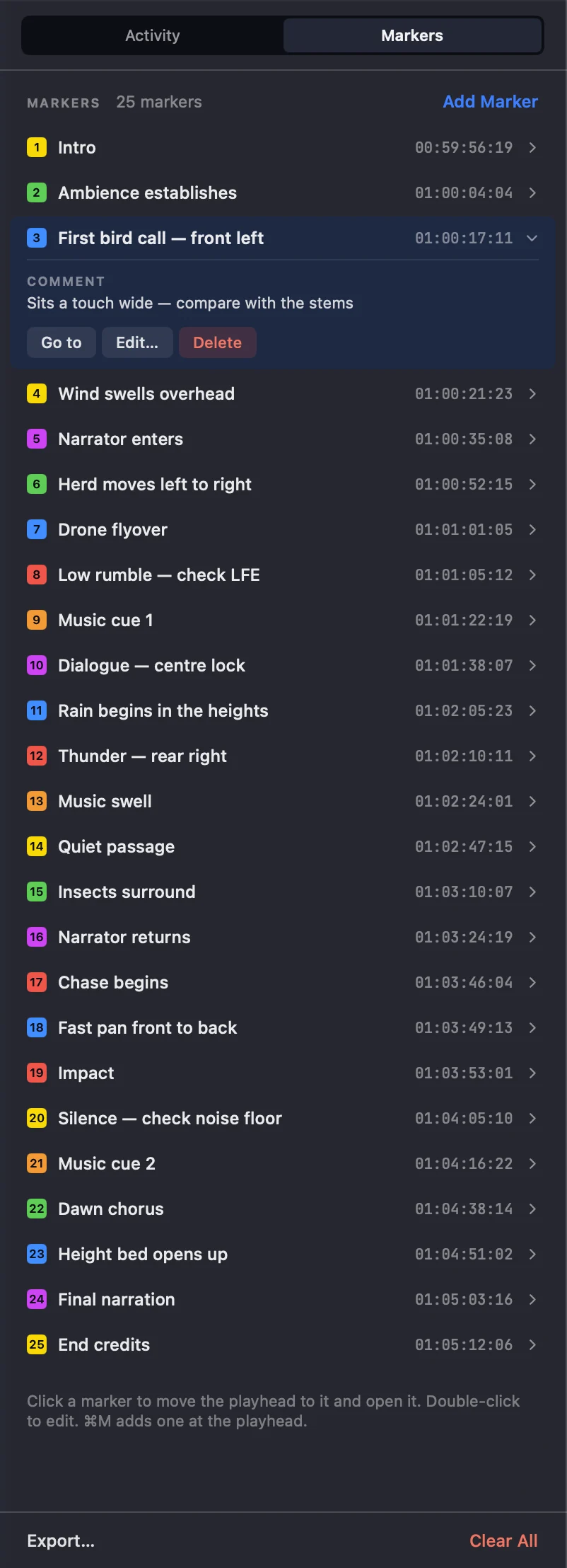
- Click a marker to move the playhead to it and open it, showing its comment and Go to, Edit… and Delete.
- Double-click a marker to edit it.
- Add Marker drops one at the playhead (⇧M).
- Export… and Clear All sit at the bottom of the list.
Orbit remembers which tab was open with the session.
The marker list
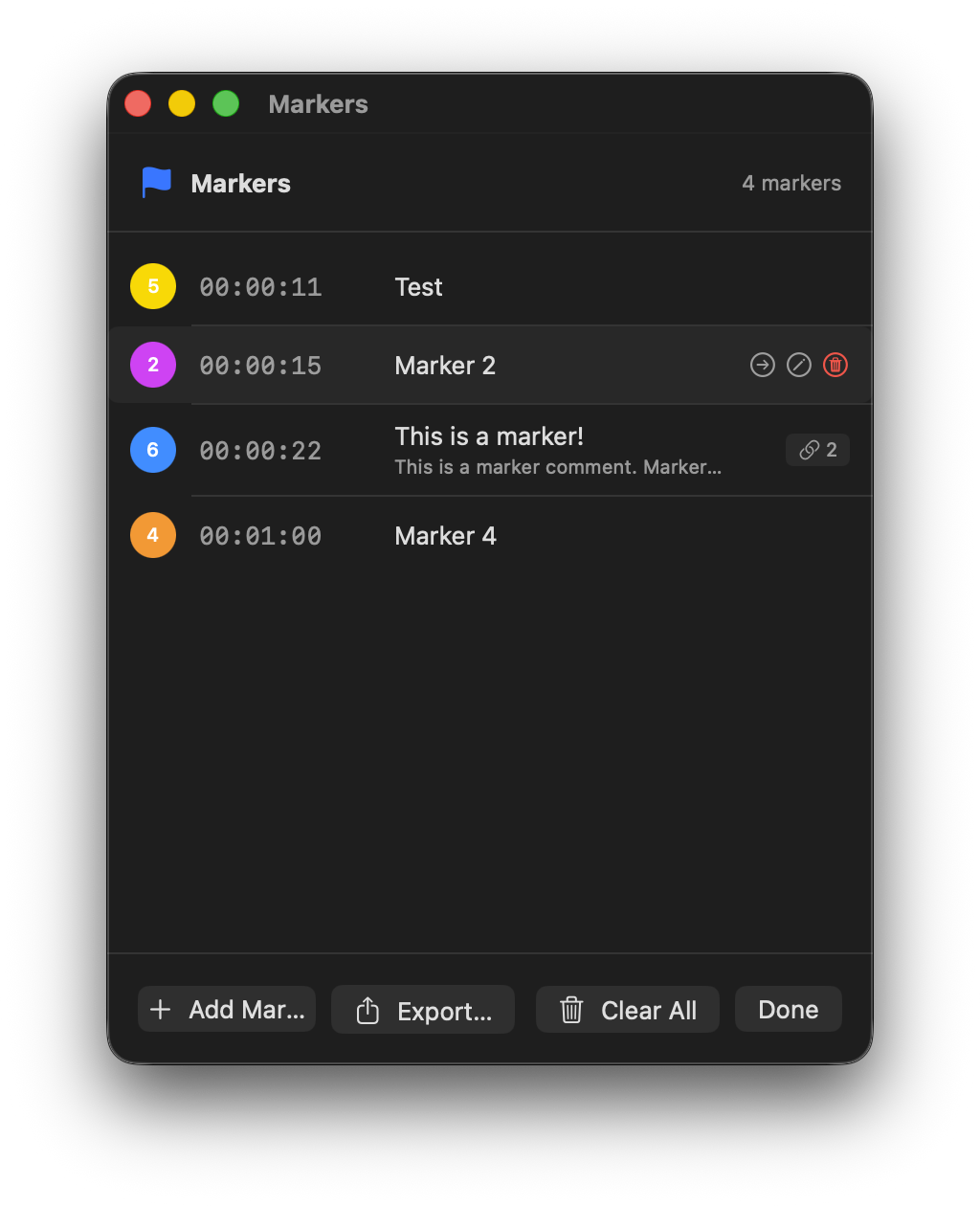
Markers are stored per track: each track in a session keeps its own set. To see the current track's markers in a window of their own, open the marker list with ⌘⇧M (Markers → Show Marker List…). From here you can add, manage, delete, export (CSV or PDF), clear, or jump to any of them — double-click a row to jump to it.
Exporting markers as CSV
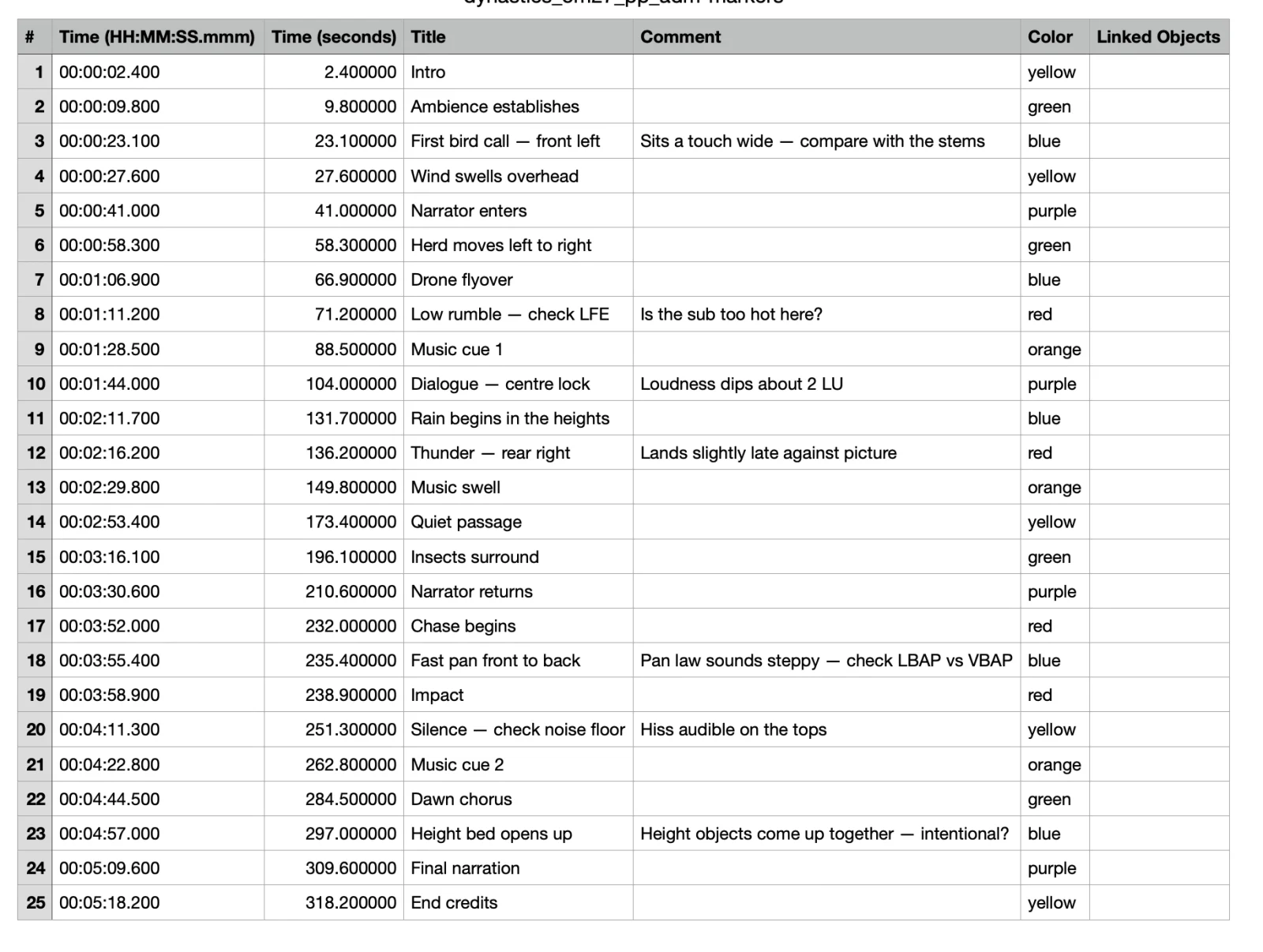
Export Markers as CSV… writes one row per marker — its number, time (both as HH:MM:SS.mmm and in seconds), title, comment, colour and linked objects — ready to open in a spreadsheet or hand to an editor.
Markers in the PDF report
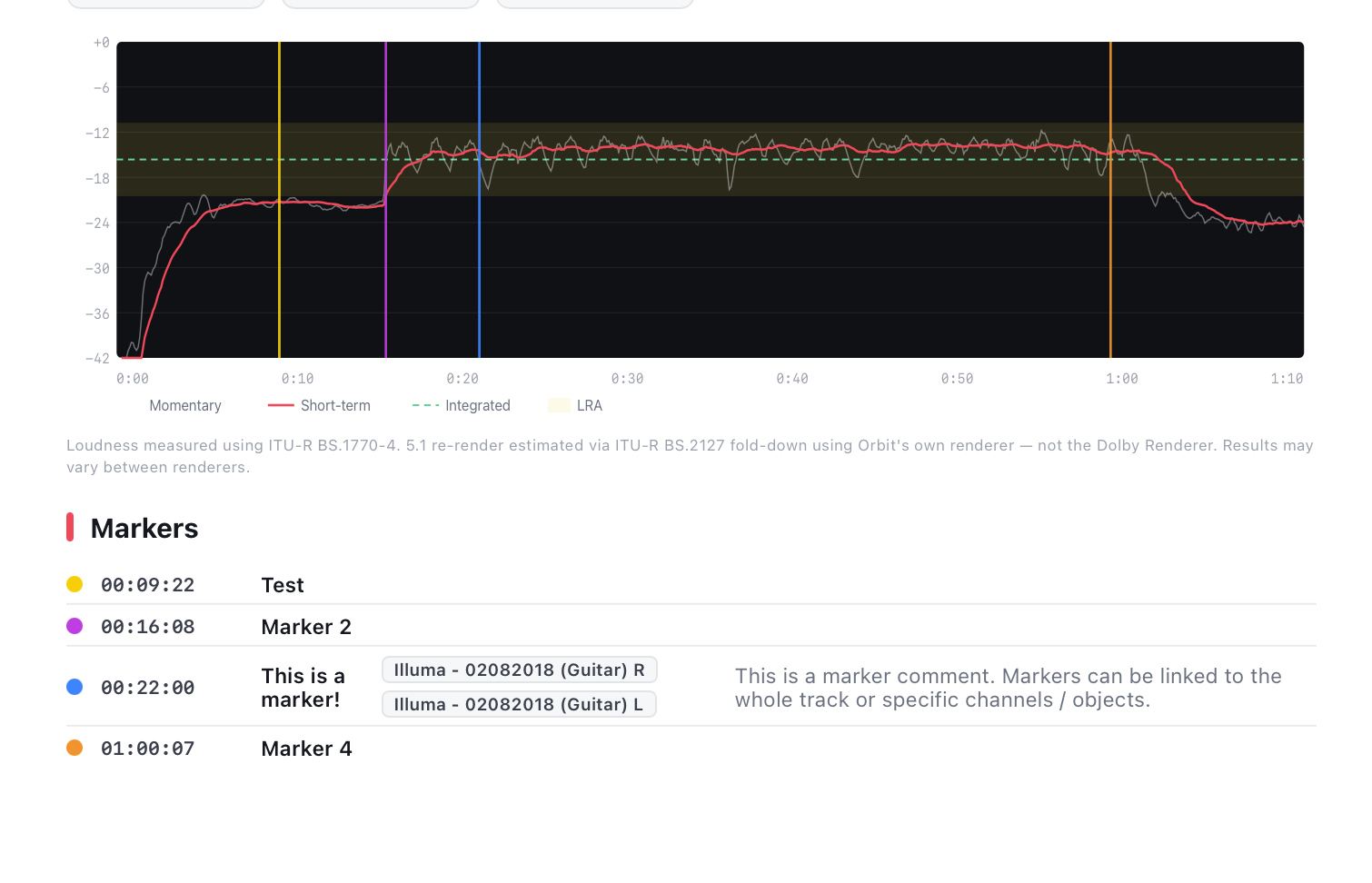
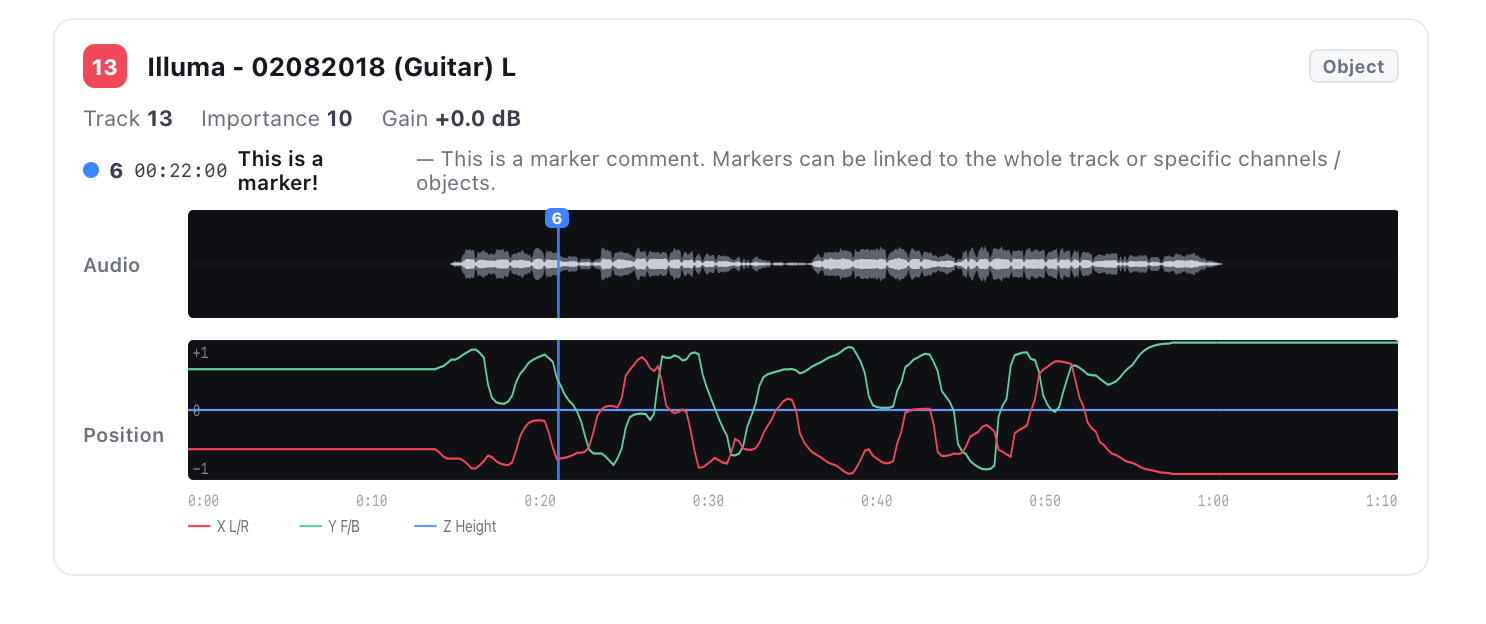
Markers can also be exported with your PDF report. Add some markers to your session, then open the PDF exporter with ⌘⇧E. The report includes marker lines on the loudness graph, a full list of markers, and each linked marker shown against its element.
Keyboard shortcuts
| Shortcut | Action |
|---|---|
| ⇧M | Add a marker at the playhead |
| ⌘⇧M | Open the marker list |
| ⌘] | Jump to the next marker |
| ⌘[ | Jump to the previous marker |
| ⌘⇧E | Open the PDF exporter (includes markers) |
The Markers menu (Pro only) also has Export Markers as CSV…, Export Markers as PDF… and Clear All Markers on Current Track.
TIP
Use colours to categorise as you go — for example one colour for level issues, another for spatial/positioning notes — so the marker list and PDF report read at a glance.