
Appearance
Timeline View
Orbit Pro
The Timeline View requires Orbit Pro.
The Timeline View is the full-window home for detailed waveform QC — where the Overview's compact Session Overview waveform grows into a dedicated, per-element workspace with the full All Tracks and Inspect modes, zoom, and loop tools.
Getting there
The icon rail on the far left switches between Orbit's view modes — Overview, Timeline View, Video View, and Monitor View. Click the timeline icon (second from top) to switch into this view; your playhead position, zoom level, and mode selection carry over from wherever you were.
Layout
Timeline View keeps the same Inspect / Tracks / Monitoring sidebar on the left that you see in the Overview. The panel on the right has two tabs: Activity, with the Scene and the Activity grid, and Markers, a list of every marker (more on the Markers tab). Selection stays in sync across all of them, so clicking a row here rings the matching point in the Scene and highlights it in the Inspect sidebar, the same as clicking an Activity tile.
The centre of the window is the timeline itself:
- A toolbar with Zoom out / Zoom in and a zoom readout, Fit to window, Center on playhead, Auto-scroll with playhead and Zoom to loop region; the editing tools (Pointer tool — move & trim (A), plus the Razor and Trim tools, which are greyed out on this page); Grid snap, snap mode and Nudge amount; the loop in/out timecodes (when a loop region exists); the All Tracks / Inspect switch; and track-height buttons. Undo and redo are in the Edit menu (⌘Z / ⇧⌘Z); the timecode format is set in Preferences.
- The mode picker — All Tracks and Inspect — switching between one row per bed channel/object/Ambisonics group, and a focused view of a single selected element. See Overview Waveform View for the Spatial and Multichannel waveforms.
- One row per bed (grouped under a collapsible Beds header) and one row per object (grouped under Objects), each coloured and labelled, with the same solo/mute state as the Inspect sidebar and the Activity grid.
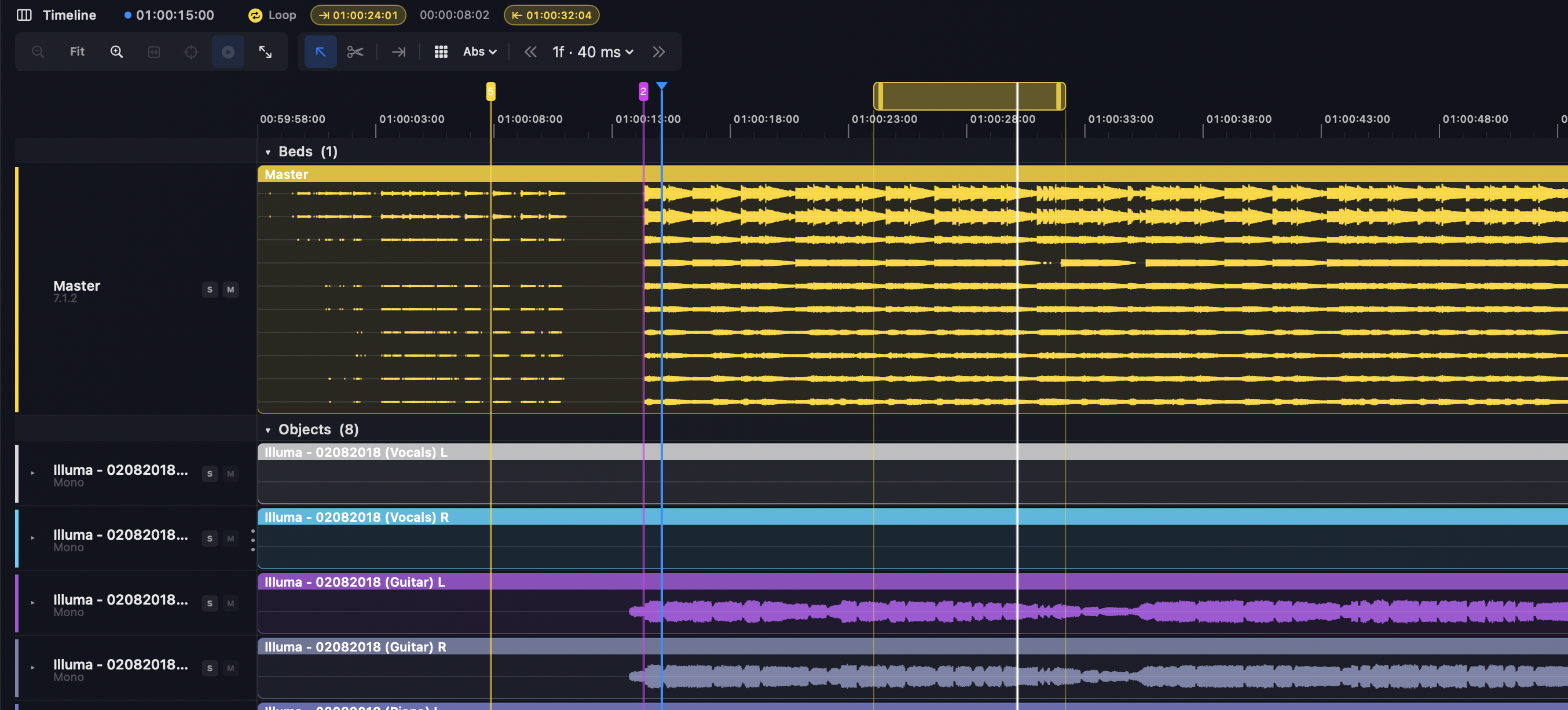
The ruler
From the top, the ruler has four rows: the playhead and edit cursor, the markers with their names, the loop region, and the timecode, which is shaded under the loop region. Giving markers a row of their own means a loop region never covers their names.

Clicks land exactly where you click, at any zoom and anywhere along the timeline. The edit cursor sits exactly on the playhead, and a new marker takes the playhead's exact time.
Full-width mode
Both the left sidebar and the right-hand panel can be collapsed independently — use the chevrons at their edges. Collapsing both gives the timeline the full window width, useful when you're working through a dense multi-object session and want maximum row space without losing the toolbar or mode picker.
Track clip colours
Each track clip — the audio drawn on a track — can be recoloured to suit how you like to read a session. Right-click a clip and pick a colour from the menu; the waveform updates immediately.
See also
- Overview — the compact Session Overview waveform this view expands from, and the Scene/Activity panels shared with it.
- Overview Waveform View — the Spatial and Multichannel waveforms in the Overview's Session Overview.
- Object Inspection — automation lanes and Inspect mode for individual objects, beds and scene-based elements.
- Markers — markers and loop regions, drawn on the timeline regardless of mode.