
Appearance
Speaker Arrays
Beta — new in Orbit 1.5.9
Speaker arrays are in beta. They're in Orbit Standard and Orbit Pro, and coming to Orbit Lite.
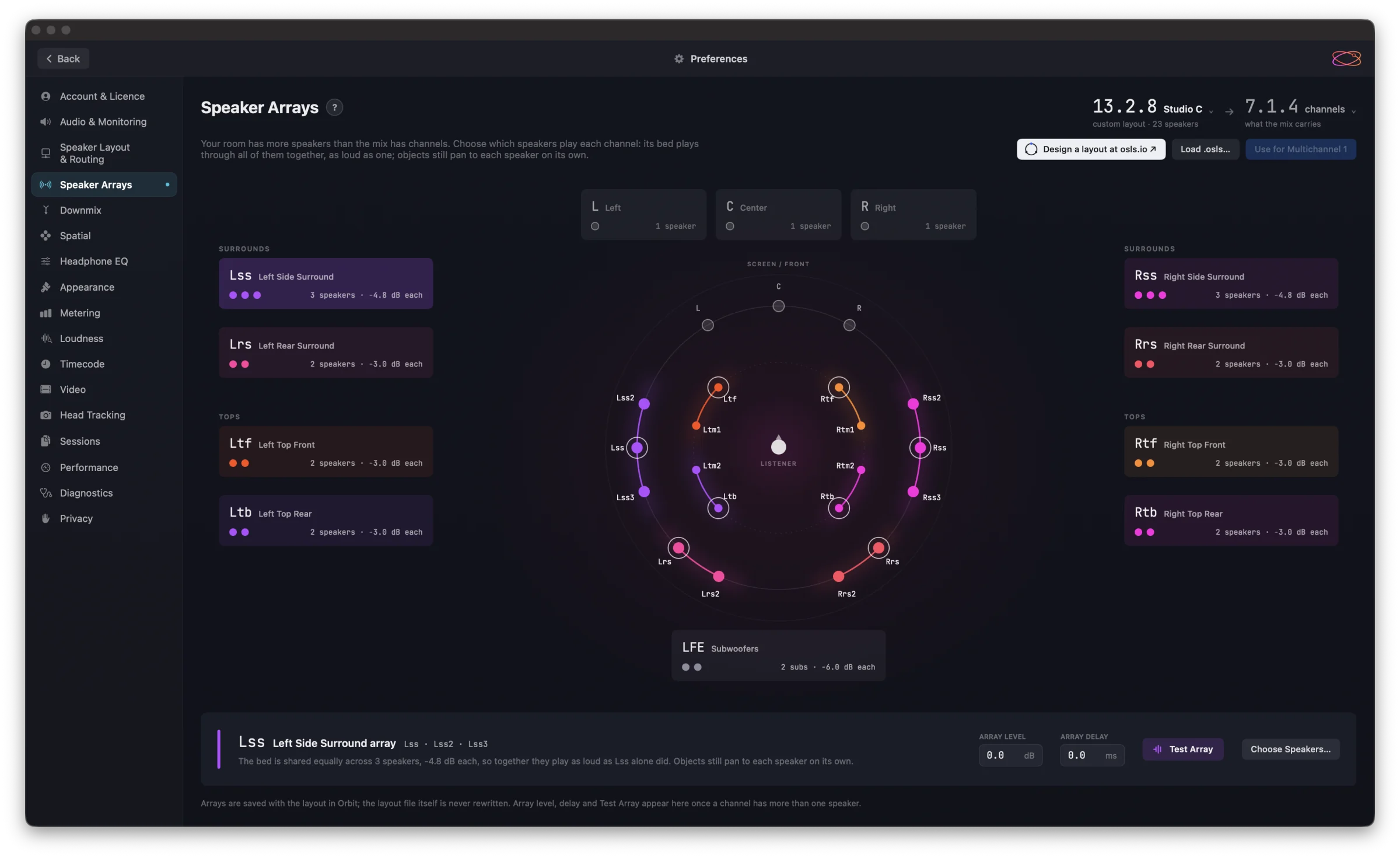
Your room has more speakers than the mix has channels — a dub stage with three speakers down each side wall, a studio with extra tops, or a pair of subs. Preferences ▸ Speaker Arrays is where you choose which speakers play each channel.
What is an array?
An array is several speakers playing one channel. Large rooms spread a surround over a whole wall so every seat hears it — an array lets your rig do the same with a mix written for fewer speakers.
Channel content plays through the array. Channels are written for one speaker each: Direct Speakers in an ADM file, and channel elements in Eclipsa Audio (IAMF). When a channel has an array, it plays through every speaker in it at an equal share, so together they're as loud as one speaker and the whole wall carries it — the way a cinema plays its surrounds.
Objects and Ambisonics use every speaker. Objects and higher-order Ambisonics (HOA) are rendered by position, so they still pan to each speaker on its own. The extra speakers add definition: a sound moving down the side wall passes through Lss2, Lss and Lss3 rather than jumping from one speaker to the next.
| What it does on the side wall | |
|---|---|
| A channel | The whole wall plays it: every speaker at an equal share, together as loud as one. |
| An object | It moves speaker by speaker: the one nearest the sound plays most. |
The share is shown on each channel tile. Three speakers play at −4.8 dB each and two at −3.0 dB each, so the array adds up to the level one speaker would have played. Subwoofers are the exception: subs add in phase, so two subs sharing the LFE play at −6.0 dB each.
Setting up your room
- Load your room. Use Load .osls… to open your room's layout file, or Design a layout at osls.io ↗ to make one first — Orbit doesn't edit layouts itself. The header shows the layout by its speaker count (for example 13.2.8 Studio C, custom layout · 23 speakers); click it to pick another built-in or custom layout.
- Choose what the mix carries. The menu beside the arrow — 7.1.4 channels, for example — sets the channels your mix is written in, from 5.1 up to 9.1.6. Each channel gets a tile, placed around the room plan where that channel lives.
- Choose speakers for a channel. Select a tile, press Choose Speakers…, then click speakers on the map to add them to that channel; click again to take one out. Clicking a speaker that already belongs to another channel moves it across — a speaker plays in one array at most.
- Set the array's level and delay. Once a channel has more than one speaker, the strip at the bottom shows Array Level (dB) and Array Delay (ms). Both add to each speaker's own calibration from Speaker Configuration.
- Monitor it. Use for Multichannel 1 puts this layout on Multichannel 1, ready to route and listen.
A tile reads 1 speaker until you give it more. One speaker plays the channel, and Choose Speakers spreads it over more.
Channels with no speaker of their own
A room laid out differently from the mix can lack a speaker for one of its channels — a dub stage without a centre-rear pair, say. That channel's tile reads no speaker · panned: Orbit doesn't leave it silent, it pans the channel from its position across the speakers you have. Give it speakers from the room if you'd rather it played through an array.
Subwoofers
The LFE tile holds your subs. Select it and choose the subs that play LFE; the LFE is shared across them, and they play together as loud as one. A sub array is subs only — main speakers and subs never share an array.
Calibrate an array as a whole
Test Array plays pink noise through every speaker in the array at once, so you set one level for the wall. Array level and delay then add to each speaker's own calibration.
The test plays on the layout you're monitoring — if this layout isn't on the active Multichannel slot, switch to it first. Press Stop Test to end it.
Calibrate speakers first
Set each speaker's distance, delay and level in Speaker Configuration and the speaker test, then use Test Array to set the array's level against the rest of the room.
Array colours
Each array has a colour, drawn on its tile and on the room plan. Click the colour bar beside the array's name in the strip to choose another. The same colour marks the array on the Monitor page, where every array appears as a solo and mute group under Arrays.
Where arrays are kept
Arrays are saved with the layout in Orbit; the layout file itself is never rewritten. A layout file can also bring arrays of its own — the OSLS format has an optional arrays section — and Orbit uses them when you load it. Anything you change is kept in Orbit, alongside the layout.
Related
- Speaker Layout & Routing — Multichannel 1 and 2, the routing matrix and the speaker test.
- OSLS — Speaker Layouts — the layout file format, and designing a layout at osls.io.
- Speaker Configuration — per-speaker distance, delay and level.
- Monitor View — soloing and muting arrays.