
Appearance
Monitor View — Per-Speaker Solo & Mute
Orbit Pro
The Monitor view — per-speaker solo, mute and custom groups — is part of Orbit Pro.
The Monitor view gives you a visual speaker layout you can solo, mute and build custom groups from. It sits on top of the multichannel output system introduced in Orbit 1.5.2 — OSLS, which supports up to 64 channels — so it works with any custom layout you have configured. A simple idea with a lot of power for testing and beyond.
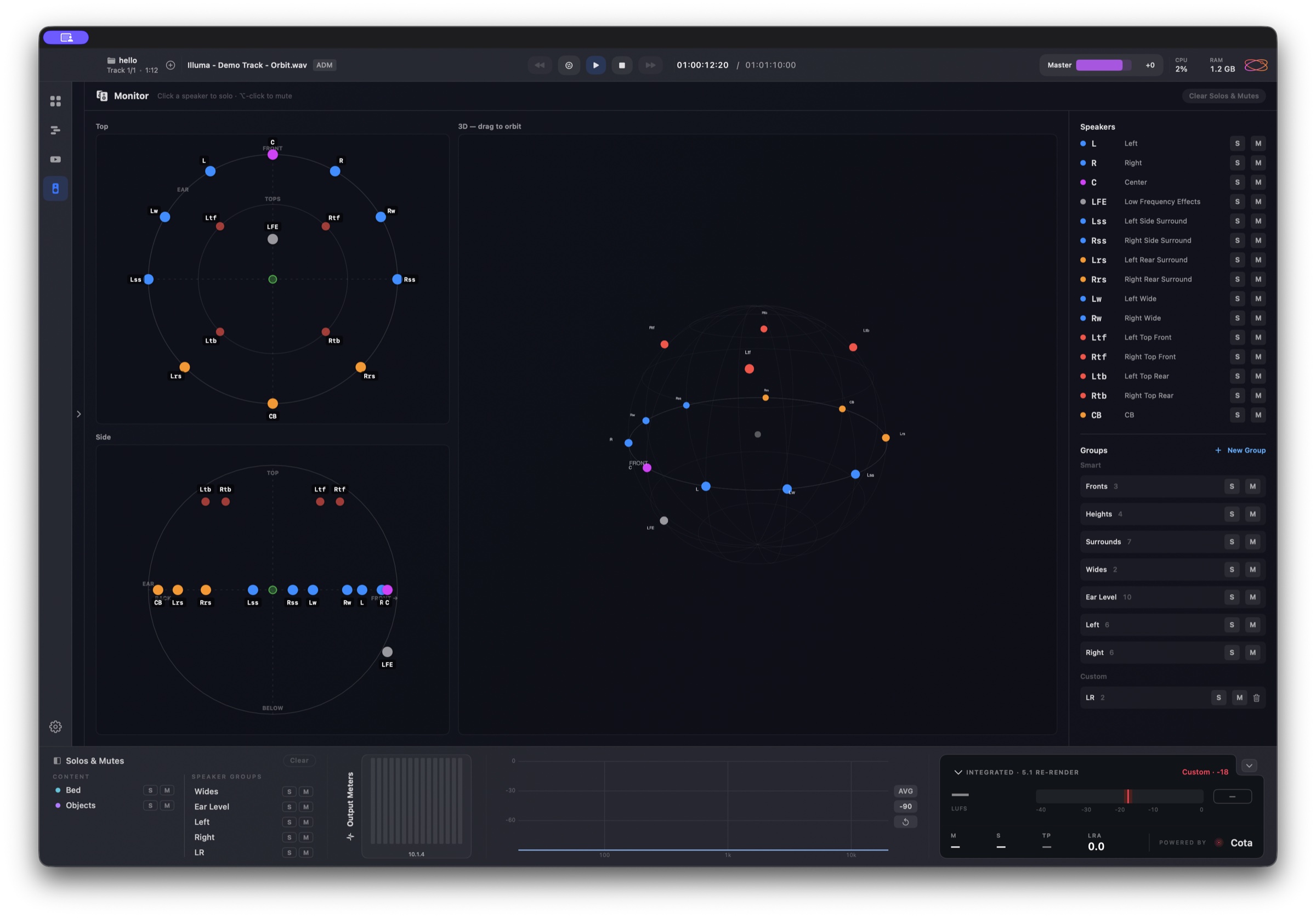
The three views
The Monitor view visualises your speaker layout three ways, so you can pick whichever makes the current speaker easiest to find:
- Top-down — the layout seen from above, useful for placing surrounds and heights around the room.
- Side — a side-on view that makes vertical position clear.
- 3D — an interactive three-dimensional view of the whole rig.
All three reflect the same layout from OSLS, so a change in one is a change everywhere.
Solo & mute
Click any speaker, in any of the three views, to solo it; ⌥-click (Option-click) to mute it instead. You can also toggle solo and mute from the Speakers list on the right, which lists every speaker in the layout with its own S and M buttons. Solo and mute behave as you would expect — solo isolates the speakers you pick, mute silences them — and whatever you choose is reflected across the top-down, side and 3D views at once. Clear Solos & Mutes resets everything in a single click.
Per-speaker solo and mute work on the Multichannel speaker bus, so soloing or muting here switches monitoring to Multichannel. If you're monitoring in Binaural, Stereo or Apple Spatial, a banner says so — Per-speaker monitoring drives the Multichannel speaker bus — soloing here switches monitoring to Multichannel. — with a Switch to Multichannel button.
Speaker groups
Beyond soloing single speakers, the Groups panel lets you solo or mute whole sets at once. There are two kinds:
- Smart groups are derived from your layout automatically — Fronts, Heights, Surrounds, Wides, Ear Level, Left and Right — so the common checks are one click away whatever rig you're on.
- Custom groups are ones you build yourself and save for reuse. Once you have created a group it appears in the footer under Speaker Groups, alongside the Smart groups, on every page — so you always have access no matter how you are looking at the layout.
If your layout has speaker arrays, each array is a solo and mute group too, listed under Arrays in its array colour — in every edition.
The footer shows Smart and Custom speaker groups while monitoring is set to Multichannel. In the other monitoring modes it shows the coarse role groups instead — L/R, Center, LFE, Surr and Height.
If you build more groups than fit the screen, the footer list scrolls, so a large collection stays within reach. The footer can also solo or mute by content — the whole bed or all objects at once.
Using it for QC
Solo groups turn repetitive checks into a single click. Rather than hunting for the same speakers each time, save a group for the set you keep coming back to — heights, surrounds, LFE, or any subset of your layout — and recall it as you move through a file.
Save the groups you test most
Build a group once for each part of the rig you QC regularly, then step through them to isolate and check each set in turn. Because the groups live in the footer, they follow you across all three views.
Related
- OSLS — the Orbit Speaker Layout System the Monitor view is built on.
- Speaker configuration — set up the layout you monitor.
- Monitoring modes — Multichannel, binaural and stereo monitoring.
- Output routing — map channels to your physical device outputs.