
Appearance
Text Generator
Pro
The Text Generator is an Orbit Pro feature.
Orbit Pro has several built-in text generators for adding basic text to your video project.
Text presets
Open the Text tab in the sidebar to choose a preset:
- Blank
- Title
- Caption
- Lower Third
- Title + Subtitle
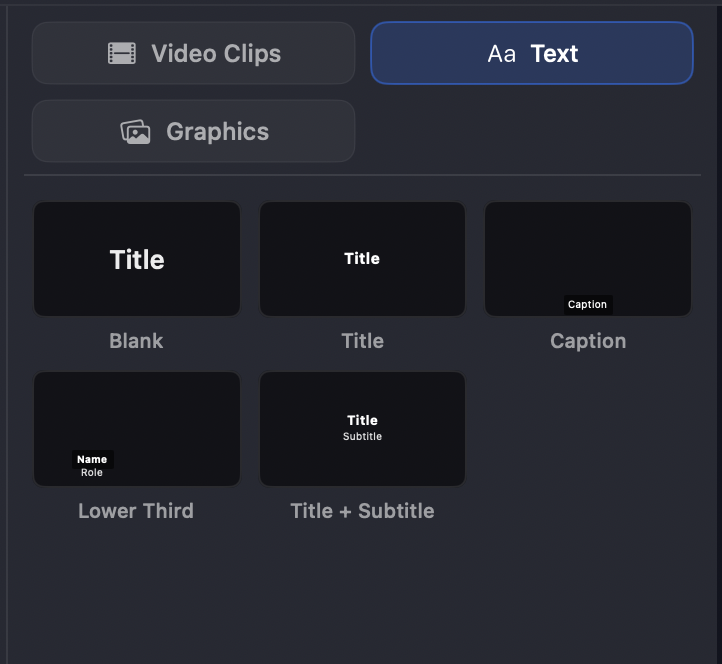
Adding text to the timeline
To add a preset, click and drag it onto the video timeline. You can also click the preset to add it, but that method is due to be removed in a future update — dragging is the way forward.
Once a title is on the timeline you can move the clip along it, and add a fade or keyframe as needed — just like any other clip.
Editing the text
To edit the text content, click the text generator clip on your timeline and open the right inspector sidebar.
Each text element has its own set of controls, and you can add or remove elements as needed. Every element can be individually positioned and scaled:
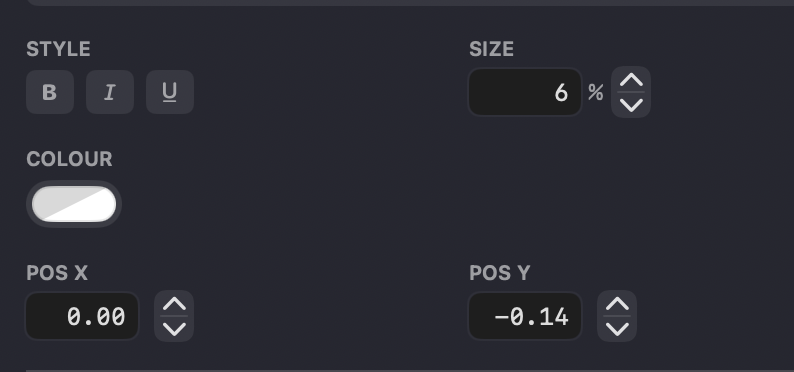
- Font — the typeface
- Style — bold, italic, underline
- Size — as a percentage
- Colour
- Position — X and Y
Here's an example of changing the font, style and scale of a text element: