
Appearance
Appearance Preferences
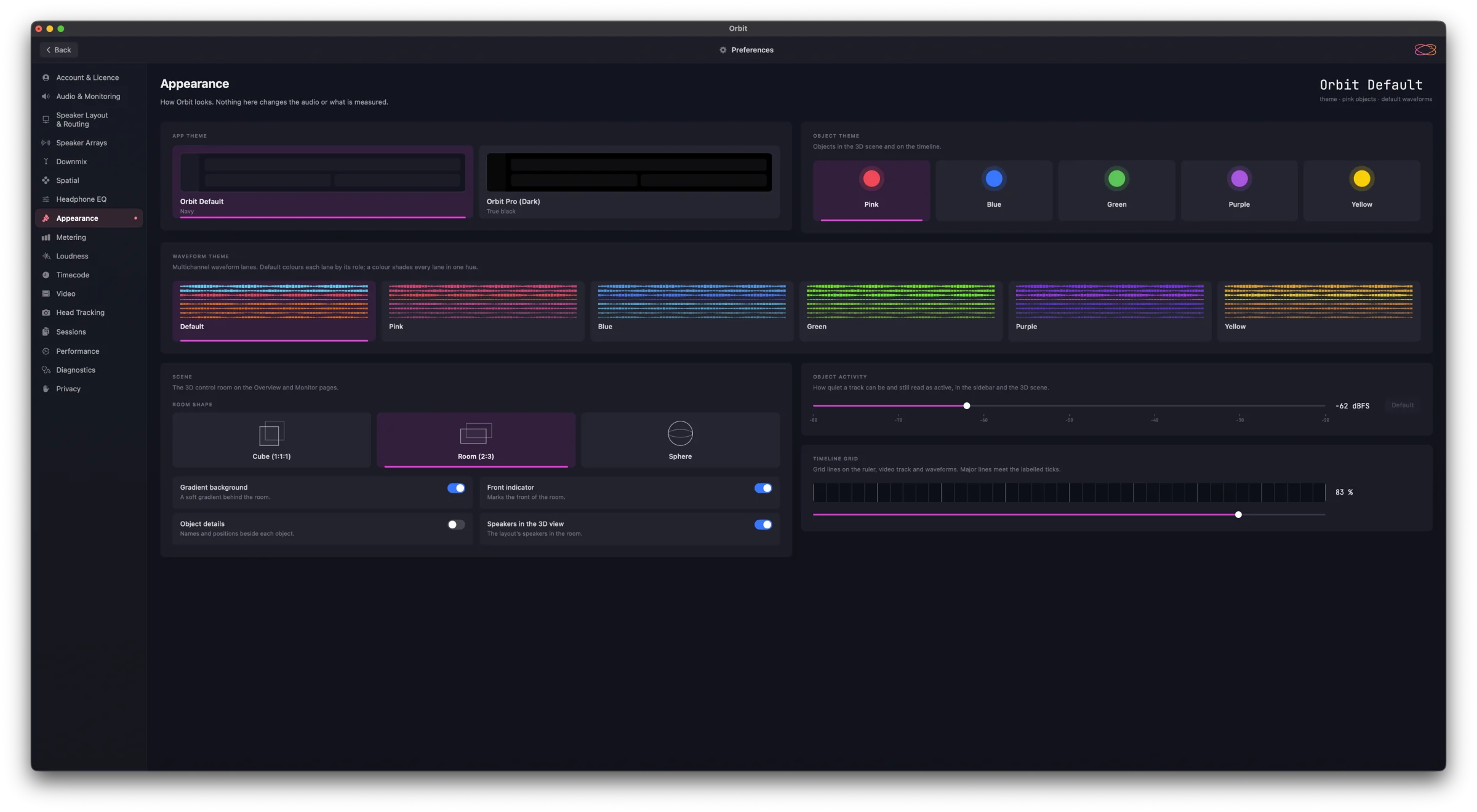
Preferences ▸ Appearance is how Orbit looks. Nothing here changes the audio or what is measured. The current look is summed up at the top right of the pane (Orbit Default — theme · pink objects · default waveforms).
App Theme
Orbit Default (navy, the default) or Orbit Pro (Dark) (true black).
Pro
The Orbit Pro (Dark) theme is an Orbit Pro feature — without Pro its card says it needs Orbit Pro. If your Pro licence is missing or expired, the app goes back to Orbit Default.
Object Theme
Five colours for objects in the 3D scene and on the timeline — Pink (the default), Blue, Green, Purple and Yellow. Pick whichever reads clearest against your content.
Waveform Theme
The multichannel waveform lanes. Default colours each lane by its role; Pink, Blue, Green, Purple or Yellow shades every lane in one hue, matching the object colours. Each swatch previews the look before you pick it.
Scene
The 3D control room on the Overview and Monitor pages.
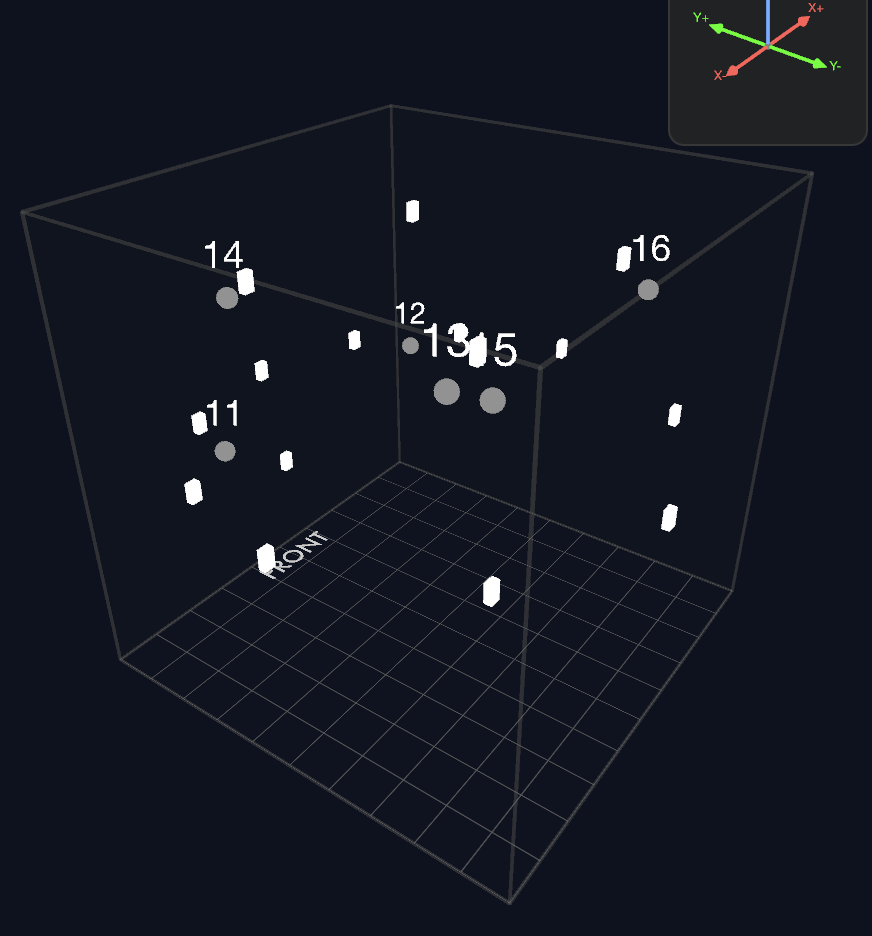
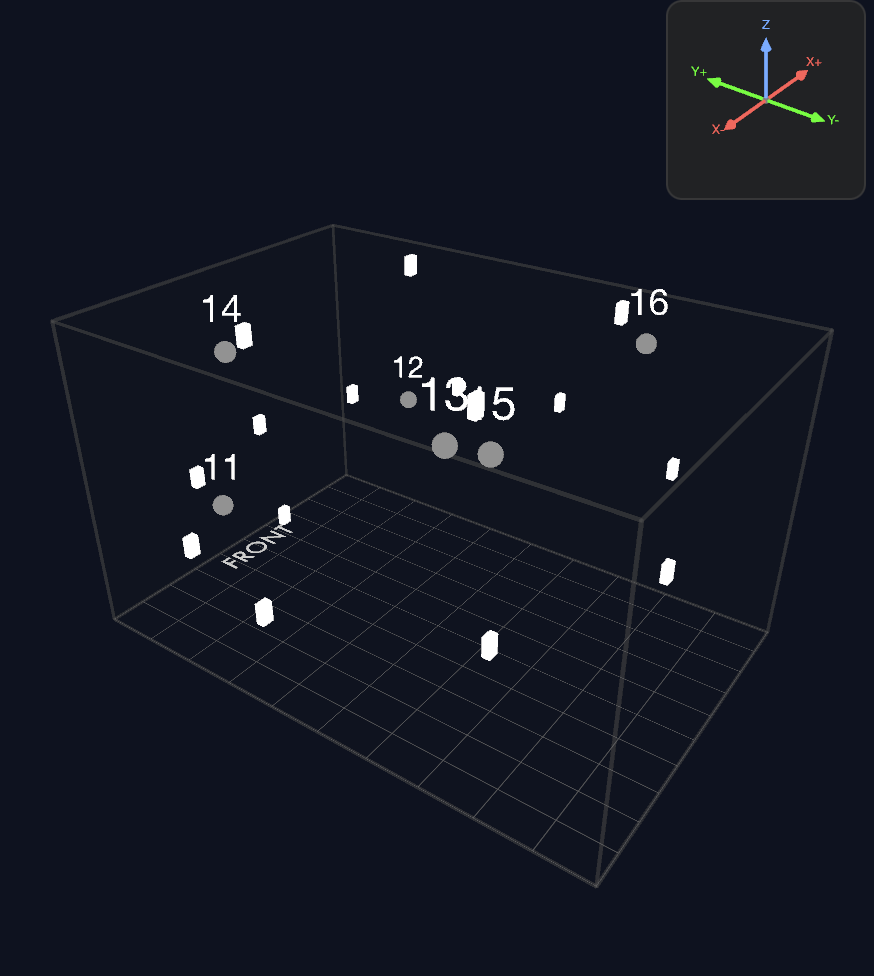
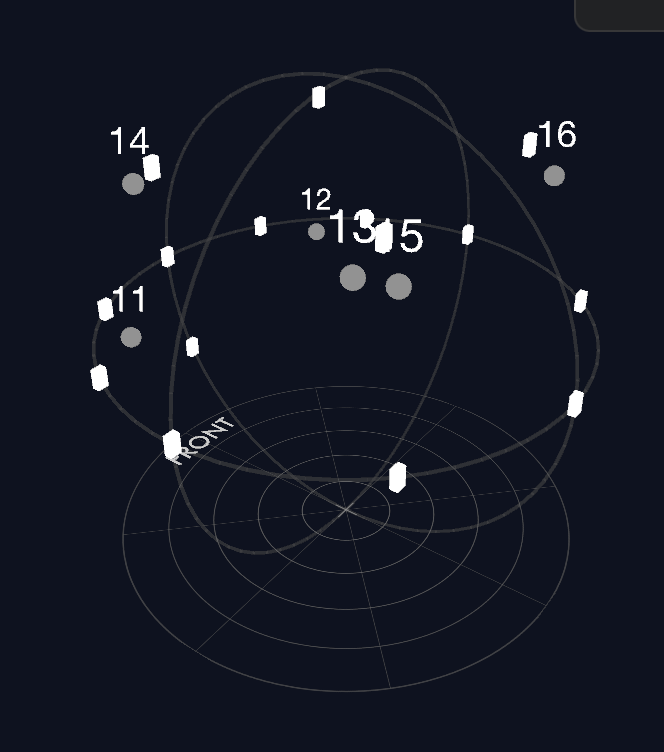
Room shape — the geometry the scene is drawn in, so it matches how your content defines position:
- Cube (1:1:1) and Room (2:3) — allocentric, room-anchored geometry. This matches ADM Cartesian content, where positions are relative to the room's walls. Cube is a unit cube (the default); Room is closer to a real listening room's proportions. If you're used to the Dolby Atmos Renderer — or any other allocentric renderer — this will feel familiar.
- Sphere — egocentric, listener-anchored geometry: azimuth, elevation and distance measured from the listener. This suits the growing set of egocentric formats — EBU ADM (polar), IAMF / Eclipsa Audio, MPEG-H — and Ambisonics, where direction from the listener matters more than walls.
- Gradient background — a soft gradient behind the room.
- Front indicator — marks the front of the room, so you can tell at a glance which way the listener faces. Turn it off for a cleaner screenshot.
- Object details — names and positions beside each object.
- Speakers in the 3D view — the layout's speakers in the room. Turn it off to declutter the scene when you only care about object movement.
Object Activity
How quiet a track can be and still read as active, in the sidebar and the 3D scene: a slider from −80 to −20 dBFS, default −62 dBFS, with a button to reset it. Lower it and quieter content stays lit.
Timeline Grid
The brightness of the grid lines on the ruler, video track and waveforms. Major lines meet the labelled ticks; minor lines fill between. Turn it down for a cleaner waveform, or up when you need to line things up against the ruler.
See also
- Overview — what each region of the workspace contains.
- Monitoring — how audio is rendered (separate from how it looks).