
Appearance
Video Timeline
Pro
The Video Timeline is an Orbit Pro feature.
The Video Timeline is where you lay out and arrange video against your audio. It shows the spatial waveform — the same one you see in the Overview — beneath a video lane holding your clips.
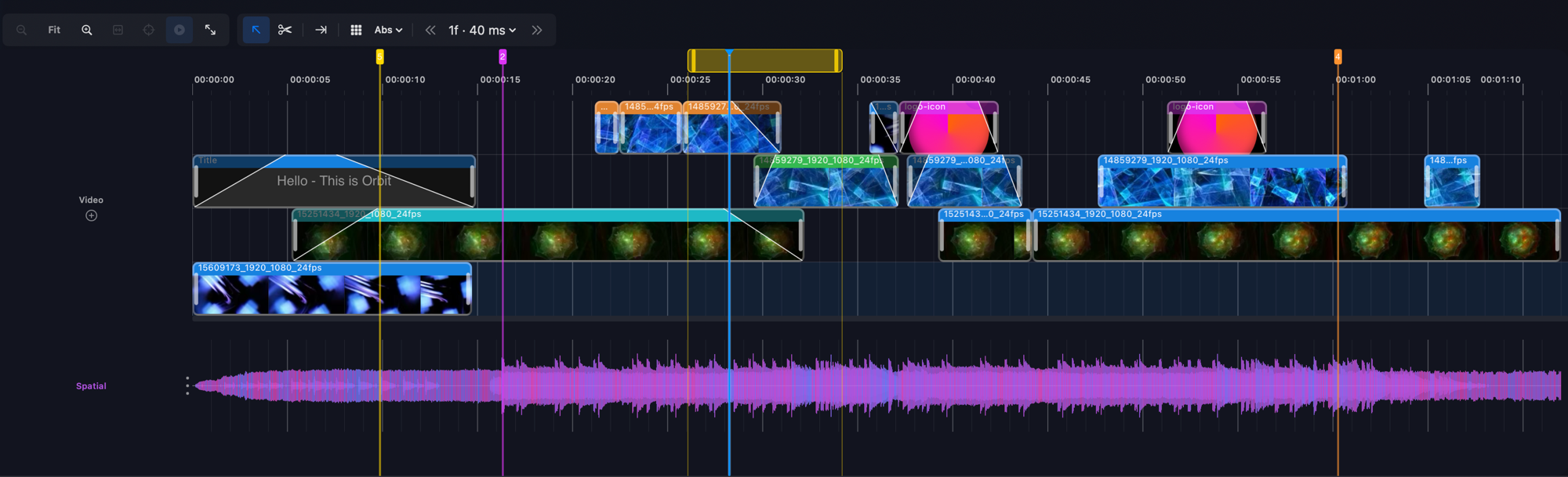
The video lane
In Orbit 1.5 the video lane is auto-expanding: when you lift a clip and place it, Orbit creates additional lanes as needed to hold overlapping content, up to a maximum of 8 lanes.
Adding video to the timeline
Adding video to the timeline is as simple as dragging either a whole clip or a clip selection from the bin onto the lane. Watch the video below.
For previewing a clip and choosing the region to drag, see Video Clip Inspecting & Preview.
Timeline controls
Two sets of controls run along the top of the timeline — zoom controls on the left, and editing and grid controls on the right.

Zoom controls
The zoom controls are the same ones found on the audio Timeline View. Left to right:
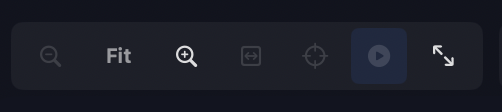
- Zoom out
- Current zoom level
- Zoom in
- Fit to window
- Center on playhead
- Auto-scroll with playhead — keeps the playhead on screen when you're zoomed in and it would otherwise scroll out of view.
- Zoom to loop region — zooms to fit the loop region; it only appears when a region is set.
You can also zoom in and out with the up / down arrow keys, or with + (or =) and −.
Editing controls
The editing controls are the Pointer tool — move & trim (A), the Razor tool — split (B), and Trim selected clip to audio end (T). They also appear in the audio Timeline View, but there the Razor and Trim buttons are greyed out — audio clip editing isn't available yet; that's on our roadmap.
Grid controls
The grid controls set how clips snap as you move them.
Grid snap — turn snapping on or off with the grid button, the S key, or Setup ▸ Grid Snap. It's off by default. Hold ⌘ while dragging to bypass snapping for that drag.
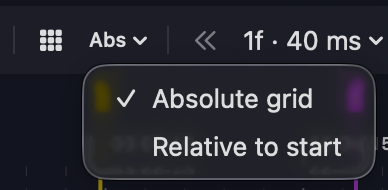
Grid mode — while snapping is on, switch between an Absolute grid and a grid Relative to start (the button reads Abs or Rel).
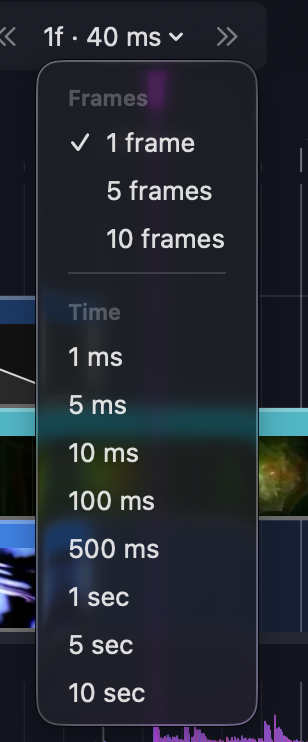
Nudge amount — choose the step, either in Frames (1, 5 or 10 frames) or in Time (1, 5, 10, 100 or 500 ms, or 1, 5 or 10 sec). It sets both the nudge distance and the grid snap interval. Frame amounts are unavailable until the programme has a frame rate.
Nudge — move the selected clip(s) earlier or later by the nudge amount with the nudge buttons either side of the menu (Nudge selected clips earlier ([) / Nudge selected clips later (])), or with the [ and ] keys. The left / right arrow keys move the playhead by one grid step.

Clip types
The video lanes can contain three types of clip:
- Video Clips
- Graphics Clips
- Text Generator Clips
More clip types may be added in future versions of Orbit.
Clip colours
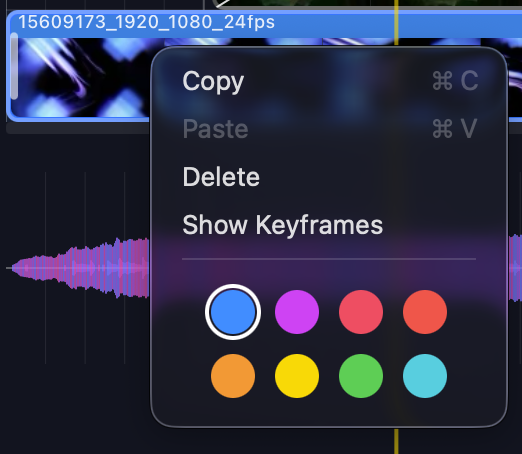
Right-click a clip and pick a colour to categorise it as you like.
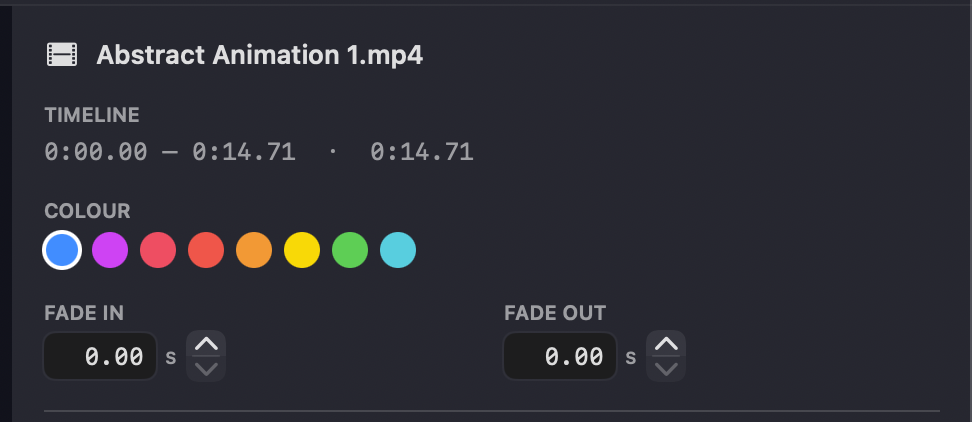
You can also set the colour from the right-hand inspector when a clip is selected.
INFO
Only Video Clips can be recoloured. Text and Graphics clips use fixed colours — blue for text and purple for images, while solid clips show their own fill colour.
Keyboard shortcuts
| Shortcut | Action |
|---|---|
| A | Pointer tool |
| B | Razor tool |
| T | Trim selected clip to audio end |
| S | Grid snap on / off |
| [ / ] | Nudge the selected clip(s) earlier / later by the nudge amount |
| ← / → | Move the playhead by one grid step |
| ↑ / ↓ | Zoom in / out |
| + (or =) / − | Zoom in / out |
| ⌥↑ / ⌥↓ | Move the selected clip(s) up / down a lane |