Appearance
Playlist
Orbit Pro
The Playlist page requires Orbit Pro.
New in Orbit 1.5.10
An album on one page. The Playlist page replaces the Tracks tab that used to sit in the sidebar.
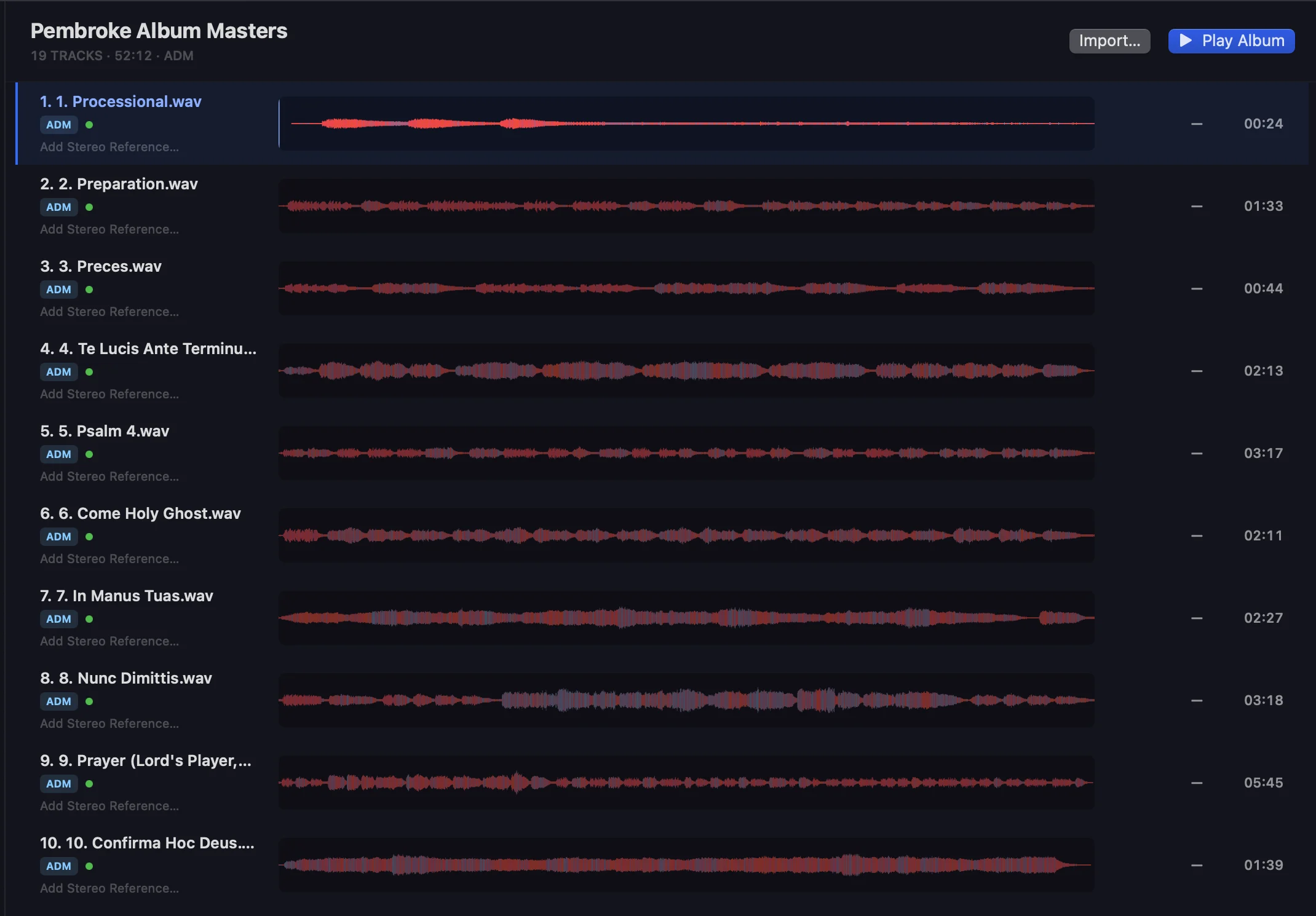
The Playlist page is the album home: every track in your session laid out as a full-width waveform lane, top to bottom, in running order. It's built for albums and compilations. Play the record in order, spot a silent or failed track, and compare loudness across the whole set at a glance.
Getting there
Click Playlist in the Mode Bar, just below Overview.
The header
The header shows the session's name and, under it, the number of tracks, the total running time and the format of the playlist: ADM, IAMF or WAV, or MIXED when the playlist holds more than one kind. When tracks have stereo references, the header counts those too (for example, 4 TRACKS · 18:40 · ADM · 2 STEREO REFERENCES).
On the right:
- Import…: add masters to the session.
- Play Album: load the first track and play it.
Lanes
Each track is one lane:
- Left: the track number and name, a format badge (ADM, IAMF or WAV) and a status dot. ADM tracks also show their stereo reference, or Add Stereo Reference…, on a line under the badge.
- Centre: the track's waveform across the full width of the page.
- Right: the track's integrated loudness in LUFS, and its duration. The loudness shows a dash until Orbit has measured the track.
Click a lane to load that track. Once a track is loaded, click its waveform to jump to that point. The loaded track is highlighted, with a playhead moving across its lane while it plays. To move through the album, use the track skip buttons in the top bar's transport.
The status dot tells you where each track's waveform scan has got to: grey while waiting, a percentage while its waveform is being built, green when it's ready, red if it failed. A track that scanned completely and found no signal is marked SILENT and drawn as a flat line: a verdict, not a lane that's still working. While a track loads, its lane shows Loading….
Drag lanes to reorder the playlist. Right-click a lane for:
- Remove from Playlist: take the track out of the running order. The file stays in the session, under Shelved.
- Remove from Project…: remove the file and its media from the session bundle. Orbit asks first, because this can't be undone.
- On ADM tracks, the stereo reference commands: see Stereo Reference.
Adding tracks
Click Import…, use File ▸ Import Audio into Session…, or drop files anywhere on the page. ADM BWF, IAMF and WAV files each become a lane at the end of the playlist. While a file is copied into the session, its progress shows above the lanes.
A file dropped on an ADM track's lane becomes that track's stereo reference instead. A bar above the list says so, with Import as Track Instead if you meant to add it as a track.
Shelved tracks
Files in the session that aren't in the playlist are listed under SHELVED at the bottom of the page, with a count. Click Add to Playlist to bring one back, or the trash icon to remove it from the project.
An empty playlist
With no tracks yet, the page says No tracks yet and offers Import audio…: import the album's masters (ADM BWF, IAMF or WAV) and each one becomes a lane you can play through in order. You can also drop files anywhere on the page.
See also
- Sessions: the session bundle the playlist belongs to.
- Stereo Reference: a stereo mix to compare with each ADM track.
- Loudness: how Orbit measures loudness.
- Mode Bar: switching between pages.