Appearance
Stereo Reference
New in Orbit 1.5.10
Compare your immersive master with your own stereo mix, at the same point in the programme.
A stereo reference is a stereo (or mono) mix you attach to an ADM master: the stereo version of the same track, usually. Orbit plays it in lockstep with the master, so you can switch between the immersive mix and the stereo mix at any moment and hear the same bar in both. Use it to check that the immersive mix keeps the balance, tone and level of the stereo, or to spot what changed between the two.
Stereo Reference is in Orbit Standard and Orbit Pro. Each track takes one reference.

Adding a stereo reference
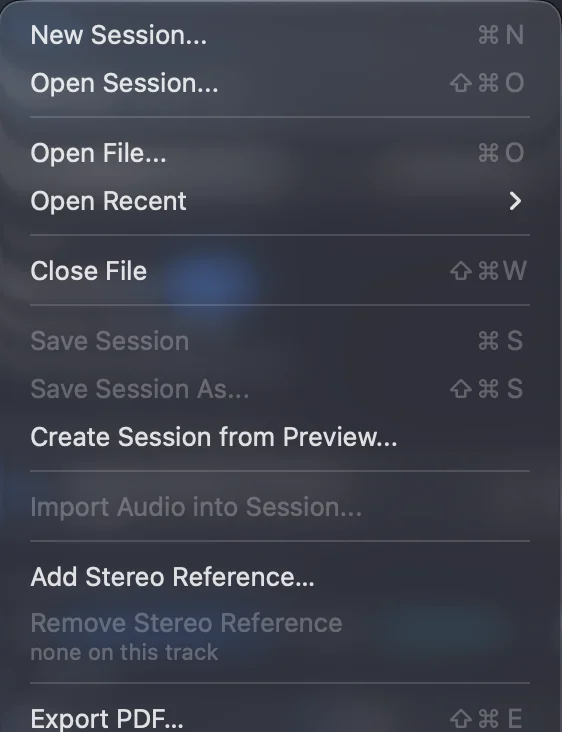
Open an ADM master first: a reference is always compared with the master it belongs to, so the command is greyed out until one has loaded (with the reason beside it). Then:
- File ▸ Add Stereo Reference… and choose the file, or
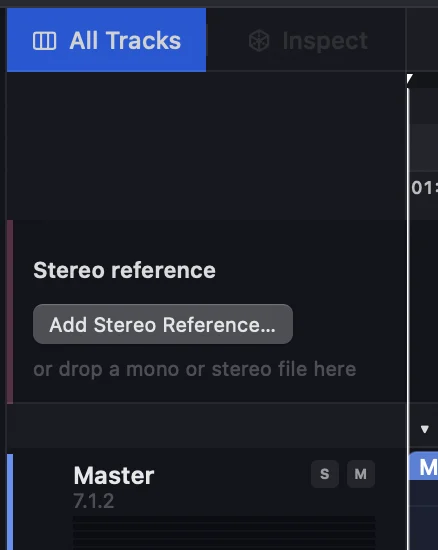
- drop the file on the Stereo reference lane at the top of the Timeline (Pro). The empty lane has its own Add Stereo Reference… button, or
- on the Playlist page (Pro), drop the file on an ADM track's lane, or click Add Stereo Reference… under the track's name. This works for any ADM track in the playlist, not only the one that's playing.
Supported files
A stereo reference is a mono or stereo file in one of these formats:
- WAV, including BW64 and RF64
- AAC
- MP3
AAC and MP3 are decoded when you add them. A mono reference plays on both sides.
Orbit turns a file away, and creates nothing, when it can't be a stereo reference: a file with more than two channels, an AIFF or CAF file (export it as WAV instead), or a file Orbit can't read. Choose another… opens the file panel again.
The checks
When you add a reference, Orbit checks it against the master:
| Check | What Orbit looks at |
|---|---|
| Channels | Mono or stereo. |
| Format | WAV, or AAC / MP3 (decoded). |
| Sample rate | Whether it matches the master's. A different rate is resampled. |
| Length | Whether it matches the master to within half a second, or how much shorter or longer it is. |
| Level | The reference's integrated loudness against the master's measured loudness: within 1 LU, or how many LU louder or quieter. |
If everything passes, the reference is attached straight away. If anything wants a look, Orbit asks rather than blocks: the Keep this stereo reference? window lists each check with a dot (green when it passes, amber when it's worth reviewing) and a few words on what it found. Click Keep to use the file anyway, or Choose another… to pick a different one.
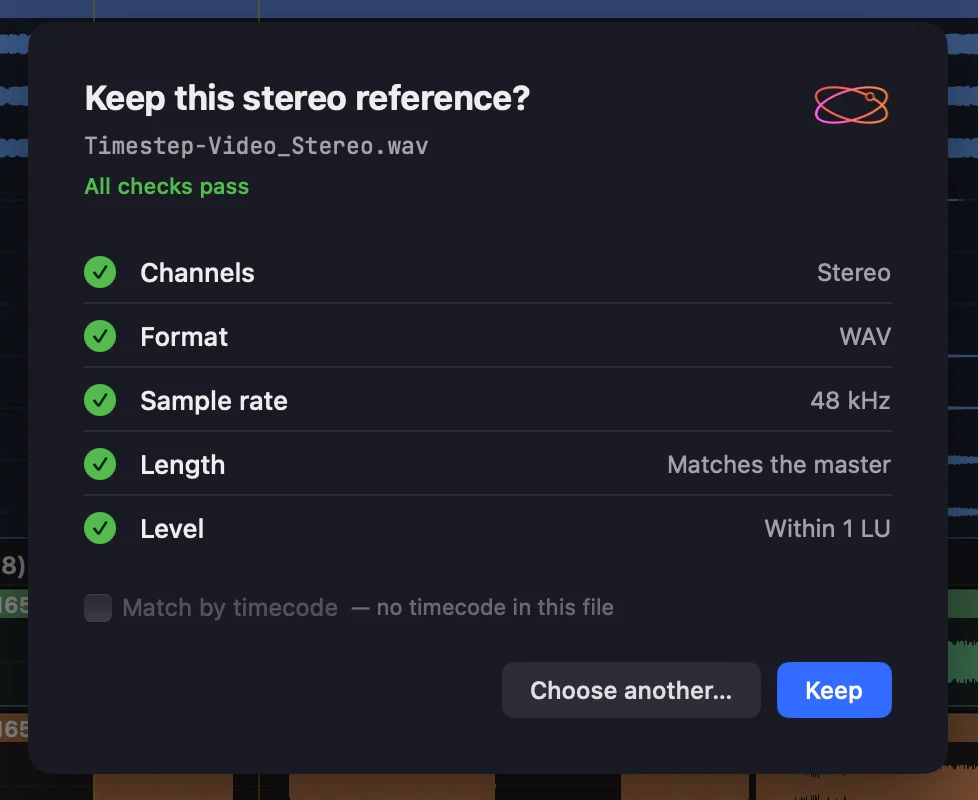
If the master hasn't been measured yet, the Level check says so. Orbit measures it, and the check updates when the measurement lands.
A reference that's shorter than the master stops early: its waveform dims after the point where it ends, with an orange line and a caption saying how long before the master it stops.
To run the checks again, right-click the reference lane and choose Check Again.
Switching between the mixes
Press ⌘⇧A to switch between the immersive mix and the stereo reference. The switch crossfades over 10 ms, so there's no click, and it lands at the same point in the programme: playback carries on from where it was.
The same controls are in the Monitoring menu, under Listen:
- Listen to Immersive
- Listen to Stereo Reference
- A/B (⌘⇧A): switch to whichever you aren't hearing
A checkmark shows which one you're hearing. With no reference on the current track, all three are greyed out.
The Listen to reference button on the reference row does the same. It reads Listening to reference and lights up while the reference is what you hear; click it again to go back to the immersive mix.
Knowing what you're hearing
While the reference is playing, Orbit tells you in several places:
- The footer: the meters' label reads Output · Stereo Reference in place of Output Meters. In the compact footer, a STEREO REFERENCE caption sits over the meters.
- The top bar: the file line names the reference file, marked REFERENCE.
- The reference row and lane: the name Stereo reference turns to the listening colour, and the reference's waveform is shown at full strength (it sits back while you hear the immersive mix).

When you move to another track, Orbit keeps listening to the reference if the next track has one, and goes back to the immersive mix if it doesn't.
Trim
Trim sets the reference's level, from −12 dB to +12 dB in 0.5 dB steps. Type a value in the dB field at the right of the reference lane's name and press Return. The immersive mix stays at 0 dB: Trim only moves the reference, so you can level-match the two before you compare them.
The reference's own loudness (LUFS-I) is shown beside its file name. It's measured on its own and never counted in the master's loudness.
Where it appears
Overview
On the Overview, the reference gets a Stereo reference row under the Session Overview waveform, with its loudness, the Listen to reference button and its waveform on the same time axis as the master. The playhead, edit cursor and loop region run down through it, and clicking or dragging on its waveform moves the playhead. The row only appears when the track has a reference.
Timeline (Pro)
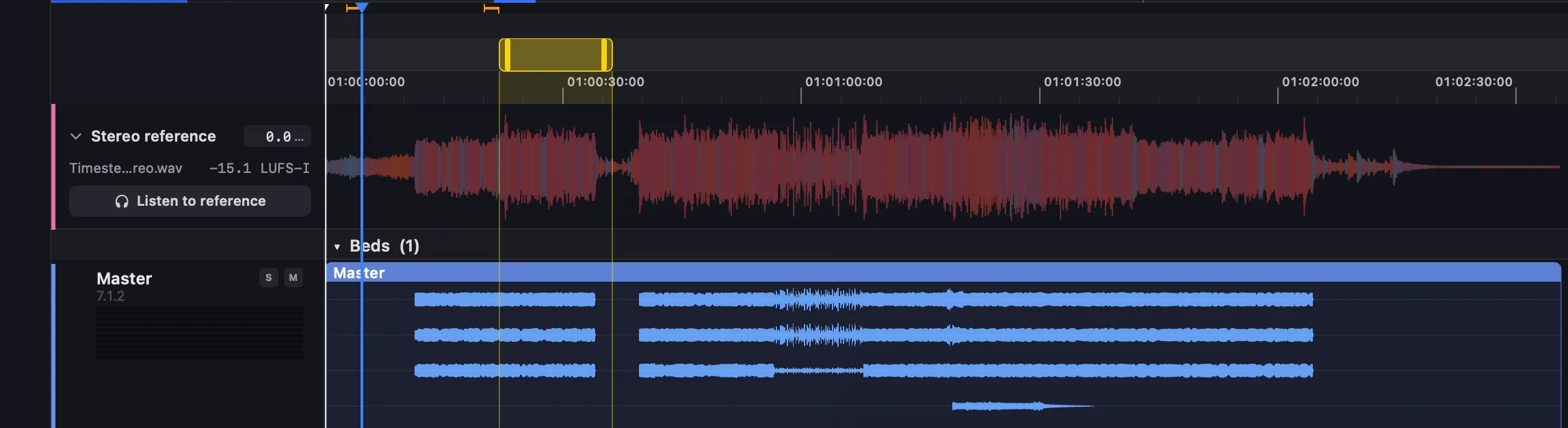
On the Timeline, the Stereo reference lane is the first lane, directly under the ruler. It stays put while the rest of the lanes scroll beneath it, so the reference is always in view, however far down the bed channels and objects you go.
The lane shows the reference's name, Trim, file name, loudness and the Listen to reference button, with its waveform across the timeline. Click the chevron to fold it down to a single row; folded, it shows Listening while you're hearing the reference. With no reference attached, the lane offers Add Stereo Reference… and takes a dropped file.
Right-click the lane's name for:
- Replace Stereo Reference…
- Check Again
- Show in Finder
- Remove Stereo Reference
Playlist (Pro)
On the Playlist page, each ADM track shows its reference under its name: Stereo Reference · and the file name, or Add Stereo Reference… when it has none. The playing track has a thin line under its lane showing where the reference runs, with an orange tick if it ends early. The header counts the references in the playlist.
Right-click an ADM track for Add Stereo Reference… or Replace Stereo Reference…, Check Stereo Reference Again (on the track that's loaded), Show Stereo Reference in Finder and Remove Stereo Reference.
When you drop a file on a track, a bar above the list confirms it (for example, mix.wav is now 3. Track Name's stereo reference). If you meant to add it to the playlist instead, click Import as Track Instead; Undo takes the reference off again.
To remove a reference from any page, use File ▸ Remove Stereo Reference.
In a session
In a session (Pro), the reference stays with its track:
- Orbit keeps a copy of the reference file inside the session bundle, so the session still works if the original moves.
- The reference's Trim is saved with it.
- When you open the track again, its reference comes back with it, without asking you to check it again.
In Preview Mode, nothing is copied or saved: the reference lasts while the file is open.
A missing reference
If a session's reference file can't be found, the reference shows as missing, marked in yellow, with the original file name and the sentence The file isn't where the session left it. The lane keeps its place on the timeline until you relink it or remove it.
Click Relink… (on the lane, the Overview row or the Playlist track), or drop the file on the lane, to point Orbit at it again. A relinked file goes through the checks again, and keeps its Trim.
See also
- Loudness: how Orbit measures the master's loudness.
- Playlist page and Sessions: keeping references with an album.